There is a selection of products to be sold at an agreed price and period of time, when sold against a project or machine (only applicable to users of Managed Services and Managed Print Services editions).
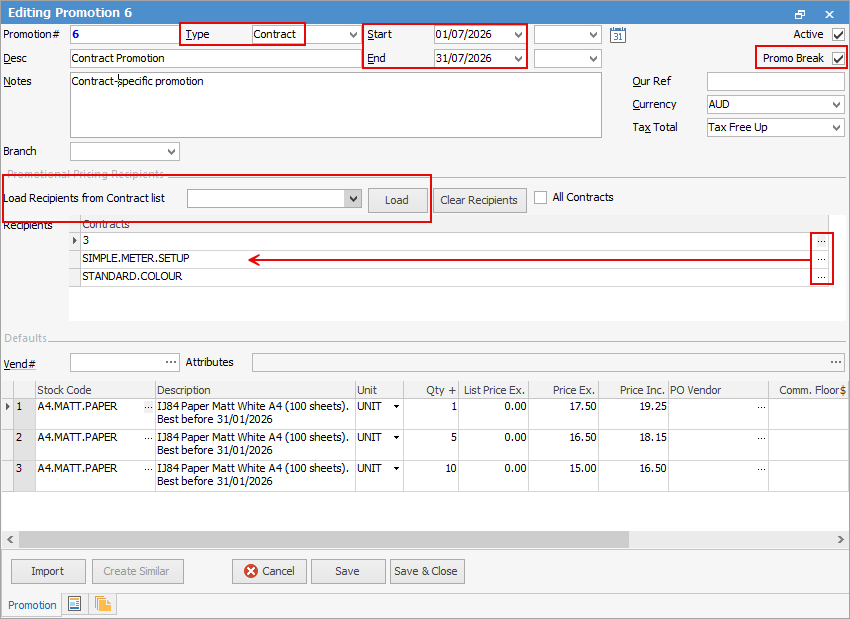
▪Create a new promotion and set Promotion Type to Project (or whatever it is called in your database).
▪Add the project(s) to the promotion Recipients. This can be done individually, or via Load Recipients from Project List. To use this option, create a cardfile list first. This will then be selectable in this area. You can also tick All Contracts if desired.
▪Set the promotion start and end dates (if based on a period)
▪Add the stock, along with price, buy breaks, etc.
▪Tick Promo Break. The Promo Break forces a price to be calculated at that point, and stops moving down the ranking to see if there are lower prices.
On the Promotional Pricing tab of a Project, the icon also displays the number of promotions applicable to that Project.
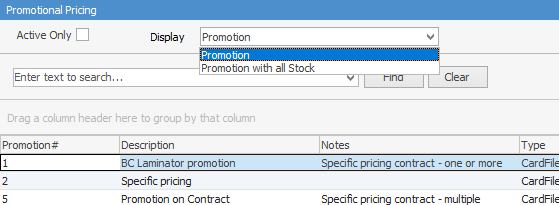
When viewing the Promotional Pricing tab, the following two display options are available:
Display |
Description |
|---|---|
Promotion |
Displays all the relevant promos matching cardfile/price level/Project on job/quote. |
Promotion with all Stock |
Displays all the relevant promos matching cardfile/price level/Project on job/quote with their stock codes. |
Please refer to Promotional Pricing for more detailed information on how this function works.
Further information