1.Open the Creditors list.
2.Locate and open the creditor. Click Edit.
3.Select the type of Creditors Adjustment Up.
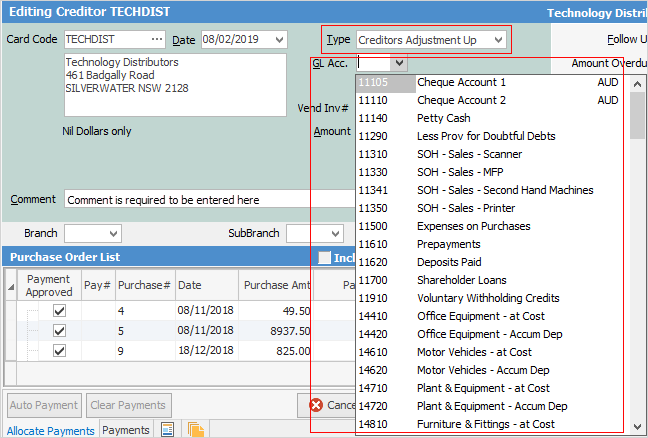
4.Use the drop down list to select the general ledger account to be affected by this entry.
 |
The Trade Creditors Control Account must not be used. This general ledger account is for the other side of the creditors transaction, eg. the expense account. Creditors will offset the account selected here. |
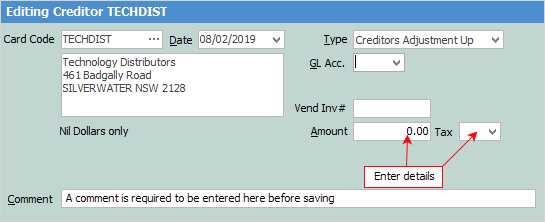
5.Enter a vendor's invoice number for reference.
 |
The Vend# appears only on creditor adjustments up – not down. Use the Comment field in the creditor adjustment down to record this information in an adjustment up. A comment must be entered. |
6.Enter the amount of the adjustment and select a relevant tax code.
|
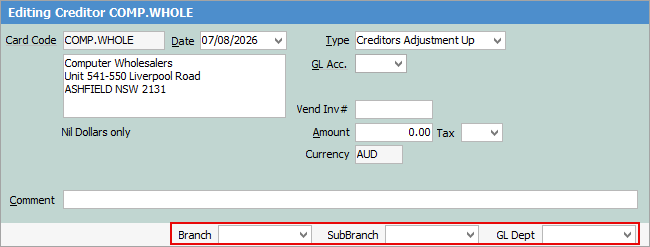
Note: If branches, sub branches and/or GL departments are in use, you will see these fields as well, where you can select the down arrow beside the field to change if required.
 |
This adjustment will increase the creditor's balance, increase the general ledger account and increase the tax account – this adjustment can be paid the same way as a purchase.
 |
Some letters in the field names within the header are underlined, eg. Date. Using Alt+ the underlined letter will jump to the field beside that heading. |
7.Click Save.
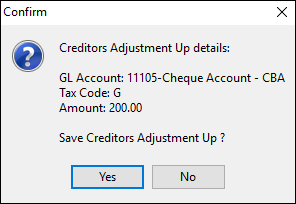
9.The adjustment up entry will be created.

Further information