There are a couple of things to be aware of in relation to printing invoices.

This issue arises if an invoice that was previously issued with branch and/or sub branch (this may have been renamed to department or similar) was enabled at the time of invoice. The invoice is then unprinted and, when trying to reinvoice the error arises.
To over come this issue, go to Tools > Options > General > Branches and tick the appropriate branchoption. Invoice the job, then return to options and untick the option. |
This is a setting in Tools > Options > Other > Printers. If Printer #2 has 1 Copy highlighted, this will print to both printers. Change the setting here to 0, and only one invoice will print.
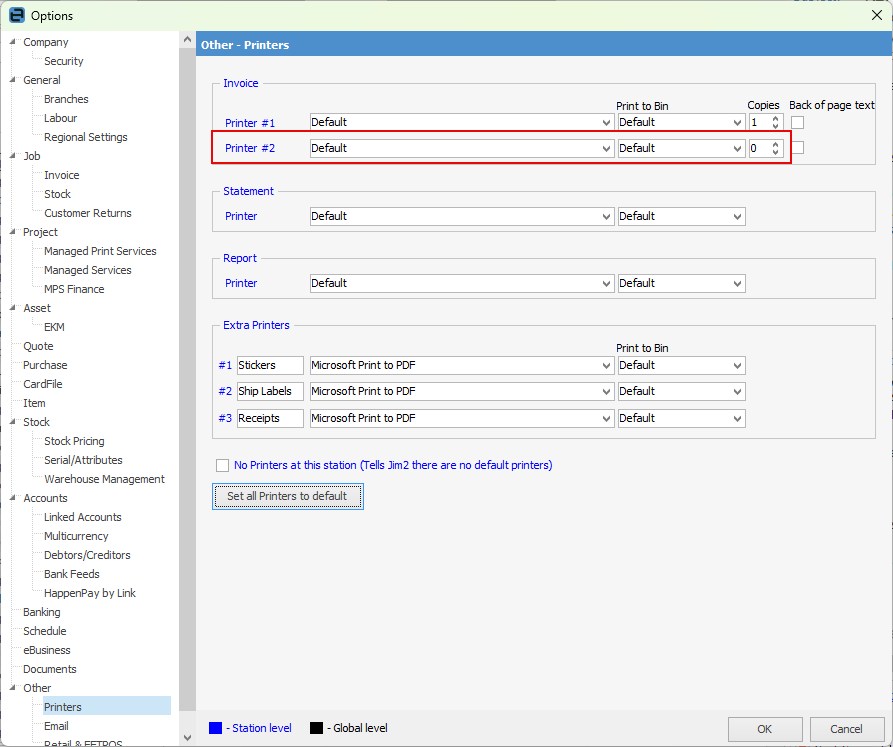 |
This is a setting in Tools > Options > Job > Invoice. As per below, ensure that Print Invoice after invoicing a job is ticked. If not ticked, no invoice will print or be sent via email.
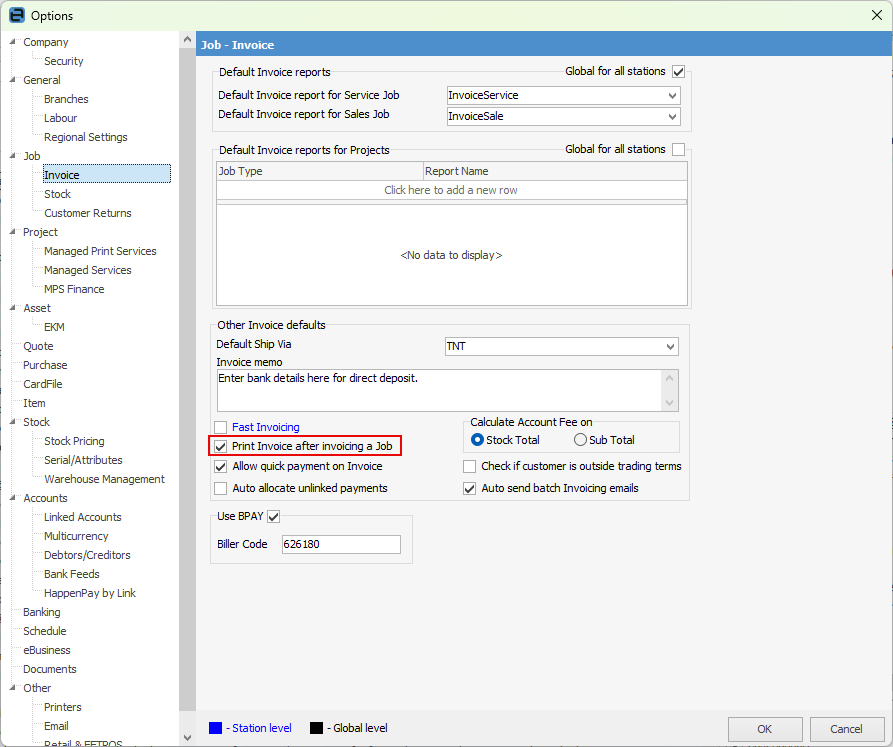
Further, if Printer 2 is set to print 1 copy, when emailing a hard copy will always be printed. Set this printer to 0 if a hard copy is not required. |
This usually indicates a problem with the invoice report, invoice script, printer configuration, or invoice data being processed during printing or previewing.
The issue is commonly related to: ▪invoice printing configuration ▪invoice report customisation ▪damaged or incompatible invoice layouts ▪printer settings ▪missing invoice data |
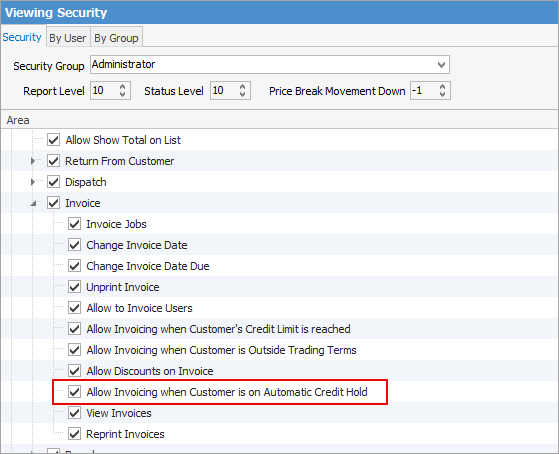
There is a security setting under Tools > Options > Job > Invoice to allow users to invoice customers on automatic credit hold.
|

Further Information
Default Invoice Report Options