
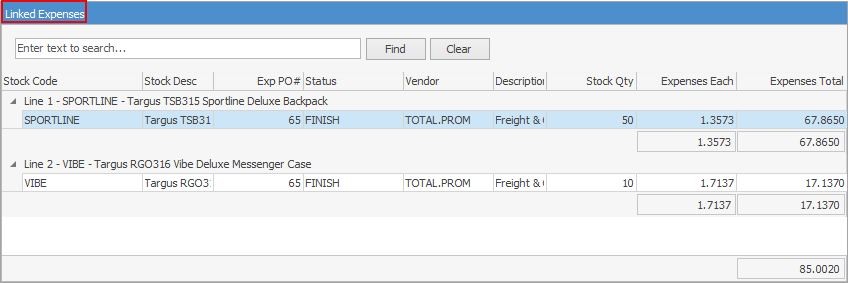
The Expenses tab of the Purchase Order form displays all stock with related expenses applied to that purchase order, and the value of that expense per unit for the stock selected in the stock grid.
|
The Expenses Applied to Stock in the header area shows the stock code selected in the stock grid of the purchase order – in this case SYS.P3.866. This is the stock code that this expense relates to. As allocate expense uses value, weight and quantity, they will not always have the same expense value distributed over the stock lines. |

The fields within the Expenses tab are described below:
Field |
Explanation |
||
|---|---|---|---|
Stock Code |
The stock codes the expenses are related to. |
||
Stock Description |
The stock code descriptions. |
||
ExpNo |
Expense order number. This will show all expense orders linked, regardless of the Status, ie. even if cancelled. You can also right click on this line to navigate to that expense order.

|
||
Status |
The line number of this applied expense on that expense order. |
||
Vendor |
The card code of the vendor. |
||
Description |
The description of that expense. |
||
Stock Qty |
Will display the stock quantity per line. |
||
Expenses Each |
Displays the expense per stock line. |
||
Expenses Total |
The total amount of the expense per line. You will also see the full total at the bottom of that column. |
Further information
Opening Balance Purchase Order
Purchase/Expense Order Footer Tabs