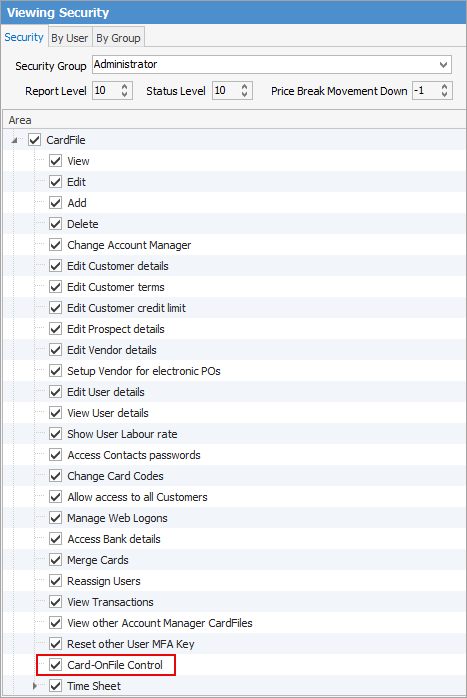
User security under CardFile, is unticked by default. This will need to be ticked to continue with recurring transactions using HappenPay.
Via the Customer tab of a CardFile, you will see the following, provided Jim2Commence is licensed.
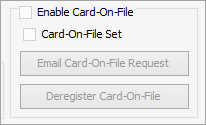
If Card-OnFile Control is enabled in the user's security, they can tick Enable Card-On-File.
Once enabled, the email editor should appear if the request is successful. If the request fails for any reason it will display an error message.
When enabled, the user can Email Card-On-File Request. Card-On-File Set is always read only and displays if Card-On-File is set. To deregister, click Deregister Card-On-File.

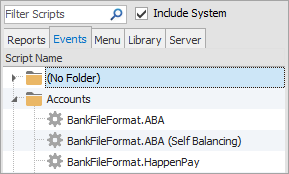
Import the BankfileFormat.HappenPay script provided by Happen Business:
Set up the payment type:
Add the GL account: 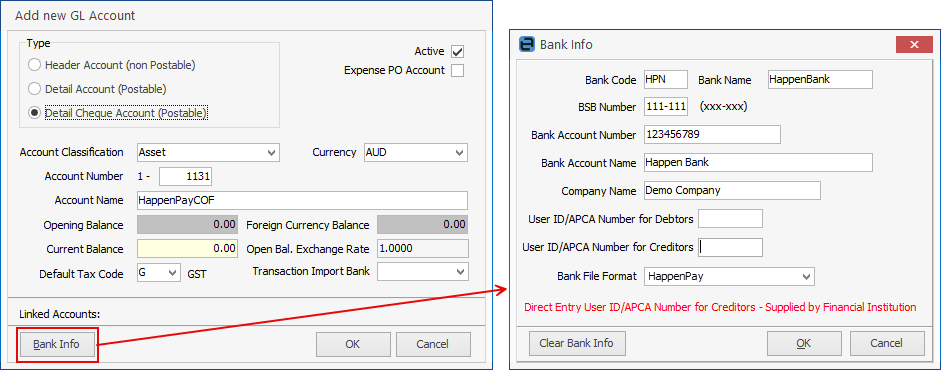 |

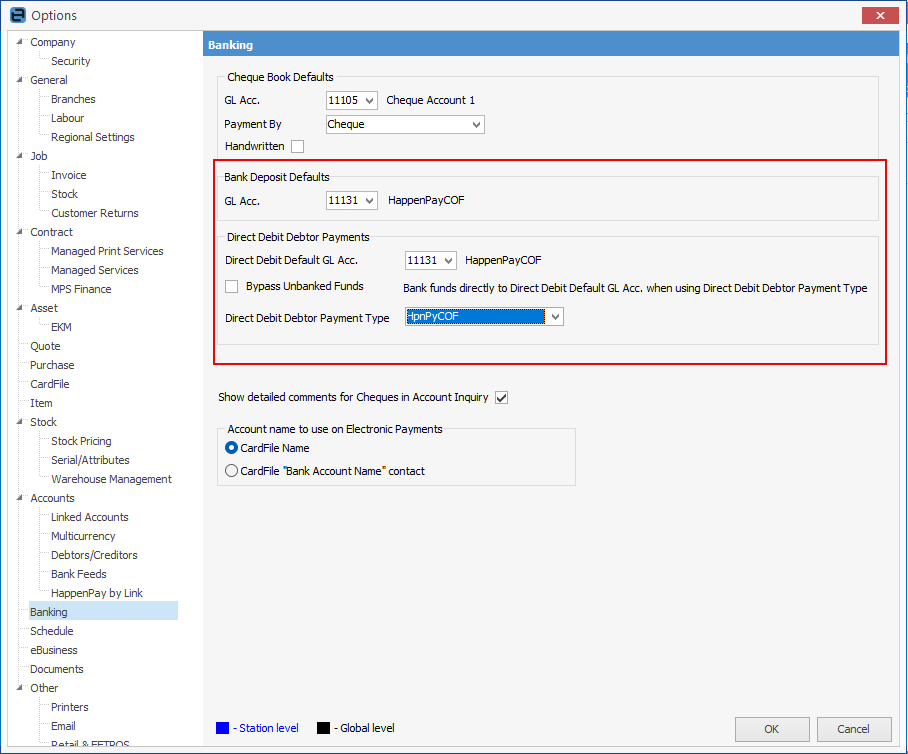
Make these changes via Tools > Options > Banking:
 |
When you invoice a job using this payment type or make a prepayment on a job the following appear here:
On the ribbon, go to Accounts > Electronic Payments and select Not Exported Debtors, then select the account:
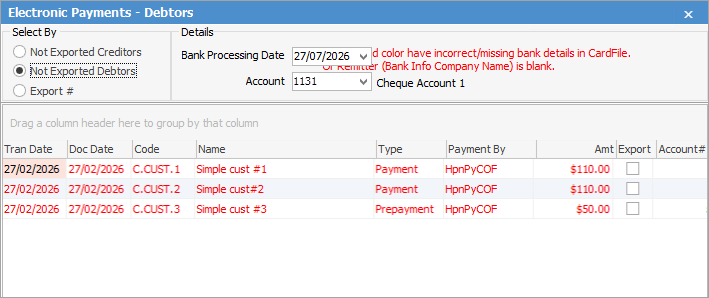
Click edit, tick Export for the rows required, then click Create Bank File at the bottom of the screen.
In the Lodgement Reference column, Inv- indicates invoice, ProF- indicates proforma/prepayment for a job):
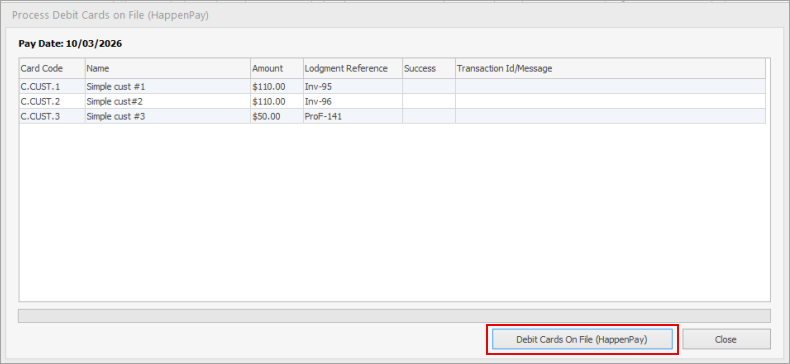
Click Debit Cards On File (HappenPay). Once they are debited you can export the details here or just click Close.
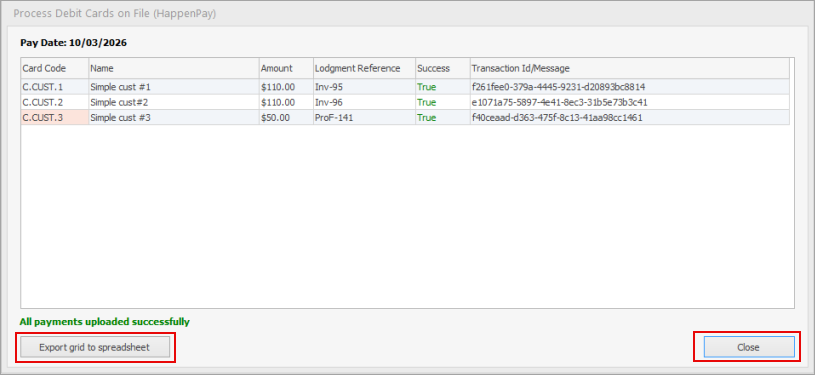
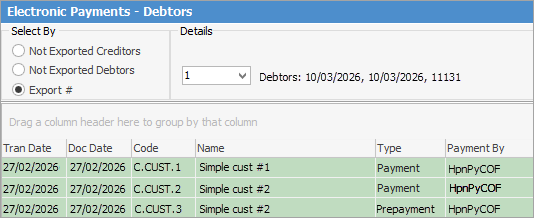
Then you'll see these in the export session (only success=true will be closed off and appear here):
Further information