
To scan stock into a purchase order, place the cursor in the Stock Code field and scan the product.
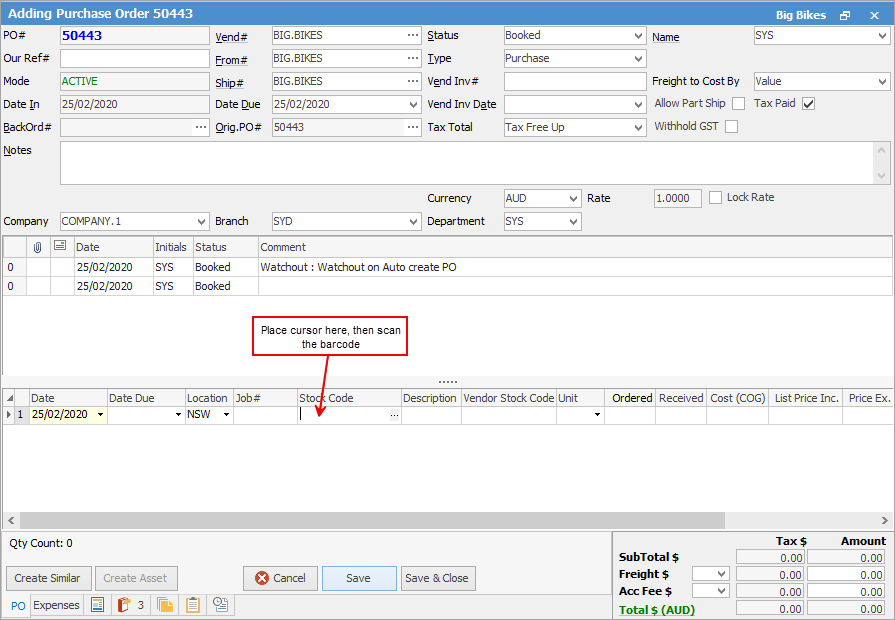
Once the first line has been finished, go to the next stock line and place the cursor in the Stock Code field of line 2, then scan the next product.
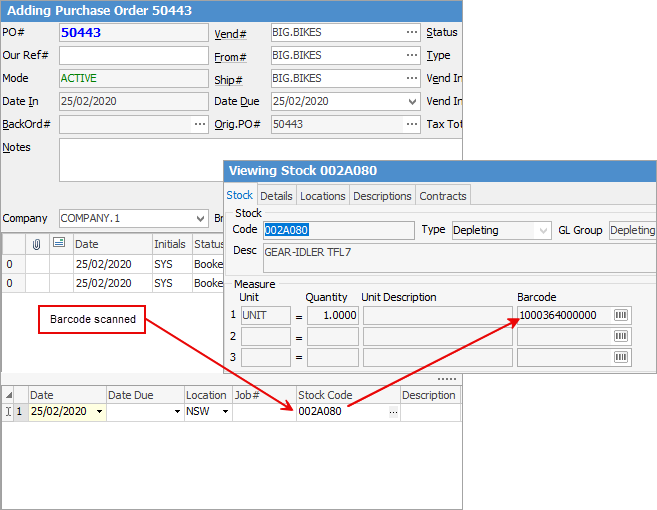
Continue in this way until all stock has been added. |
You can right click in the stock code field to bring up the fast receive screen:
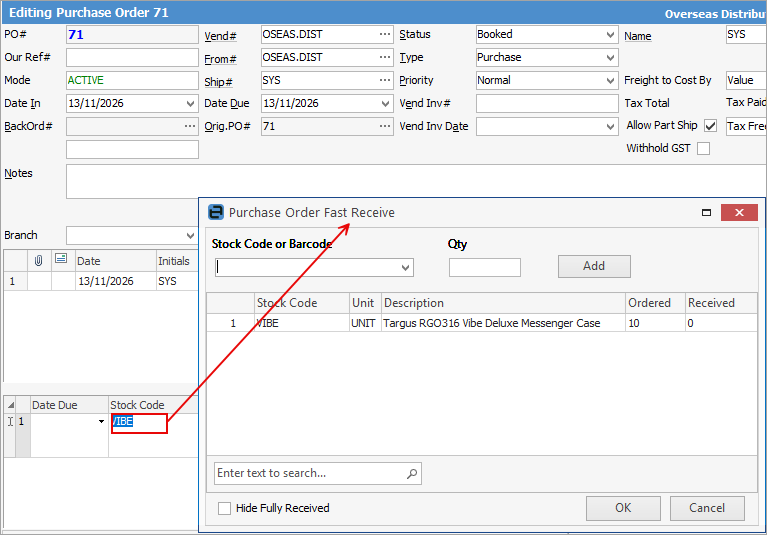
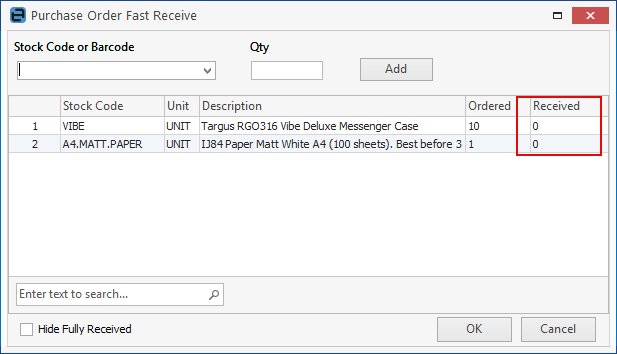
The stock code and description fields will populate where you can update the quantity. For more than one stock line, the window that pops up will have all stock showing so you can enter the received quantities.
 |
Further information
Add an Amount to a PO when Finished at $0
Add Comments to a Purchase/Expense Order
Add Freight to a Purchase Order
Enter Progress Payments on Purchase Orders
Export a Purchase Report to Spreadsheet
Fix Incorrect Pricing after PO Finished
Fix Incorrect Vendor on Purchase Order
Handle Employee Reimbursements
Handle a Credit for Freight Charged
Link a Job to a Purchase Order
Link Expenses to a Purchase Order
Print a Purchase/Expense Order
Record One Invoice Number on Multiple POs