Jim2 can receive and send meeting invitations, so you can manage your meetings without leaving Jim2 to use a separate calendar program.
You can:
▪Read a meeting invitation that arrives in a Jim2 mailbox and reply Accept, Tentative or Decline.
▪Turn an invitation into a Jim2 scheduled task.
▪Send a meeting invitation to others from a Jim2 scheduled task.
▪See who has accepted, and cancel a meeting if your plans change.
Invitations work with the usual calendar programs your contacts use, such as Outlook, Gmail and Apple Calendar.

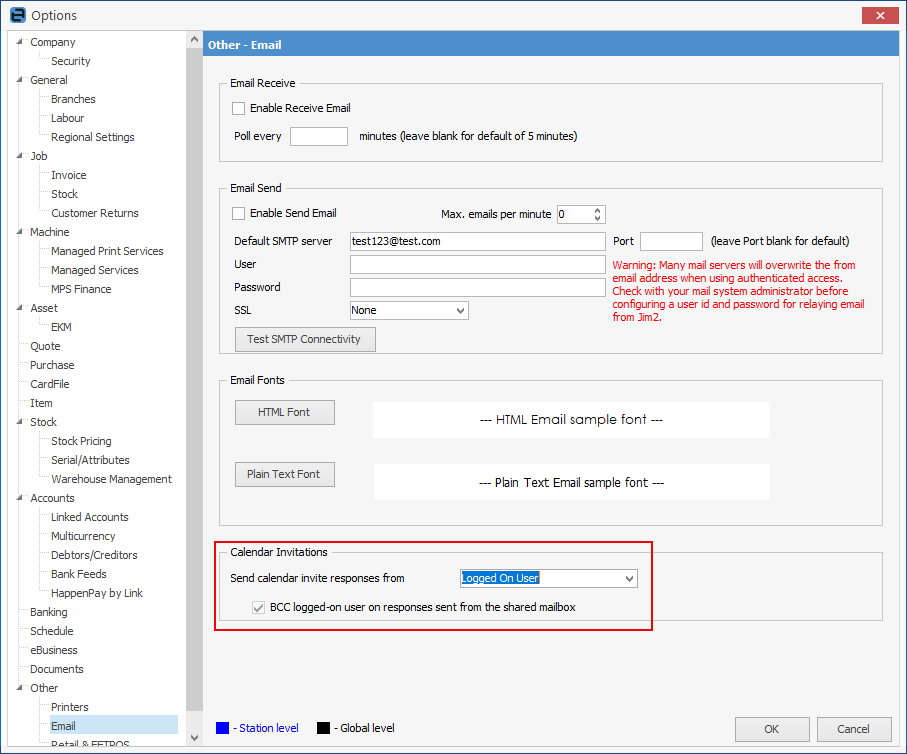
Send calendar invite responses from decides whose address your accept/tentative/decline replies come from: ▪Logged On User sends replies from your own email address. ▪Shared Mailbox sends replies from the mailbox that received the invitation. ▪BCC logged-on user on responses sent from the shared mailbox keeps a copy of your reply in your own inbox. It is only available when replies are sent from the shared mailbox.
You can change the sender for a single invitation at the time you reply (see Receiving a meeting invitation), without changing this setting. |
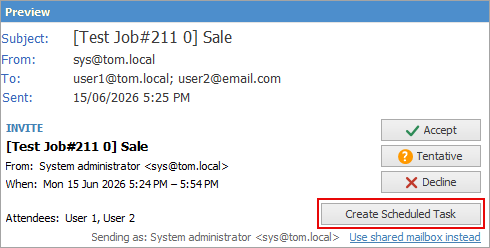
When a meeting invitation arrives in a Jim2 mailbox, upon opening the email above the message you will see an invitation panel showing: ▪A label telling you the type of invitation: INVITE, UPDATED (the organiser changed it), CANCELLED, and SERIES for a repeating meeting. ▪The organiser, subject, date and time (in your local time), location and the list of attendees. |
Use the buttons on the panel: ▪Accept ▪Tentative ▪Decline
Your reply is sent to the organiser, and a copy of the meeting is added to your usual calendar program. The panel updates to show your choice. For example, you accepted this invite, then you can change your answer at any time by clicking a different button. Replying as yourself or as the shared mailbox Below the attendee list, a line shows who the reply will be sent from. To switch for this invitation only, click Use shared mailbox instead or Use my email instead. This does not change your default setting in Options. |
Click Create Scheduled Task on the panel to create a Jim2 scheduled task from the invitation.
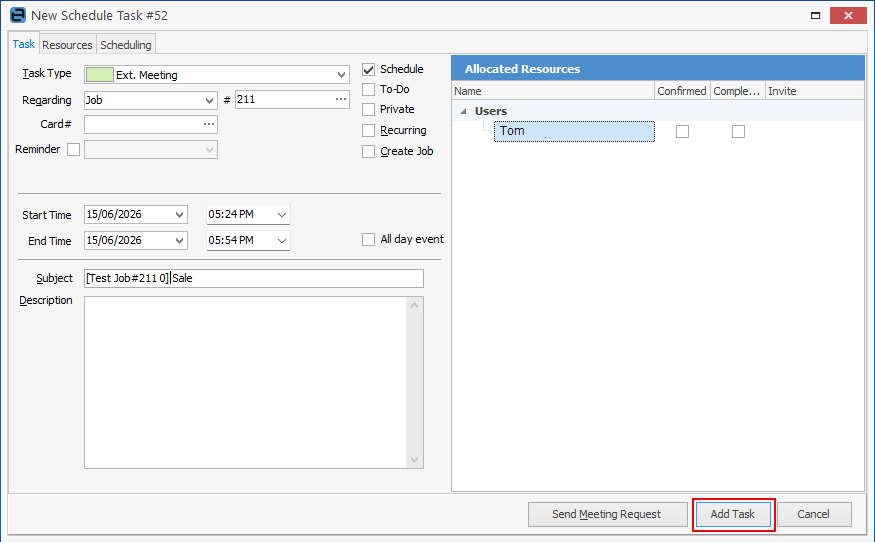
The task opens already filled in with the subject, date and time, location and description. You, and any attendees Jim2 recognises, are added as resources. Click Add Task to save it.
If a task has already been created from this invitation, the button reads Open Scheduled Task and opens the existing task instead of making a duplicate. |
Open a scheduled task that can have attendees (for example an external meeting) and add the people you want to invite as resources, making sure they have an email address.
Click Send Meeting Request.
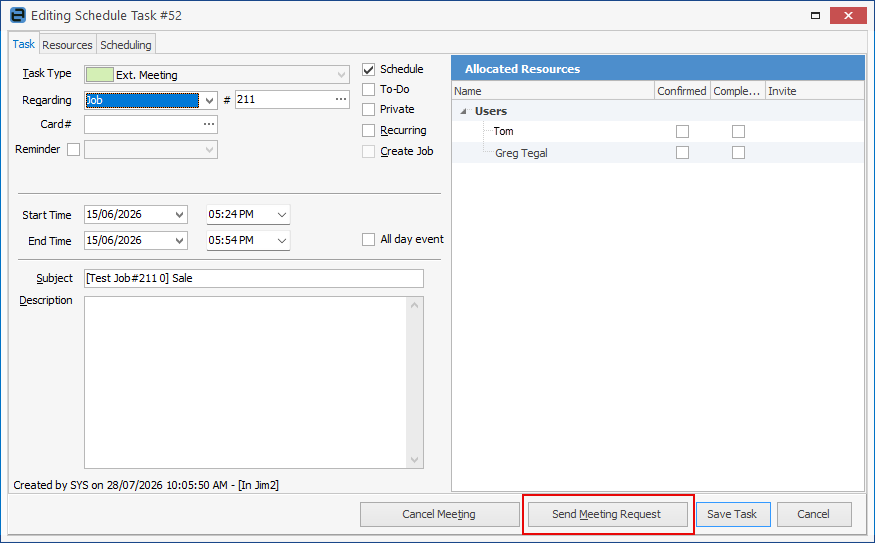
Jim2 emails each attendee an invitation that their calendar program recognises, with working Accept, Tentative and Decline buttons. The invitation is sent from you, as the organiser.
If the task has unsaved changes, Jim2 offers to save it first. |
The Allocated Resources list has an Invite column that shows each attendee's status: ▪Invited (waiting for a reply) ▪Accepted ▪Tentative ▪Declined
The column updates as replies come back into Jim2.
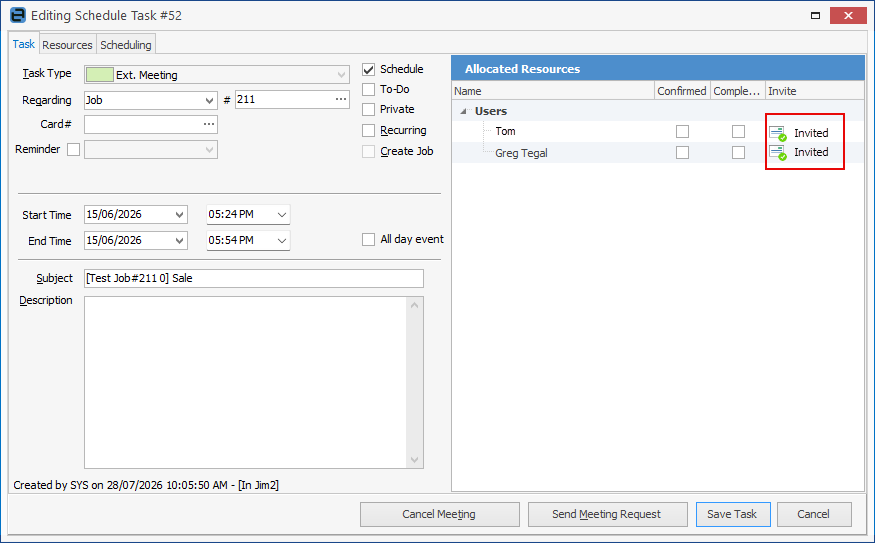 |
Edit the task, then click Send Meeting Request again.
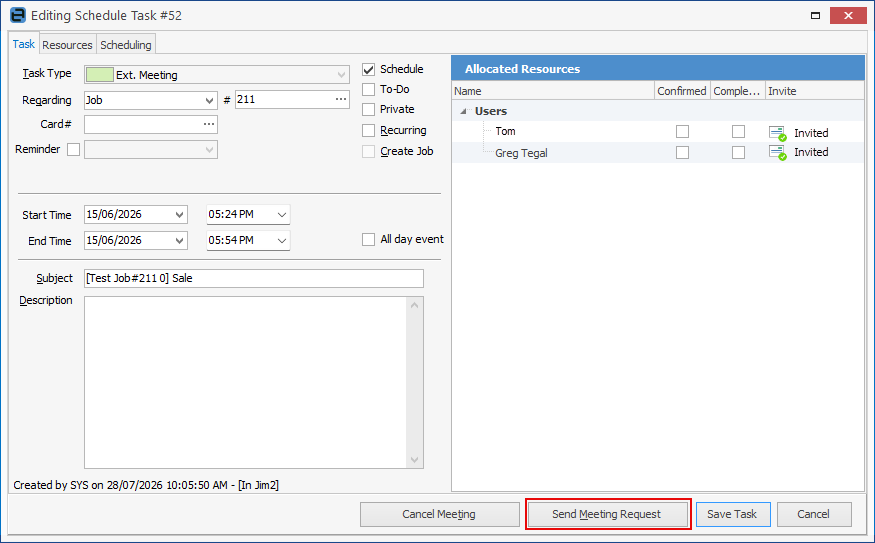
Attendees see the meeting as updated rather than as a new invitation, so it does not duplicate in their calendar. |
Click Cancel Meeting and confirm.
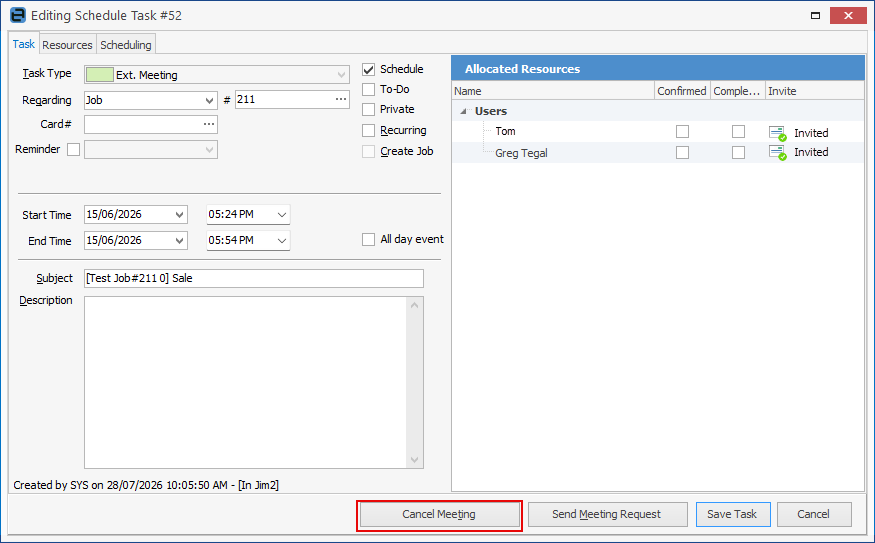
Jim2 tells every attendee the meeting is cancelled and clears the response icons.
Only the person who sent the invitation can cancel it.
Deleting a meeting task that has already been sent also sends the cancellation automatically. |
When you send a meeting request, Jim2 also places a copy of the meeting in your own calendar so you can see it in your usual calendar program.
If your organisation uses Microsoft 365 calendar sync and your address is on a synced domain, the meeting reaches your calendar through that sync instead, so Jim2 does not send you a duplicate copy.
With calendar sync switched off, the meeting appears in your calendar as a plain appointment. To remove it, cancel the meeting in Jim2 and delete the appointment from your calendar. |
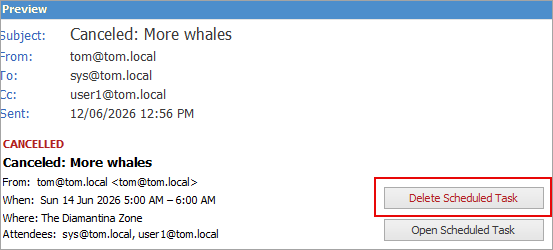
If you created a Jim2 scheduled task from an invitation and the organiser later cancels the meeting, open the cancellation email. The panel shows a Delete Scheduled Task button. Click it to remove the linked task from your schedule. This does not email anyone else, because the organiser has already cancelled. |
▪Forwarded invitations do not show the invitation panel. Open the original invitation to reply. ▪Teams meeting invitations are not currently supported. ▪Removing a single occurrence of a repeating meeting does not cancel the whole series and does not notify attendees. |
Further information