Please follow these steps to set up the Canon MPS Connector.
1.Open up the Jim2CM (Jim2 Configuration Manager). Select the JES instance, then right click and select Configure.
2.Select the MPS Connectors module. If it’s not in the list, click Add and add the Happen.JESM_Photocopier (MPS Connectors) module to the configuration.
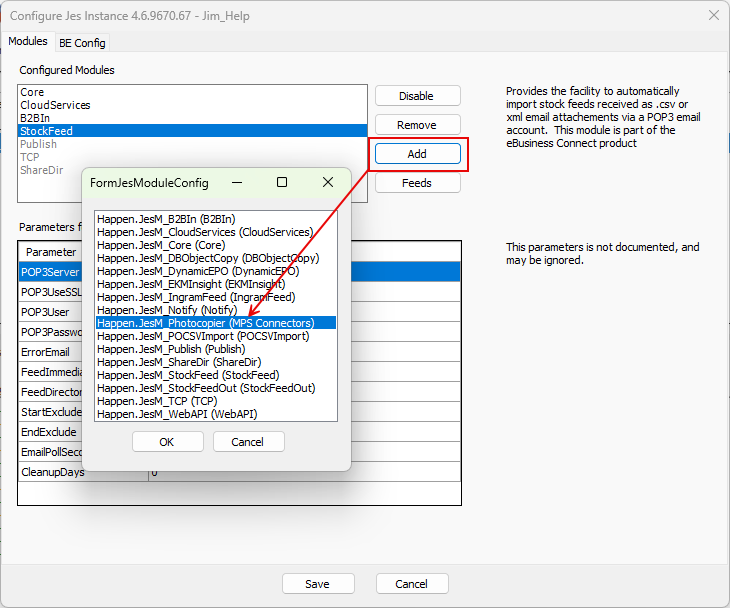
3.Click MPS to set up the MPS Connector
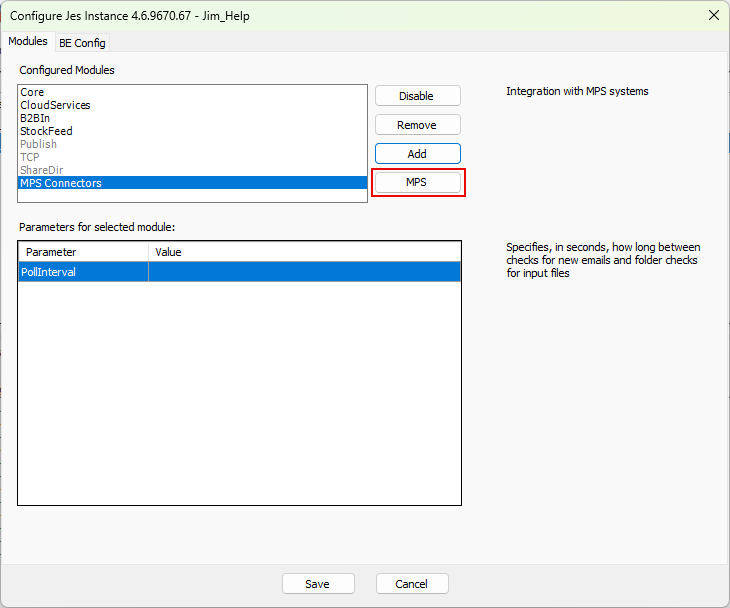
The Configure MPS Systems screen is displayed.
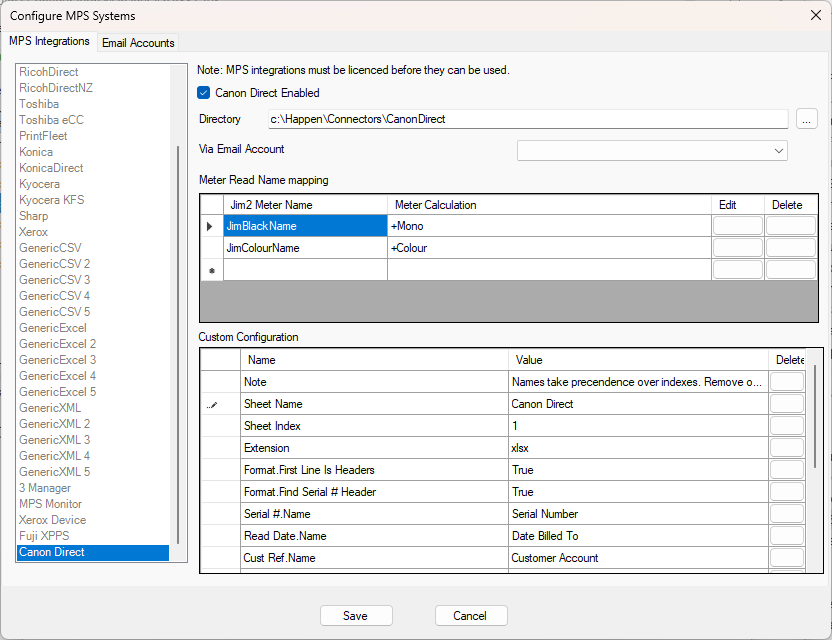
This allows configuring the Canon MPS Connector. Enable/disable the MPS integration, and enter how the meter reads are received (email via a POP3 email account, or by file in a specified directory). If more information is required in relation to specific MPS Connectors, please email support@happen.biz
|
The MPS Connector must be licensed. JES will fail to start if attempting to enable an MPS Connector not licensed for. |

4.Set up the meter mapping or calculations (depending on MPS Connector).
5.Once complete, click Save.
6.Stop and Start the JES Server.
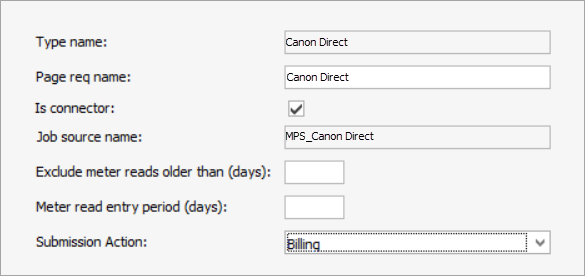
7.In Jim2, go to Setups > Contracts > Page Source and make sure you can see the Page req name Canon Direct. Edit and set the Submission Action to Billing, then click Save.

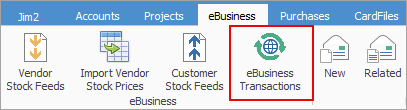
After the reads have been submitted, go to the eBusiness Transactions Inbound Queue in Jim2 to diagnose any issues that might have occurred.
 |