Some parts, such as fusers, can be refurbished two or three times, and re-used before being discarded. These refurbished parts need to be tracked to control the number of times they are refurbished, how long the refurbished parts last, and to track the cost of refurbishing.

▪On the ribbon go to Tools > Groups and add a new stock group for Manufacturing Components to separate the used stock to be refurbished in manufacturing, and another stock group for the Refurbished Stock (if required). ▪On the ribbon go to Tools > Setups and add a new stock location called MANU (for Manufacturing). ▪Add a new depleting stock record for the used part, eg. the actual part number with -U at the end (MFC1.PART1-U), and assign to the Manufacturing stock group. ▪Add a new depleting stock record for the refurbished part, eg. the actual part number with -R at the end. Select single level under Manufacturing, and Serial# on purchase. Serialising the refurbished part enables tracking how many times a part is refurbished, and how long it lasts. On the Vendor tab add the company card code as a vendor for inclusion in stock procurement. 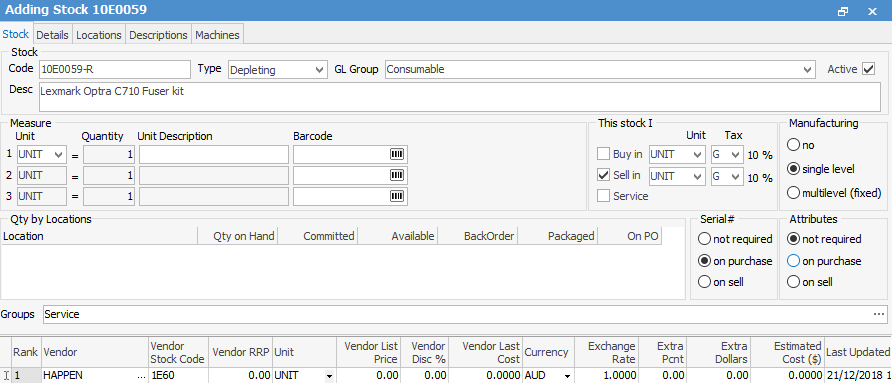 ▪When this stock record is saved, the manufacturing Item will automatically be created using the same code as the stock code with a + sign at the end (refer to Manufacturing Jobs). 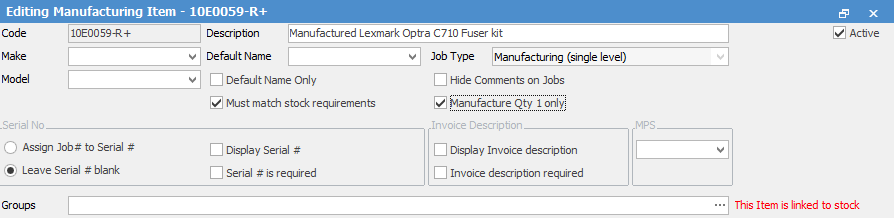 ▪Edit the manufacturing Item, tick Manufacture Qty 1 only. Only one used part is refurbished on each manufacturing job, as different parts may need to be replaced during the refurbishment process, so this setting will be the default on manufacturing jobs. ▪Set a default name on the Item if not all staff can do the refurbishment. Tick the staff members who can do this type of work, so only they can have jobs using this manufacturing Item assigned to them. 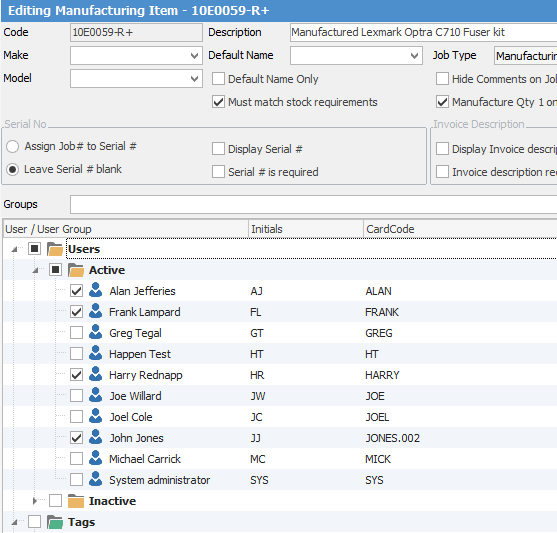 ▪Go to the Stock tab at the bottom left, and add the default stock that will always be included, ie. the used part to be refurbished, and an estimated amount of labour. Additional stock will need to be added to the manufacturing job as required. 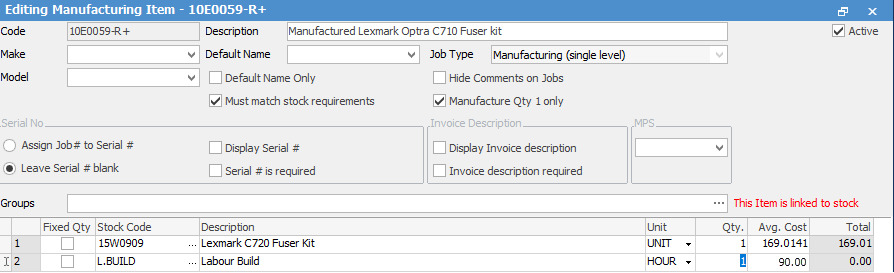
To include the actual cost of the labour to refurbish the part in the overall cost of the refurbished part, rather than just track the time taken, add some additional setups as follows: ▪On the ribbon, go to Accounts > General Ledger > Cost of Sales and add a new 5-XXXX account for Manufacturing Labour. Set as a Detail Account only. 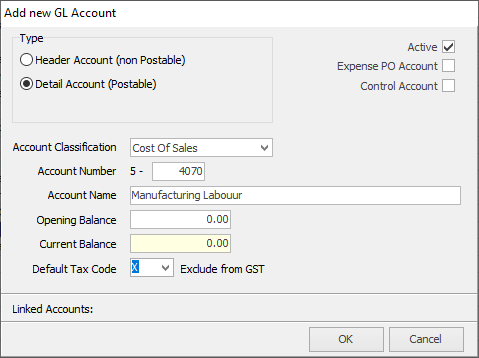 ▪On the ribbon, go to Tools > Options > Stock and tick to Include Labour in cost when Manufacturing. 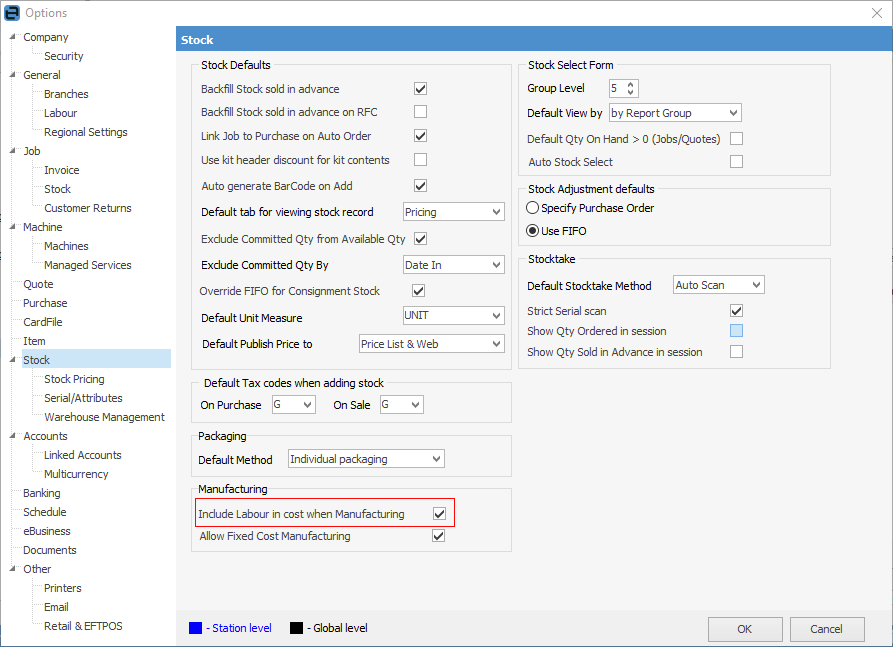 Then go to Tools > Accounts > Linked Accounts and enter the account set up earlier. 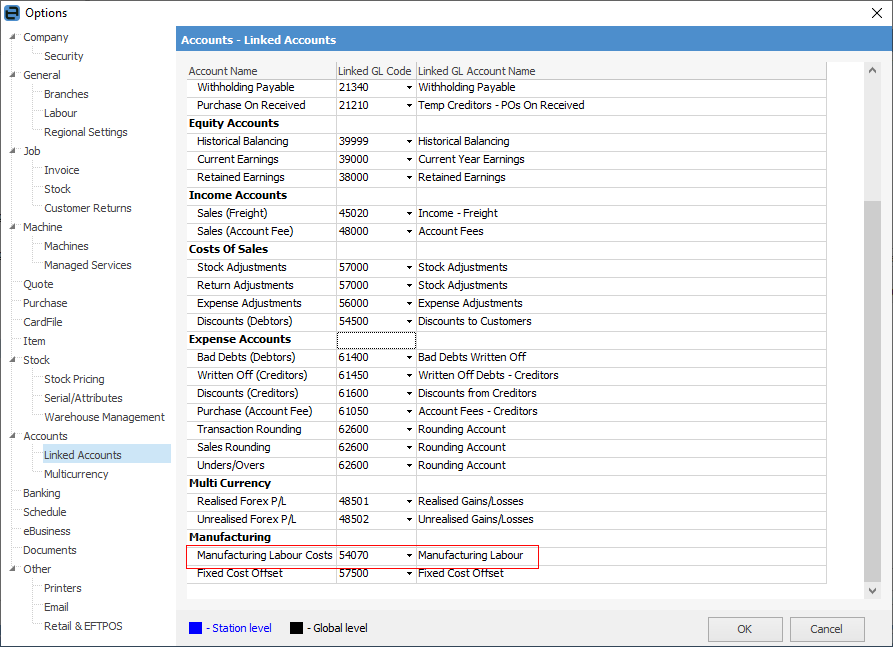 ▪Edit the Labour stock record that is selected on the Manufacturing Item, go to the Details tab. In the Manufacturing Cost field enter the rate per hour that it costs to employ a person to do this work (not what they are paid per hour), enter a unit multiplier of 1, ie. it costs this much per hour, assuming the unit measure on the stock record = 1 hour, and a Labour Content of 1 (assuming that 1 x L.BUILD = 1 hour). 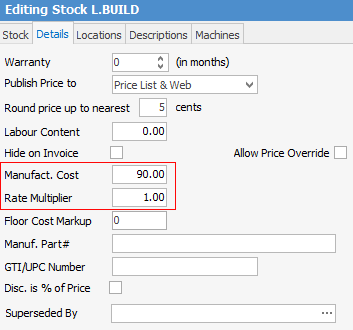 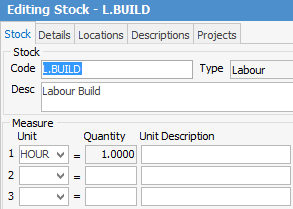
|

▪Add a Debtors PO to buy the used part into stock at zero value and zero COGS. This should be brought into the MANU stock location. 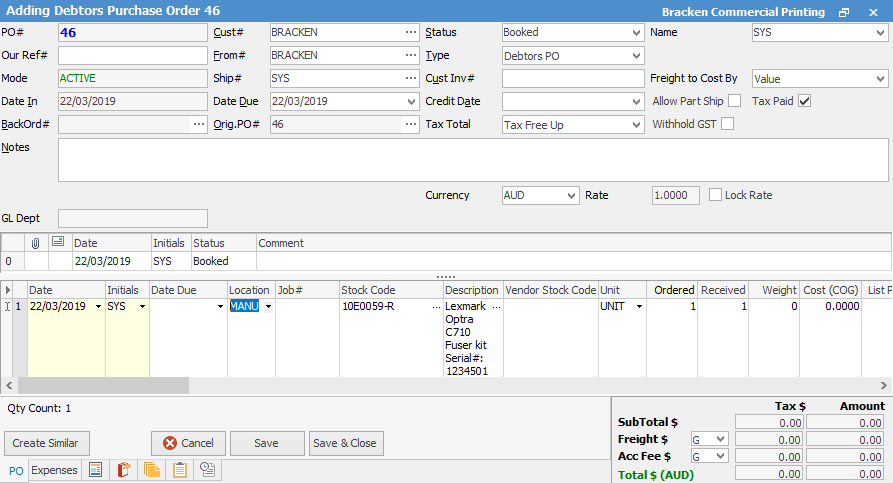 ▪Add a manufacturing job with the company card code as the customer, and select the manufacturing Item for the part being refurbished. ▪Select the location where the refurbished part is to go into stock when the manufacturing process is complete. ▪The Qty will default to 1 as set on the Item. ▪The stock set on the manufacturing Item will auto-populate the stock grid, but check that it is being selected from the correct stock location, eg. the used part will be in the MANU stock location, and not the main stock location. 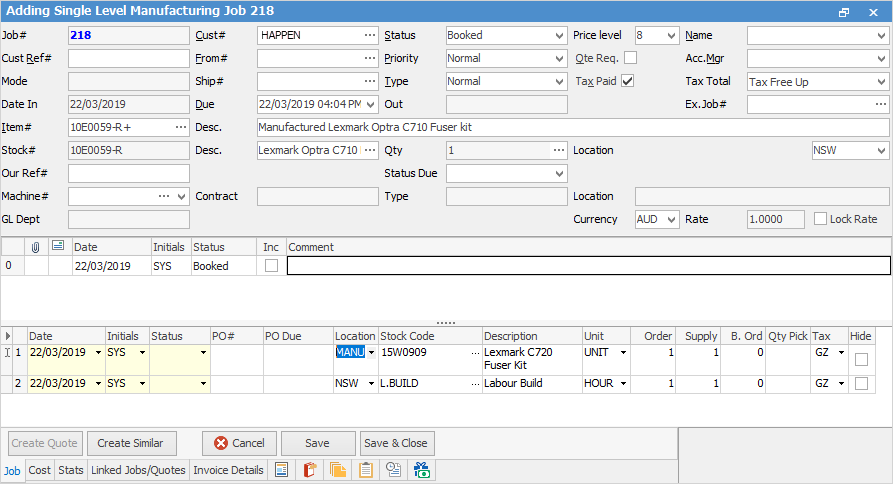 ▪Add any additional parts used in the refurbishment – this stock must be available in Jim2 before complete the manufacturing job.
▪Press F7 and add the actual time spent to track the technician’s labour. ▪Edit the labour stock to reflect the cost of the actual time spent in the refurbishment process. ▪Change the status of the job to Finish, and Ready.  ▪Click Manufacture Job on the ribbon (it replaces the Invoice Job icon when working on a manufacturing job). 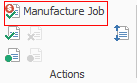 ▪A warning message will appear prompting to enter the serial number of the manufactured stock. This must be entered to be able to continue. 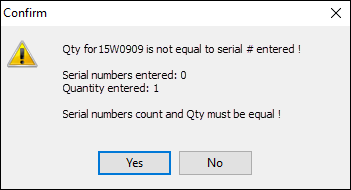 ▪The suggested protocol for setting the serial numbers on refurbished parts is to use the manufacturing job number followed by -1 for the first refurbishment, -2 for the second refurbishment, and so on. 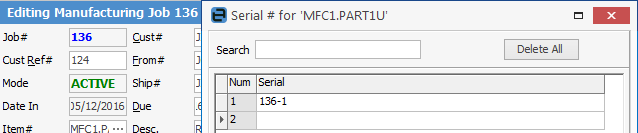 ▪Click OK twice, then click the Manufacture Job icon again. ▪A screen will appear to either nominate a job number if the part is being refurbished for a specific job, or enter 0 if it is to go into available stock. 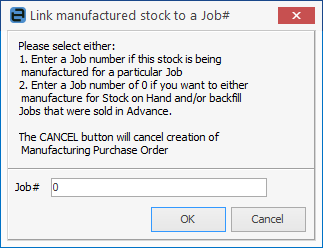 ▪Click OK to complete the manufacturing process and create a manufacturing purchase order. 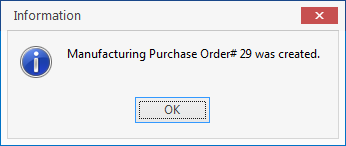
Behind the scenes, a stock adjustment has effectively taken place, as the individual components in the stock grid on the job have been taken out of stock, the cost of the labour has been included in the process, and the finished refurbished part has been brought into stock on the manufacturing purchase order.
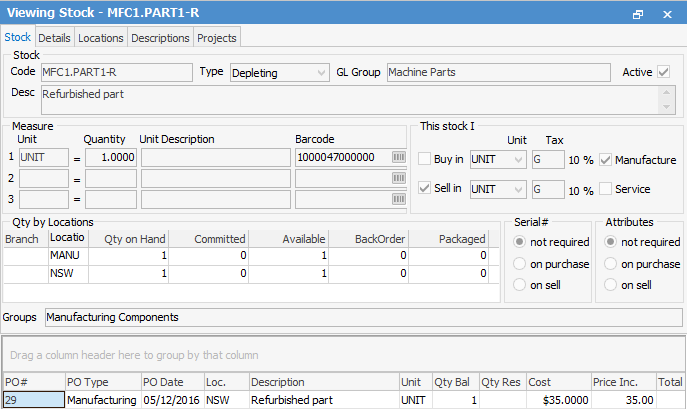
The Transaction Journal entry for the manufacturing purchase order shows how the parts and labour costs have been combined into the cost of the refurbished part. |
Further information
Refurbish Machines with Special Stock and Sales Kit