Jim2 does not automatically order stock when the levels are low. You need to run a stock procurement session to see what is required.
|
Note: There is no auto replenish feature in stock procurement. You can create a full stock list, then right click in the grid and select Export Procurement Data to see procurement requirements for all stock. |

The stock procurement session can be run at any time to ensure purchase orders or stock transfers are raised to manage the replenishment of stock codes. Each session is based on an individual stock location, so businesses with multiple locations will need to run separate sessions for each location.
Additional criteria can be set, including order or transfer, specific vendor, selected stock groups, etc.

On the ribbon, go to Stock > stock procurement.

Enter/tick any required criteria (location, vendor, stock code, etc.) and click Run near the bottom of the screen. The default stock location will appear in the For and PO Ship locations, noting that For is where it will to to and PO Ship is where it is coming from.
Auto Recalc Prices is automatically a filled box. This means Jim2 will ask if you wish to recalculate prices. Unticked means do not recalculate and do not ask. Ticked means recalculate prices and do not ask.
Show All Stock will show everything, including stock with 0 quantities. You can also select a single stock code, stock GL group, attributes, stock description or stock groups in the header to narrow down the stock returned to the list.
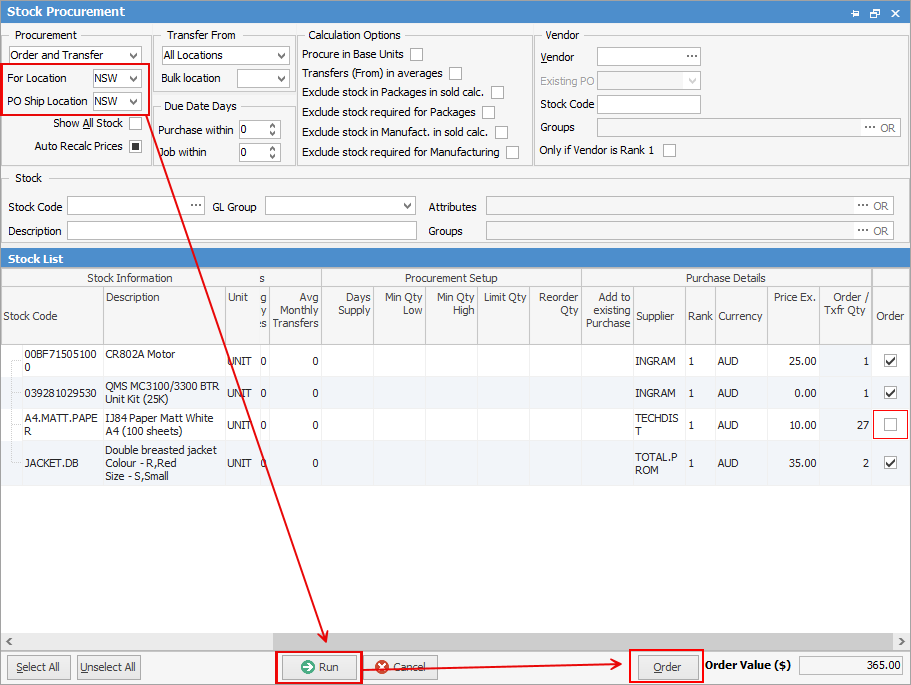
A list of stock codes which need to be ordered or transferred will appear. Review/edit the quantities suggested and untick (in the order column) any unwanted orders or transfers.
Within this screen, you can sort by Stock Code and Rank by clicking on the column headers.
Vendors can also be selected within this section, if they are not already showing.
Click Order (bottom right) and the appropriate purchase orders and transfers will be created.
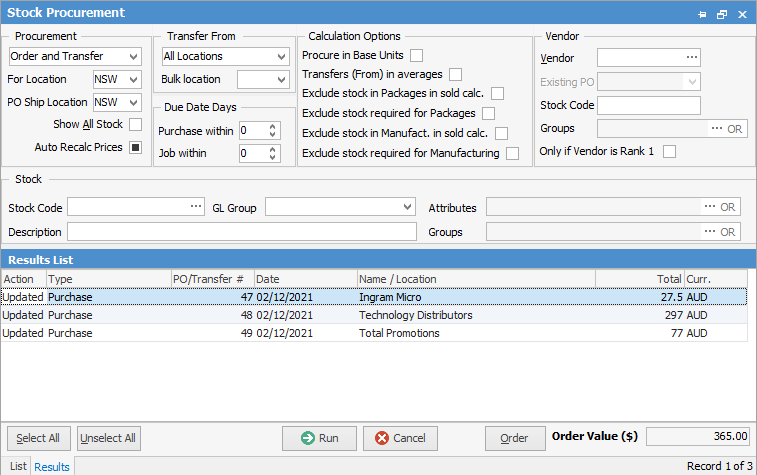
Once these purchase orders and transfers have been created, they will need to be managed in the same way as all other purchase orders and transfers, including sending the purchase orders and using statuses. |

Further information