1.Set up the Customer and Expiry Date attributes in Tools > Setups > Stock Attributes.

2.Create a journal stock code called GIFT.CARD (or similar), ensure attributes on sell is selected and link it to the relevant stock GL group.
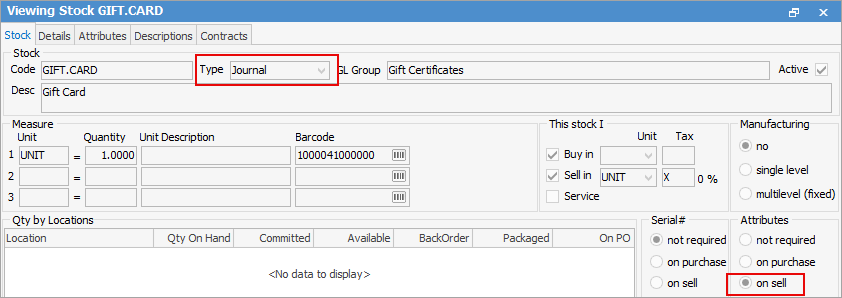
On the Attributes tab, tick both attributes.

3.When a customer comes in to buy a gift card, say for $50, create a job using the GIFT.CARD stock code and enter the customer and expiry date attributes. Invoice this job as normal.
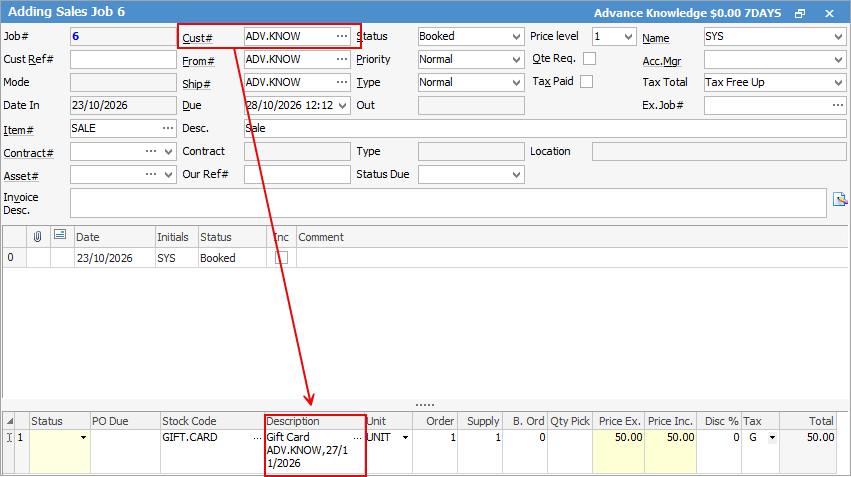
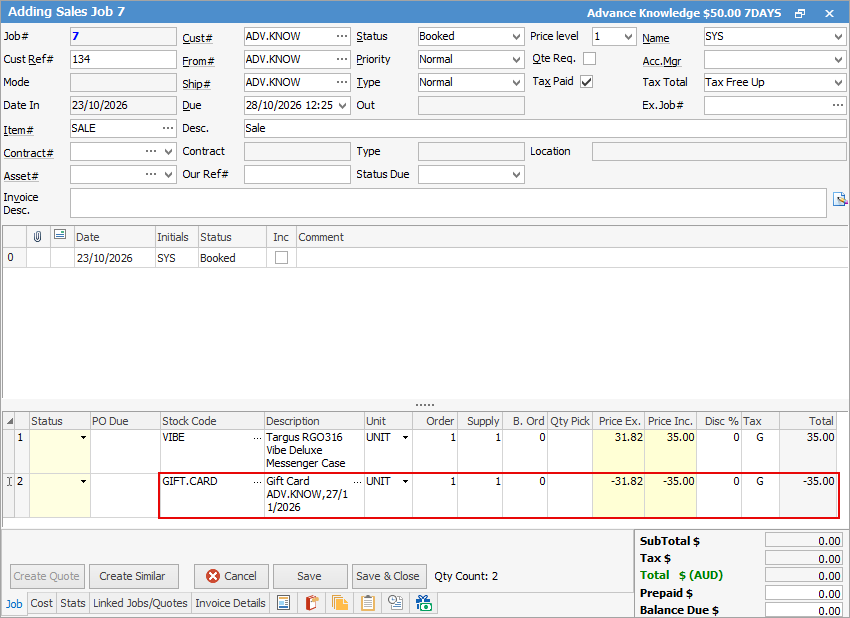
4.When the customer returns to redeem the gift card, create another job. The customer purchases stock for $35 and redeems it using the gift card.
5.Enter the stock code on the job as a positive figure, and the GIFT.CARD stock code as a negative figure. The total of the job then shows $0, and you can invoice it as normal.
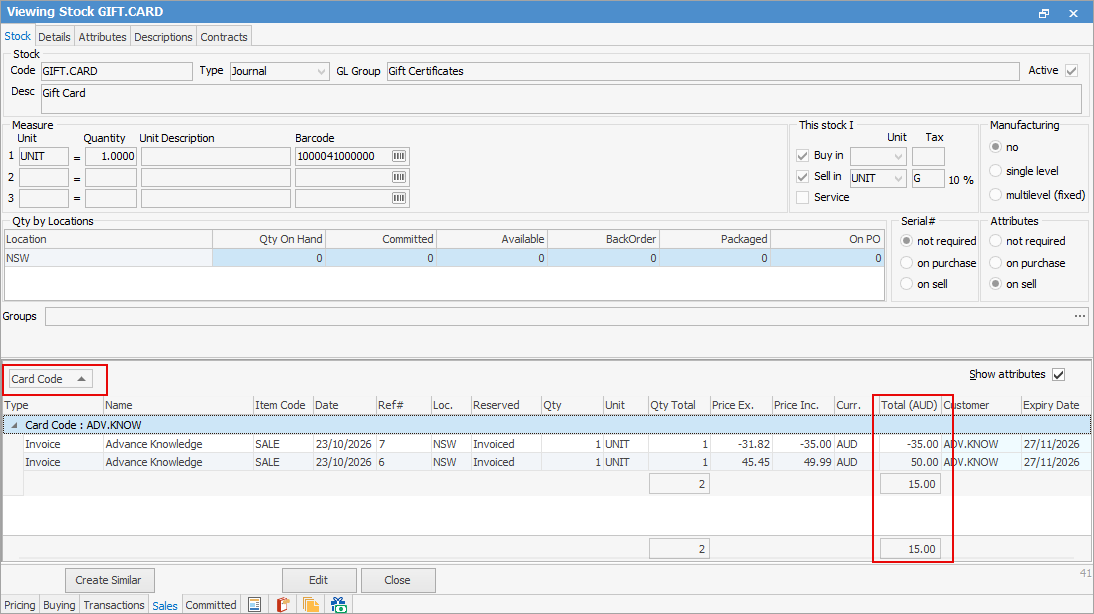
6.To view the balance remaining on the gift card, open the GIFT.CARD stock code and go to the Sales tab.
7.Group the results using the Customer attribute column. This reduces the results to only show jobs for the selected customer.
8.Here you can see the positive value (the gift card purchase) and the negative value (the gift card redemption).
9.The total at the bottom is the difference between the two, which is the dollar amount remaining available on the gift card.
Further information
Factor a Procedure with 3rd Party Debtor Finance
Give a Customer a Permanent Discount