On the ribbon, go to Purchases > Return to Vendor.
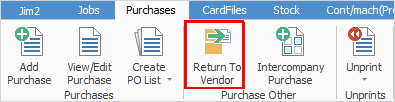
The Return to Vendor list is displayed. Click Add at the bottom of the list.
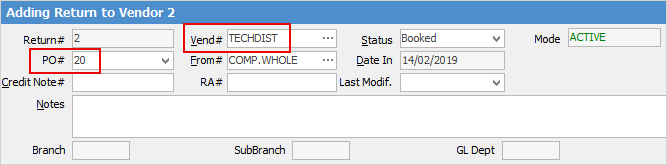
Enter the PO# (or OBPO# in the case of stock relating to an opening balance purchase order) where the stock was brought into Jim2. Change the Vend# to the vendor the stock is being returned to.
|
Some letters in the field names within the header are underlined, eg. Vend#. Using Alt+ the underlined letter will jump to the field beside that heading. |

Go to the stock grid and select the stock to be returned.
Finish and Save once the credit note, etc. has been received.
When the RTV is finished, a warning will appear advising the Vend# is different.
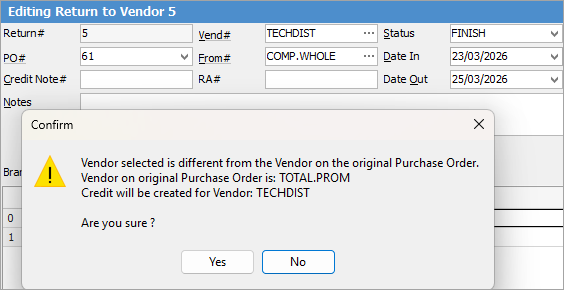
Click Yes.
|
You can also process a return to vendor for stock that was stock adjusted using the process outlined above. When you create the return to vendor, add the PO# that resulted from the stock adjustment. Change the Vend# to SYS as these are always produced by the SYS cardfile, then continue as above.
To locate the PO# from the stock adjustment, you will see it in the header of that stock adjustment.
 |

Further information
Add an RTV Against Multiple POs
Add an RTV for Stock Not Purchased in Jim2
Add Discount or Restocking Fee on a Return to Vendor
Add Stock to a Return to Vendor