When viewing a job for a customer using a manufactured stock code, right click in the stock grid and select Auto Create Purchase Orders.
 |
Note: The best way to auto create purchase orders is via a Job List. Creating purchase orders from the job should only be performed if there is definitely no manufactured stock already in stock. If there is stock on hand, the Auto Create Purchase Orders screen will not show the Manufacture checkbox. |
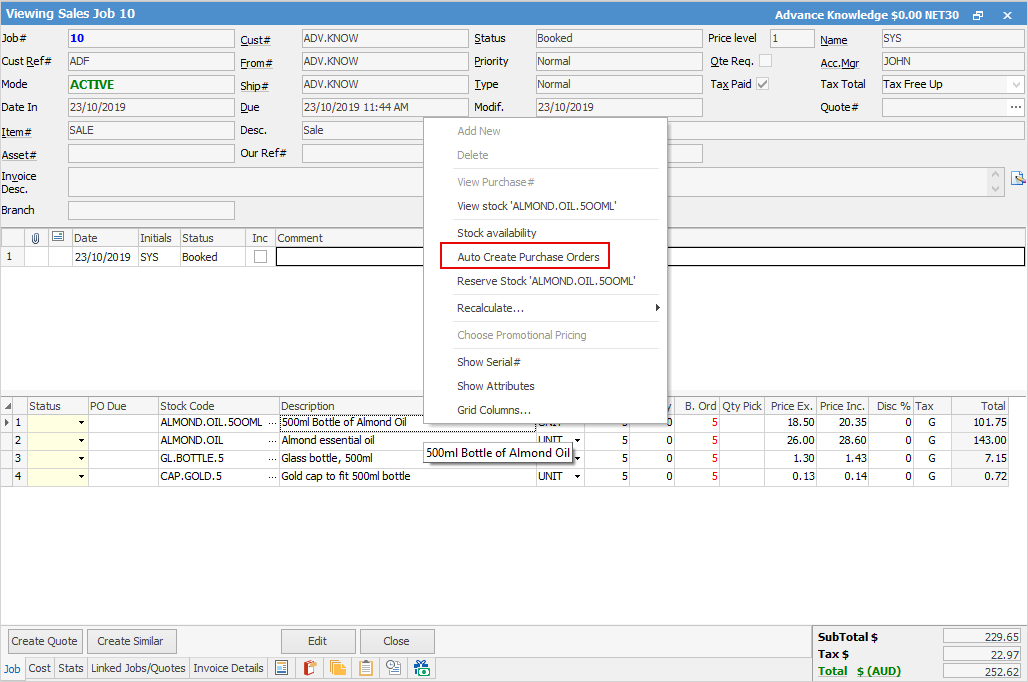
This will bring up the Auto Create Purchase Orders screen, listing the stock required for the job.
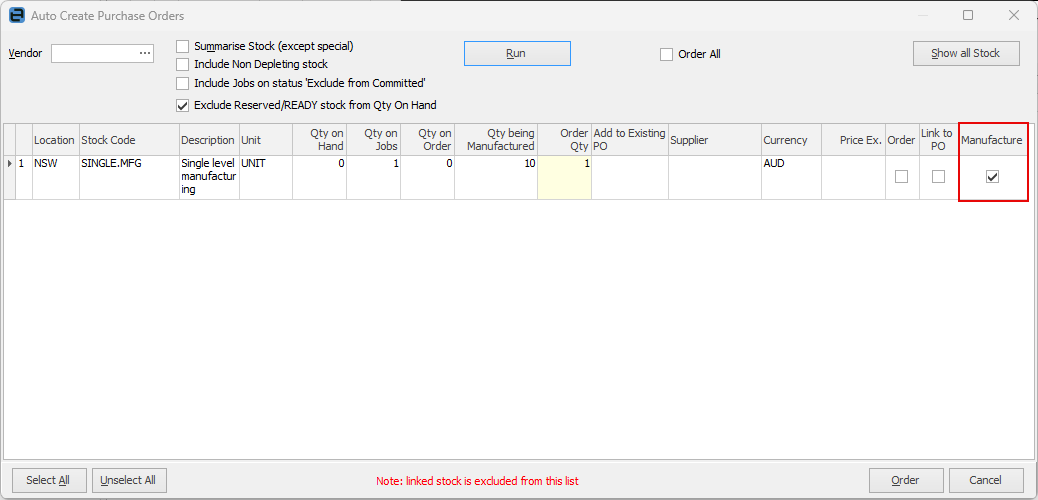
Tick Manufacture, which will automatically create a manufacturing job:
|
Note: If the manufactured quantity doesn't match the requested quantity, you will receive a message stating the quantity does not match and the job will not be created. For example, if the customer only wants 5, we can only link a Manufacture purchase order for 5. This is different from normal purchase orders, because it can split the lines, but a Manufacture purchase order is driven by the Manufacture Job, and cannot split. |
|
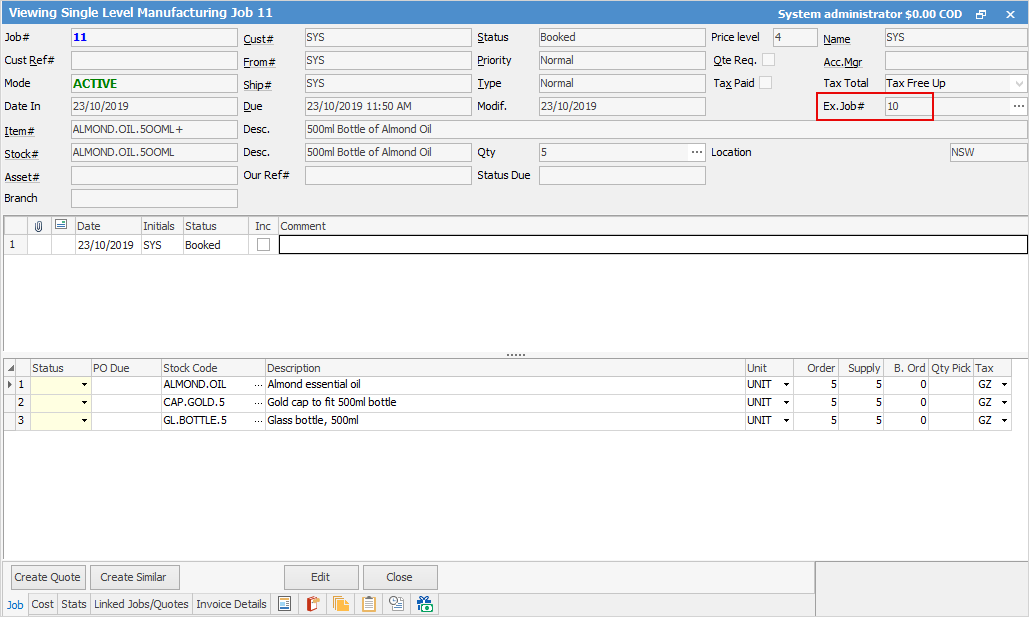
Note: The sales job number will appear in the Ex.Job# field in the header.
When you receive stock, the sales job will be updated, and when you manufacture the job, the sales job will also be updated. |
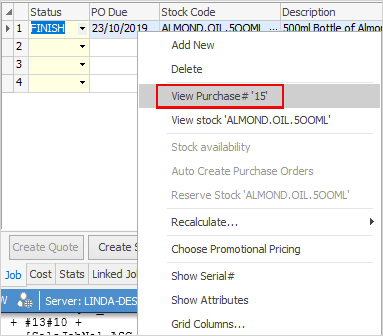
Once the job has been manufactured, the manufactured purchase order will then be linked to the sales job stock line and the Status will be Finish.

Right click on the stock line to view the manufacturing purchase order.
Further information
Add Single Level Manufacturing Stock
Set up and Use Multi-Level Manufacturing
Add Stock to a Manufacturing Item