The Client Secret Key is required for Jim2 to authenticate with Office 365.
If you don't have this on record, or the client secret has expired, you can generate a new one under the existing Jim2 App Registration in Azure.
This will not negate the existing client secret(s).
1.Go to https://portal.azure.com and log in as an Office 365 Global Administrator.
2.Search for and open App Registrations.
3.Go to the All Applications tab.
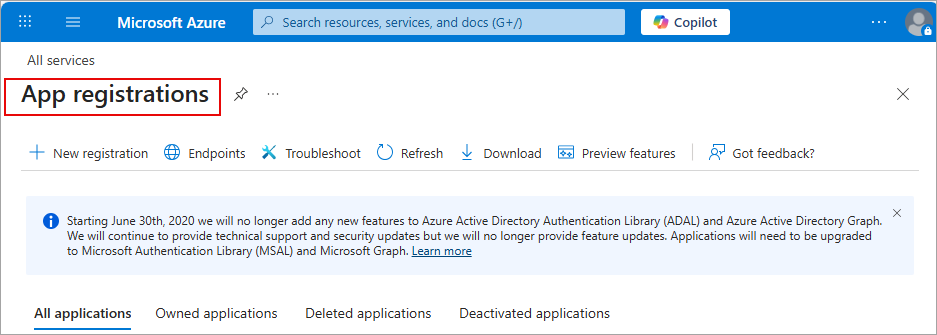
4.Click Jim2 Email (or whatever it was named).
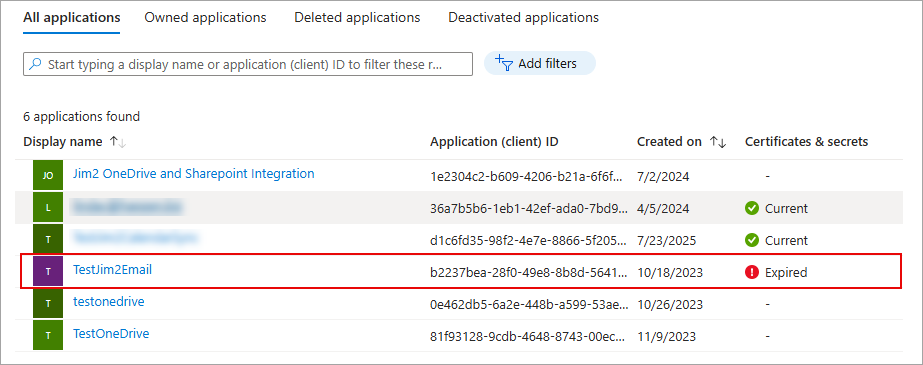 Click certificates and secrets.
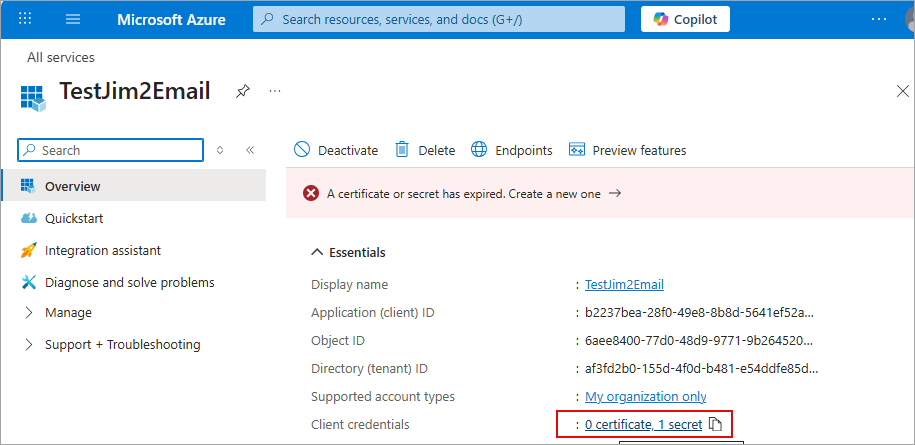
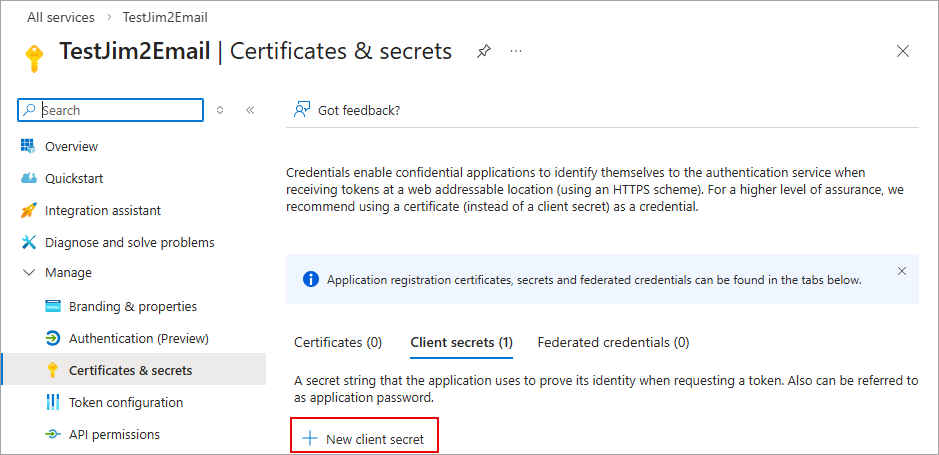
4.Click the secrets tab.
5.Click New client secret.
6.Enter a description (e.g. Jim2 secret generated [date])
7. Select 24 months from the Expires drop-down.
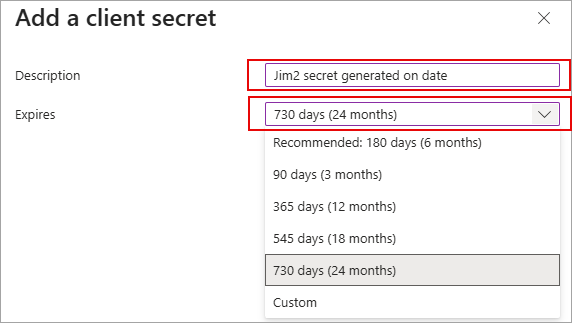
6. Click Add.
7.Record the Value of the new Client Secret (ensure you have recorded the Secret Value, not the Secret ID.).
 |
Note: Once you have navigated away from this page, you will not be able to view the client secret value again. |
8. Save the client secret in a secure password manager for future use (e.g. 1Password, LastPass, Bitwarden, etc.).
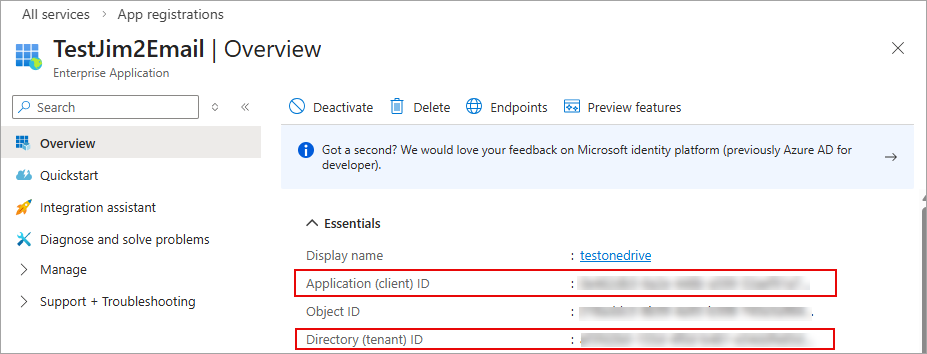
9.You can use this client secret in conjunction with the Tenant (Directory ID) and Client (Application ID) on the overview tab to configure additional email accounts.
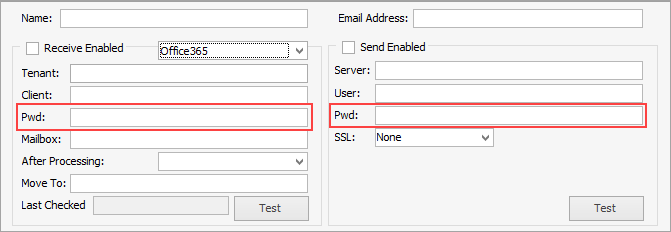
In Jim2, go to Tools > Setups > Email > Email Accounts and enter the secret key in the Pwd field:
Further information
Office 365 Incoming Email Setup