There are a number of ways to view stock and their allocated bins:

1.Create a stock list. 3.From the stock list, select the Stock Default Bins report in the ribbon, however this will only show primary and secondary bins. 4.From the stock list, select the Stock List - Stock Attribute Default Bins report which can be saved to Excel and shows all bins. 2.Right-click in the grid and select Export Procurement Data. 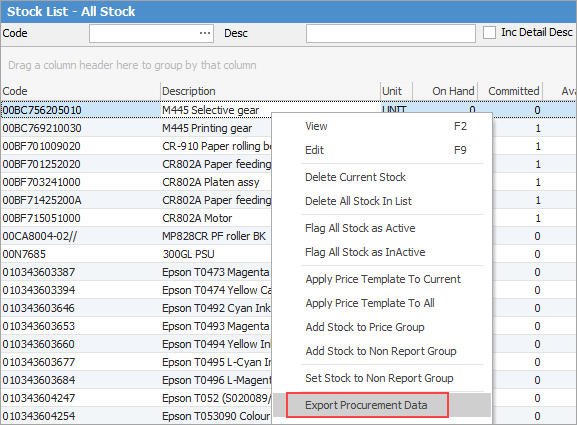 This will generate an Excel spreadsheet that includes a list of stock, quantities and their respective bin locations. |
1.Create a stocktake session by location. 2.Navigate to the report section, select the Stocktake Count List report, and click Preview. 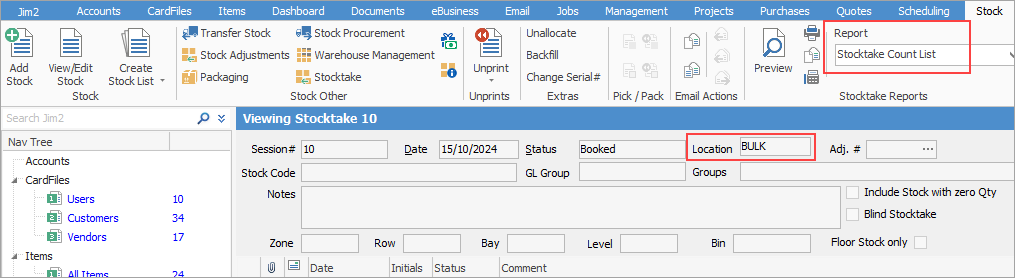 3.Ensure Group via Bins is ticked. 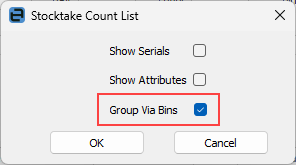 This will generate a report displaying a list of stock and quantities grouped by their respective bins. Any stock without an assigned bin will be grouped separately.
|

On the ribbon, go to Stock > Warehouse Management.
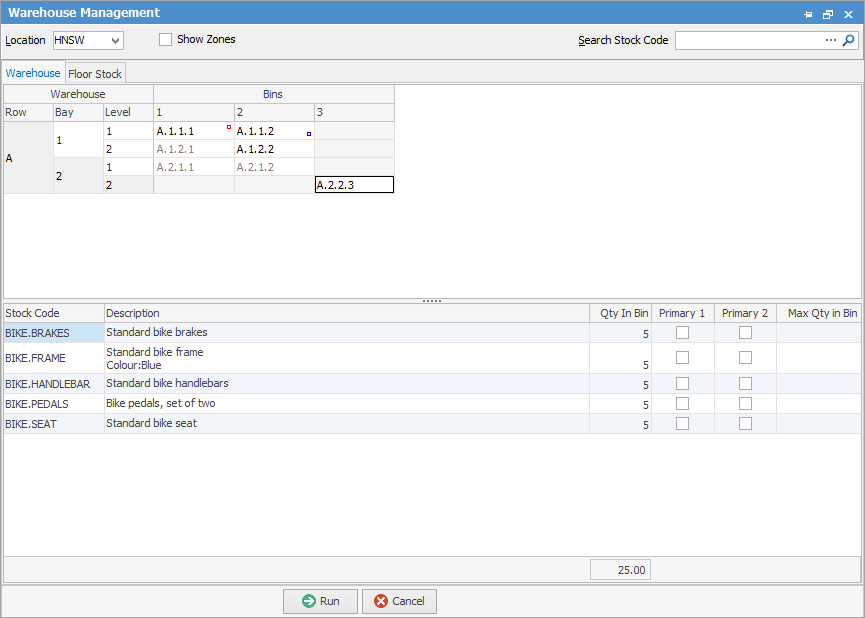
You can then click on each bin and see what is in the bin in the lower section of the screen.
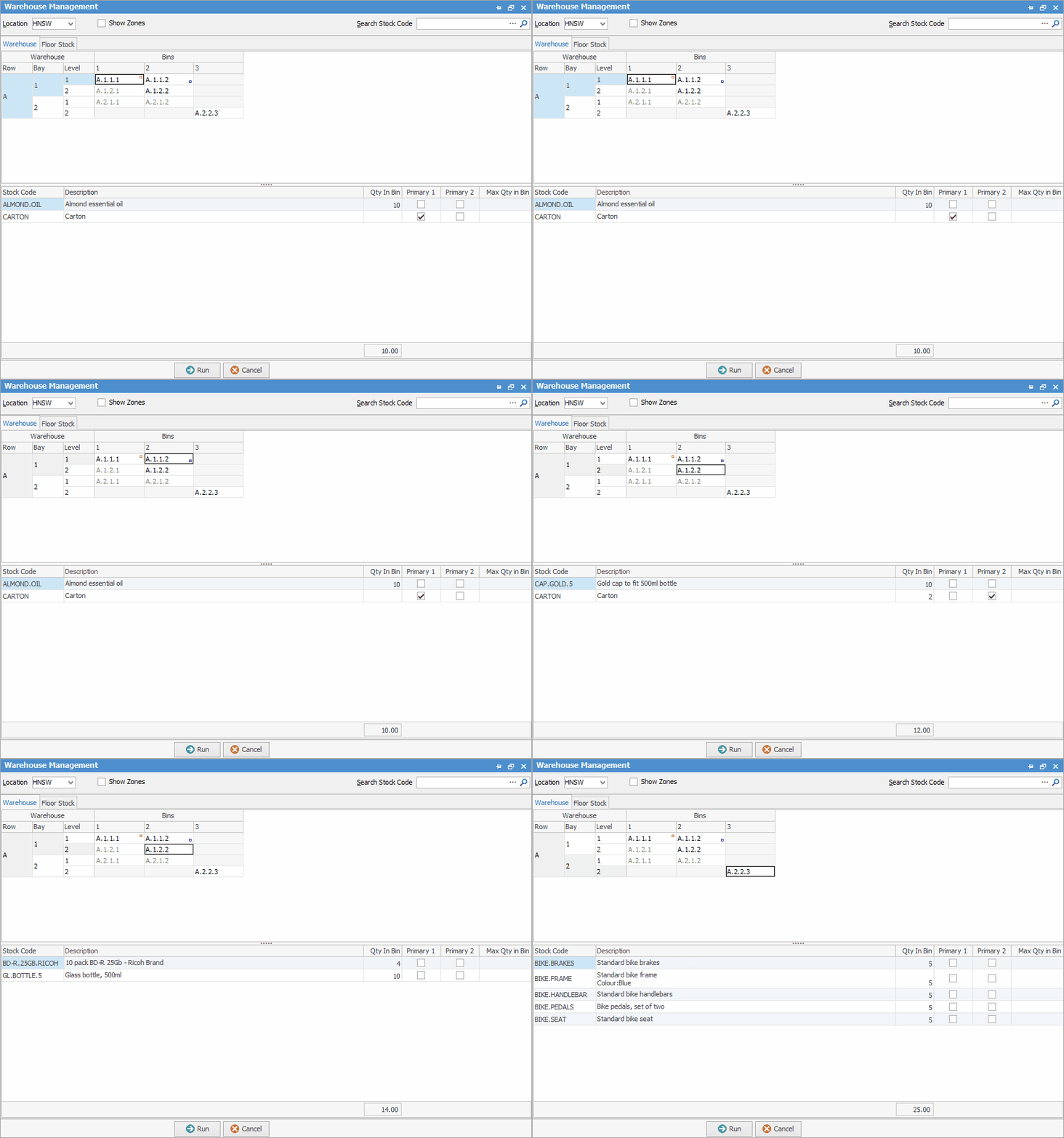
Whilst it may be time consuming, you can right click within the lower grid and select Export Data to save to a spreadsheet. |
There is no dedicated report for bin movement history.
Bin movement can be viewed via stock enquiry screens, such as transfers between bins, and pick/pack movement.
To be able to see pick or pack movement, Statuses need to be set up so you can run lists based on those statuses.
You can also go to History via Tools and choose Purchase or Job objects where you can see when a job or purchase was edited and picked or packed. You can then export this to a spreadsheet if required.
Further information