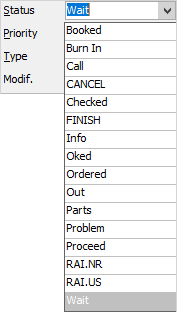
Statuses can be set up to apply to jobs to signal the need to perform an action within the workflow. The responsibility to perform that action is monitored on a live basis. A change of status by a user signals the need for a new action, and passes responsibility to perform that action along the workflow.
Jim2 records time/date/user initials on status changes for productivity reports, and keeps a secure quality control record for each job. When a user changes the status of a job, Jim2 will automatically prompt the user for a comment by placing a new line in the Comment grid of that job.
The choice of status for certain points in the workflow represents the need for an action to be taken (for example: if Booked, an action is required to execute the prime objective of the job). These decisions can be based on technical, financial or customer-related issues and procedures known to staff.
|
Note: Statuses will always appear in alphabetical order. |

A status should signal the need for a decision to be made, and a subsequent status change should indicate the resolution decided.
 |
Creating a Job List defined by status will provide an accurate record of all jobs that are currently on a particular status. By choosing specific search criteria for the Job List, monitor customer, user and stock trends (both active and historic). Using job statuses, monitor how successful procedures are, or how well users perform. Edit or add a status to match workflow via Jim2 Tools > Status. |
The following statuses are available to map workflow for sales and service jobs. Others can be added in the Setup Defaults.
Status |
Explanation |
|---|---|
Booked |
This is the default status applied to a job when first added. All jobs begin with this status. If set up within an Item, a name has already been allocated to this job. In the case of a service job, the stock to be serviced would be placed on the relevant person's Booked Job List. In the case of a sales job, the job is ready to be picked once the Supply column has been filled in. |
Burn In |
Relates only to a service job – the stock object has been serviced and is undergoing tests, the results of which affect the decision to return it back into the workflow. After sufficient testing, the job would normally move to Finish. |
Call |
The customer needs to be contacted to make/confirm a decision about the job. |
Cancel |
This will cancel the job. |
Checked |
This would be regarded as a qualified Booked. It is useful, especially when doing bulk servicing of the same stock objects, to have a quick pass through of all jobs, and group the jobs by the related faults.
Example: A junior technician, who would fix the jobs they are capable of, then change the remainder to Checked. |
Finish |
The final status of successfully completed jobs, including invoiced jobs. ▪For a service job – The stock object has been repaired and fully tested. ▪For a sales job – The job has been picked and is now completed. ▪For a manufacturing job – The stock has been manufactured.
The word FINISH in a Job List can be one of three colours: ▪Green means the job is finished but still active. ▪Red means the job is finished and has been set to Ready to invoice. ▪Black means the job is finished and has been invoiced. |
Info |
Further information is required before this job can proceed. |
OKed |
This would normally follow on from Call or Wait. The customer has given approval to continue, and the job can return to the workflow. |
Ordered |
The job is effectively on hold, waiting for stock to arrive. A purchase order has been raised. |
Out |
The job is physically not in the building. Typical reasons would be that the customer has collected the job and will return it shortly, the stock object has been loaned to someone or it has left the workflow for intervention by a third party vendor. |
Parts |
The job requires stock to be completed. It is the responsibility of the purchasing department to obtain the stock necessary to complete the job. |
Problem |
The job cannot be completed for some reason outside the scope of all other statuses. A management decision or internal second opinion needs to be made before the stock object can return to the workflow. In this case, it is recommended to enter a comment about what is happening. |
Proceed |
This would normally follow on from Ordered or Info. Stock has been received, and the job can return to the workflow. |
RAI.NR (Return As Is: Not Repaired) |
The job is finished but was not repaired. Typically, this would be because the customer has rejected the quote, stock is not available or the stock object is deemed uneconomical to repair. |
RAI.US (Return As Is: Unserviceable) |
The job is finished but was not repaired. Typically, this would be because the stock object has been physically damaged in some way and has been deemed unserviceable by the technician. |
Wait |
This would normally follow on from Call. The customer is in the process of making a decision. The job cannot return to the workflow. |
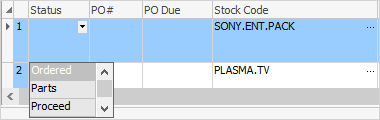
Status |
|
|---|---|
Ordered |
The stock for this job has been ordered from the vendor. |
Parts |
This job is flagged as requiring stock to be ordered by the purchasing department. |
Proceed |
This job is ready to proceed to the next step in the workflow. |
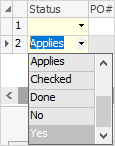
Applies |
|
|---|---|
Applies |
This status is the default when Applies stock is added to a job. |
Checked |
The check or test was completed. |
Performed |
The check or test requirement has been completed. |
No |
This check does not apply to this job. |
Yes |
This check does apply to this job. |
Further information