|
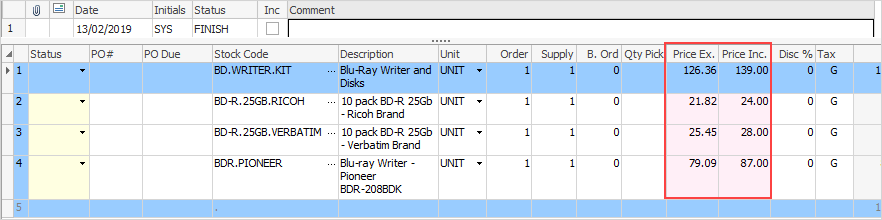
This section of the job form contains a grid that is used to record and automatically price any stock (parts, tests or labour) used in a job that will be invoiced to a customer.
Price calculations are in direct relation to the price levels, price breaks and tax requirements as set in the customer's cardfile, and the stock pricing calculation as set in each stock record. The stock grid calculates the sub-total of the selling price, tax amount and total to be invoiced as stock is added to the grid.
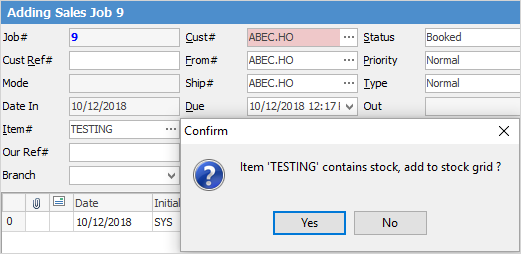
If pre-configured in the stock tab of the Item, stock can be added automatically when an Item is selected in the Job header.
This is commonly used when adding stock where certain conditions are imposed on the job, such as running product tests prior to selling (Applies stock). More lines of stock can also be added after the Item has populated the stock grid.
Click the  in the top left corner of the grid to display all fields. in the top left corner of the grid to display all fields.
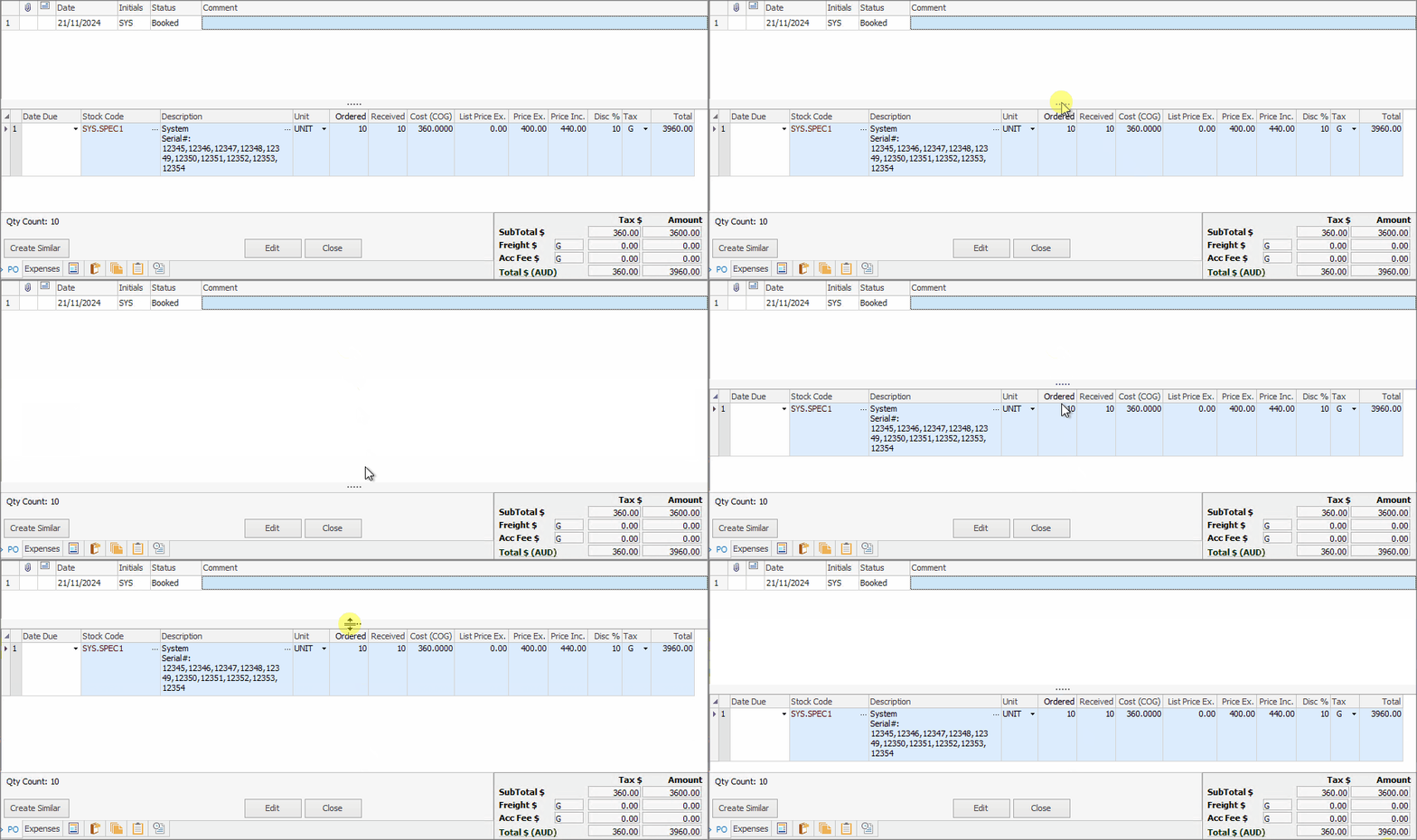
The stock grid area can be expanded by clicking and dragging the horizontal dots up and down. Double clicking the dots will hide the stock grid completely. Double click again to show.
|
|
|
Date
|
The date the stock line was added to the job.
|
Initials
|
Initials of the user that added the stock to the job.
|
Status
|
Status allows recording of a unique status for each stock line. The type of status available (statuses already set up in Jim2) will change depending on the type of stock. In this example labour stock has different statuses to depleting stock.
Note: A message will appear asking whether to update the status of the job itself – this can be updated or left as is.
|
PO#
|
The purchase order number related to this line of stock. This will show when a purchase order has been auto created from the job.
Note: A purchase order number cannot be added here – it will automatically populate on auto create.
|
|
Once a PO is linked to a job stock line, the unit measure cannot be changed, as the entire line of stock is tied to that job. To change the unit measure on the job, unallocate the stock first.
|
|
PO Due
|
This displays the due date of the linked purchase order at line level or purchase order header due date (if not set at line level).
|
Location
|
The location of the stock being sold – this will default to the location set in the user cardfile. The location can be changed using the drop down list.
|
Stock Code
|
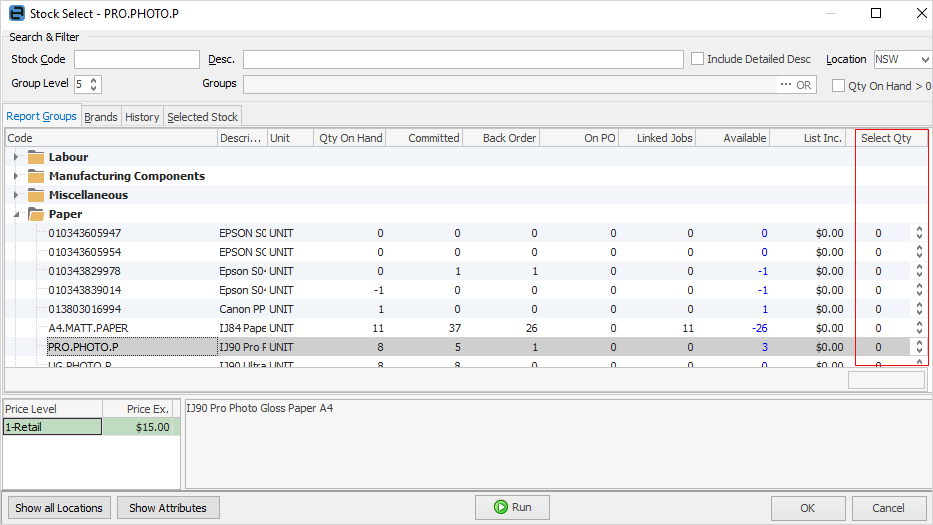
The user adding stock must select a stock code to identify the product or service being tracked by this job. Selections can be made from the stock records via the ellipsis [...] at the end of this field, which will bring up the Stock Select screen. If the stock code is coloured red, this means the stock is either special stock or a customer-specific order.
|
Description
|
The description of the stock code from the stock record is automatically placed in this field. Information in this field can be changed or added to. If multiple measures have been set up for this stock, it will use the description appropriate for each measure.
|
|
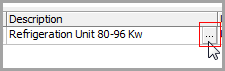
If the stock being sold requires a serial number, either on purchase or sale, the Description field in the stock grid will include an ellipsis [...]. If the stock requires a serial number on sale, the stock can be added to the job, however the job cannot be invoiced until a serial number has been entered. To complete the details, select the ellipsis [...] and record the appropriate serial numbers. When trying to finish a job with missing serial numbers, an option to back order will appear. If No is selected, the invoice will only be for the stock that has serial numbers against them, and the others will not be back ordered.
|
|
Unit
|
The unit measure for that stock code is entered here. If more than one unit measure type, this can be changed by selecting the down arrow beside the Unit field.
|
Order
|
Number of units ordered by the customer.
|
Supply
|
Number of units actually supplied to the customer.

|
If the supply quantity is coloured red, this indicates that there is an action to be taken.
|
|
B. Ord
|
Displays the quantity on back order.
|
Qty Pick
|
Displays quantity picked – only with Advanced Warehouse Management.
|
Price Ex.
|
Actual selling price excluding tax.
|
Price Inc.
|
Actual selling price including tax.
|
Disc %
|
Allows entry of a discount percentage.
|
Tax
|
Tax code applicable to that stock.
|
Hide
|
Ticking this box will hide that particular stock line on an invoice.
|
Total
|
Line total (supply quantity x price including GST).
|
Vendor
|
The vendor the cost price was sourced from, and who a purchase will be created for when using auto create purchase order.
|
Manual Cost
|
The cost price that will be used in job profit calculations. This will be used when using auto create purchase order.
This is an amount that will be entered by a user, ensuring the costs carry through and ignoring what is on the stock code.
|
Est. Cost
|
The estimated cost price of each line of stock or service, excluding tax.
|
Cost Total
|
The total cost price of each line of stock or service, excluding tax.
|
Markup %
|
Percentage markup.
|
Total Ex. $
|
Total cost ex GST.
|
Comm Floor
|
Used when calculating commission based on profit. If a commission floor cost is entered, profit calculations will use this value rather than the actual cost. For example: cost $1,000, actual cost $945, profit is based on $1,000 floor cost.
|
Comm%
|
Percentage of commission to be paid, depending on commission method: price inc, price ex, or profit.
|
Comm Extra$
|
A flat dollar amount paid per stock sold. For example, $100 for every XYZ sold.
|
Note: Commission components can be combined. For example, 10% commission of profit based on floor cost plus extra $10.
|
|
The order of the stock lines can be changed within the stock grid via drag and drop. Click and hold the mouse in the area left of the stock line number, then drag to the new position.
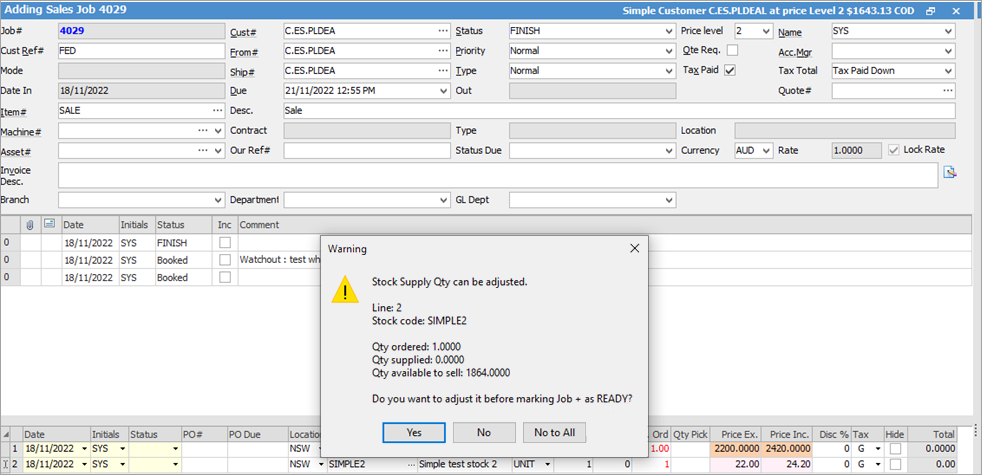
When you have stock that is available but your are supplying 0 and is on back order, the following screen will pop up for you to decide what you would like to do:
|
|
|
Note: The yellow background in Status indicates there are choices to be made there.
|
|
|
Hover over the coloured fields and Jim2 will pop up an explanation of the colour meaning:
Within the header field of a job, if the Cust# field is pale red, this means that the customer is on credit hold.
When adding a job, a warning will pop up and the Cust# field will turn pale red. If the customer is placed on credit hold after jobs have been created, the field will change colour, however no warning will pop up.
Price columns
|
|
|
White
|
Price level is being used (ie. Price Level 1).
|
Lilac
|
Contract price level.
|
Green
|
Customer-specific price level.
|
Yellow
|
Manual/overridden price level.
|
Mustard
|
Promotional pricing level.
|
Orange
|
Minimum sale price level.
|
Blue
|
This is a kit.
|
Pale Blue
|
Linked to a purchase order. See Stock Code below – can also be background for special stock.
|
Red
|
Stock is back ordered.
|
Pink
|
Different price level to that selected in the header.
|
Light Grey
|
If stock is reserved at a line level, the line will turn light grey. If the whole job is reserved, the entire stock grid will turn light grey.
|
Sell Details
Sell details are automatically added or updated when adding stock to a job, or when recalculating the selling price. The sell details show the source of the selling price (price level, promotion, etc.) and the source reference. The selling price background is colour coded to indicate the source, and hovering over a sell price cell will display the details.
|
|
|
|
Price Level
|
White
|
Sell price is as per price level set on the Job header.
|
Different Price Level
|
Pink
|
Sell price is based on a price level different to the price level set on the Job header.
|
Customer Specific
|
Green
|
Sell price is as per the customer-specific price on the related stock.
|
Manually Entered
|
Yellow
|
Sell price has been manually entered.
|
Promotion
|
Mustard
|
Sell price is based on a promotion.
|
Project
|
Purple
|
Sell price is based on the price level of the related project (only if the company is licensed for Managed Services or Managed Print Services editions.
|
Min Sale
|
Orange
|
Sell price is set to the stock’s minimum sell price level.
|
|
Other price background colours
Blue
|
This is a kit.
|
Pale Blue
|
If the stock being sold has been purchased specifically for the job (the purchase order stock line has a job number link), the line will show in a light blue colour in the purchase order and the job.
If the stock being sold is special stock, it will show with the stock code in red and also the line in light blue.
|
Red
|
The background colour of the B.Ord column will be coloured red if any stock is back ordered.
If the Supply plus B.Ord figures do not equal the ordered quantity, both the Supply and B.Ord figures will be displayed in red.
|
|
|
Hover over the coloured fields and Jim2 will pop up an explanation of the colour meaning:
Within the header field of a job, if the Cust# field is pale red, this means that the customer is on credit hold.
When adding a job, a warning will pop up and the Cust# field will turn pale red. If the customer is placed on credit hold after jobs have been created, the field will change colour, however no warning will pop up.
|
|
|
|
|
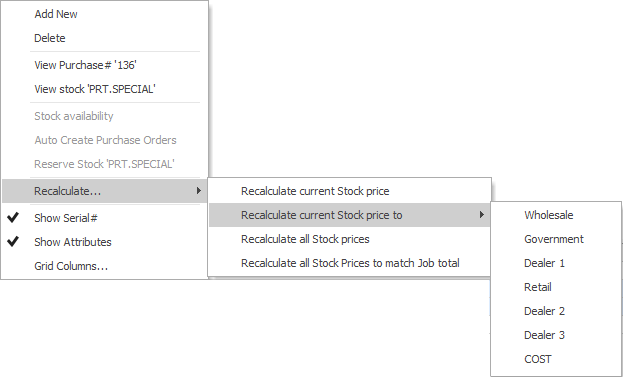
Add New
|
Adds a new stock line.
|
Delete
|
Deletes the line including the stock that has been added to the job.
|
View Purchase#
|
Is a hyperlink and will open the purchase order that was used to order the specific stock for this job.
|
View Stock
|
Is a hyperlink and will open that stock form. Available in both Edit and View mode.
|
Stock Availability
|
When selected, the line number in the grid will change to green, signifying that stock is available. This setting allows to override committed stock (ie. stock allocated to other jobs).
|
Auto Create Purchase Orders
|
This setting allows to automatically create a purchase order. Already linked stock is excluded from this list.
|
Reserve Stock
|
This means that stock is exclusively held for that job and cannot be sold, picked or reserved on other jobs.
|
Recalculate
|
Recalculate current Stock price
|
Recalculate the current line of stock. For instance, the original amount has been changed, or expenses may have been applied.
Note: If a price is manually entered and Recalculate is selected, it will be replaced by the original price from the stock record. It is recommended to change the quantity first, then enter prices.
|
Recalculate current Stock price to
|
This will recalculate the price for the selected stock line to another price level.
|
Recalculate all Stock prices
|
This will recalculate all stock prices in the grid – useful when an expense has been applied to a line of stock on a particular job.
|
Recalculate all Stock Prices to match Job total
|
Allows automatic recalculation of stock prices to match a certain figure. For example, there are several lines of stock on a job, with the total price being $2019.25. Recalculating all stock prices to match the job total allows entering a price of, say, $1999. Jim2 will automatically adjust all line prices based on their selling price so that the job total equals $1999.
|
Show Serial#
|
Choose to show the serial number of the stock object in the Description field.
|
Show Attributes
|
Displays any stock attributes within the stock line.
|
Grid Columns...
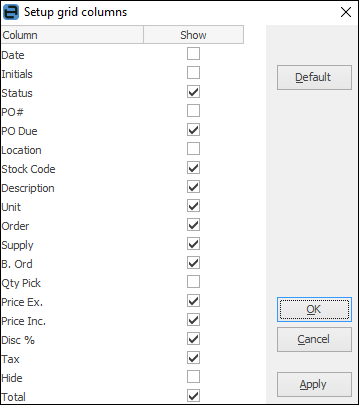
|
This sets up the grid columns that will be displayed in the stock grid. In expanded view (click the beside the Price Level field). All grid columns are displayed by default.
In collapsed view, the following columns are not shown:
▪Date
▪Initials
▪PO#
▪Location
▪Qty Pick
▪Disc %.
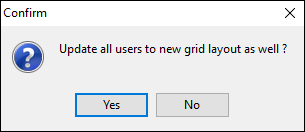
Add or remove grid columns by ticking the box, then selecting Apply. Click OK to update all users to the new layout as well.
Upon saving, all columns will be shown. Click on the arrow at top left of the grid in either Edit or View mode to view only the columns required.
If the Hide box is ticked, this will selected hide stock lines in the job and on the invoice.
|
|
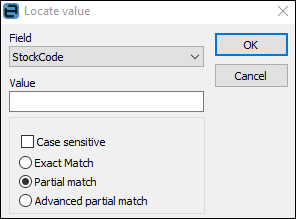
Within the stock grid, all columns and rows can be searched by selecting Ctrl+S. This will bring up the Locate value screen, where which field to search can be selected and text entered to search for in the Value field:
Stock search facility is available from within the stock grid by selecting the ellipsis [...] in the Stock Code field (or by using the F5 function key whilst in the field). This will assist in refining what stock will be included in the stock grid. It will show the available quantity of stock at each stock location – this may affect which stock to choose to supply. In this screen, it is also possible to select multiple lines of stock by specifying the quantity required of each stock record in the Select Qty column.
The selection can be reviewed in the Selected Stock tab.
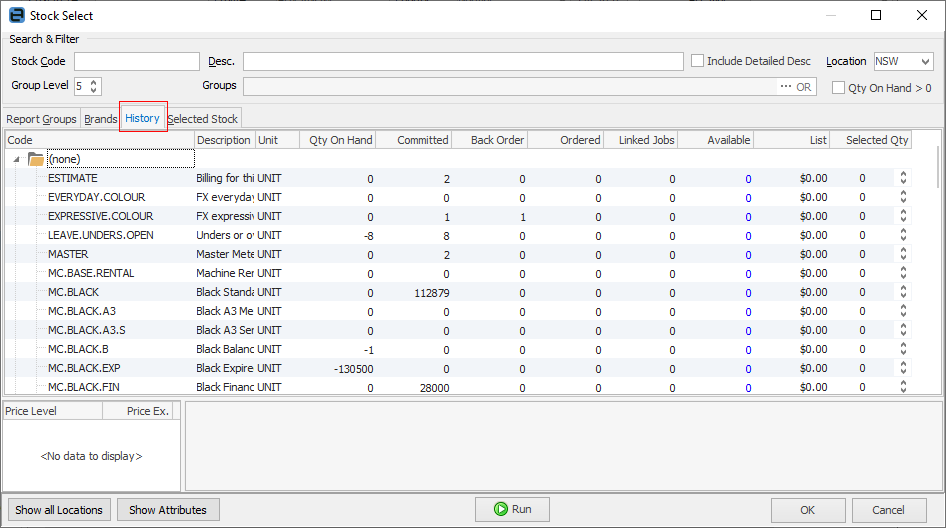
History relating to stock will appear on the History tab, showing what stock has been sold in the last 365 days.
Further information
Job Comment Grid
Job Footer Tabs
Job Header
Job List
Job Preview Pane
Job Reports
Job Status
|