Stock can be purchased specifically for a job by entering the job number on that stock line in a purchase order. If, for any reason after purchasing this stock, the customer doesn't want it, unallocate it before selling it on another job number.

1.Go to the Stock tab in the Jim2 ribbon, then click Unallocate.  The following screen will be displayed. 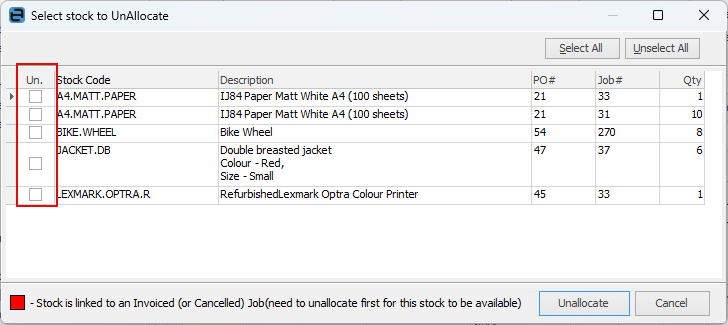
2.Put a tick in the Un. column next to the stock to be unallocated. 3.Now click Unallocate and a prompt to continue will appear. 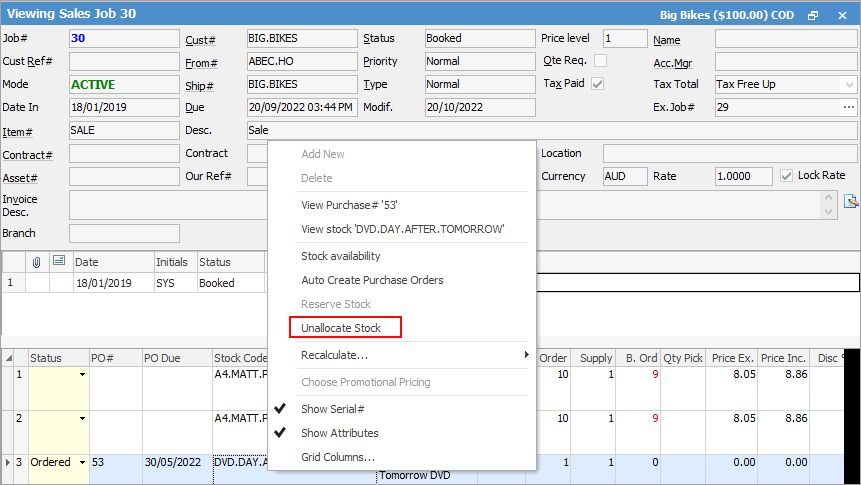 4.Click Yes and the stock will be unallocated and become available for other jobs.
Stock can also be unallocated at a job level, by right clicking on the stock line within the grid when in View mode and selecting Unallocate Stock.
|

Further information
Backfill Stock Sold in Advance
Buy and Sell in Different Measures
Change a Serial Number on a Stock Record
Export a Stock Report to Spreadsheet
Generate Backdated Stock on Hand Report
Move Stock from Depleting to Asset
Report Showing all Vendors on Stock
Stop Users From Giving Discounts
Update Existing Vendor Pricing