When a customer wants to use their own stock, there are a number of scenarios to consider.
▪In a larger company, where there is a person who specifically orders stock (not expenses), to order stock, they should raise a normal stock purchase order, then sell it on a job to themselves (see Methods 1-3 below).
▪For a smaller organisation that controls all aspects of purchasing, an expense order can be used.
▪Stock is to be used within the company and does not need inventory control, so no job is required:
You can add a Stock GL Group to point the COGS to a specific account in your general ledger via Tools > Setups > Accounting> Stock GL Groups.
Create a non depleting stock code (or more than one if you want each code to have a more specific description, eg, a code for wrap, a code for tape, etc.) that you can use in a purchase order.
▪There may also be the situation where the stock is to be display stock, and eventually may be sold.
There are a few different methods to move the inventory into expenses if an expense order isn't used:

A running sales job can be created where staff can add stock that is used in-house. This job will then be invoiced and the invoice total moved to the Expense ledger: ▪Add the stock to a job where Cust# is the company cardfile. ▪Adjust the sell price to equal the current COGS for the stock in question. ▪Change the default tax code on sell from G to X (exclude from overall sales reported in BAS). ▪Invoice.
Now the company becomes a debtor to itself. To move the stock COGS to the Expense ledger: ▪Open the company debtor record. ▪Record a debtors adjustment down against the appropriate expense code (typically 6-XXXX). ▪Make sure the tax code on adjustment is also X. ▪Save. 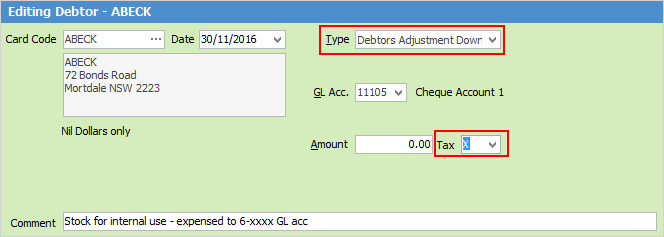
The adjustment down will create a credit that should now be applied to the original invoice. To apply the credit: ▪Edit the debtor record again. ▪Select Payment By: Credit. ▪Choose the credit just created. ▪Apply the amount in the Paid Now column of that credit to clear the invoice. ▪Save and close. |
Similar to the above option, however this method will expense the total COGS to a nominated expense account via an entry on the original invoice using journal stock. ▪Set up a new Stock GL Group called INTERNALUSE and select the accounts the COGS are to be moved to when expensing this stock. Stock Type will be Journal. 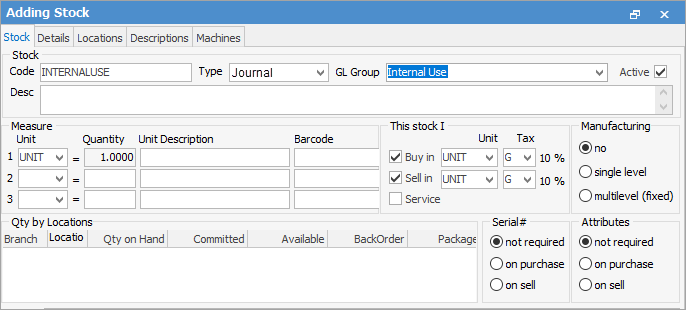
Create a running sales job, and add the stock that has been used in-house: ▪Adjust the sell price to equal the current COGS for the stock in question. ▪Change default tax code on sell from G to X (exclude from overall sales reported in BAS). ▪Add a journal stock entry with a negative value that equals the total invoice. This will move the total COGS to the relevant expense account. ▪Invoice. 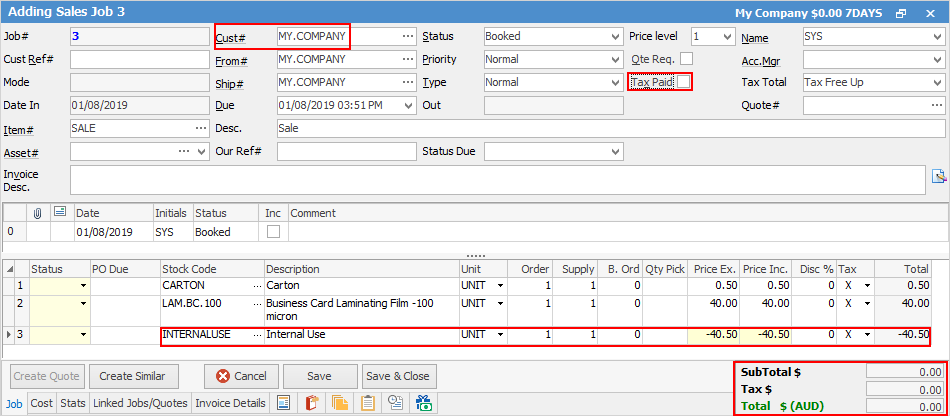 |
Use the Stock Adjust Down function to remove the stock from the current stock on hand count, then use a general journal to move the total to Expenses. ▪Add a stock adjustment. ▪Select QTY – and the correct stock code to reflect which product(s) used. ▪Change to Finish. 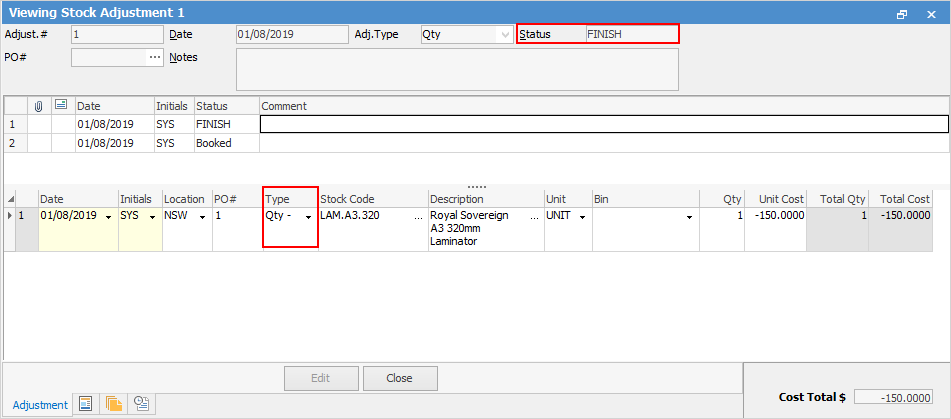
This stock adjustment down (debit) will move the stock COGS into the 5-XXXX Stock Adjustment account in the general ledger. It then needs to be journalled to the correct expense account(s): ▪Add a general journal. ▪Select the 5-XXXX Stock Adjustment account. ▪Enter the total in the Credit column (credit back the stock adjustment account), tax code X. ▪Select the 6-XXXX Expense account. ▪Enter the $total in the Debit column (debit the expense account instead), tax code X. ▪Finish and Save. 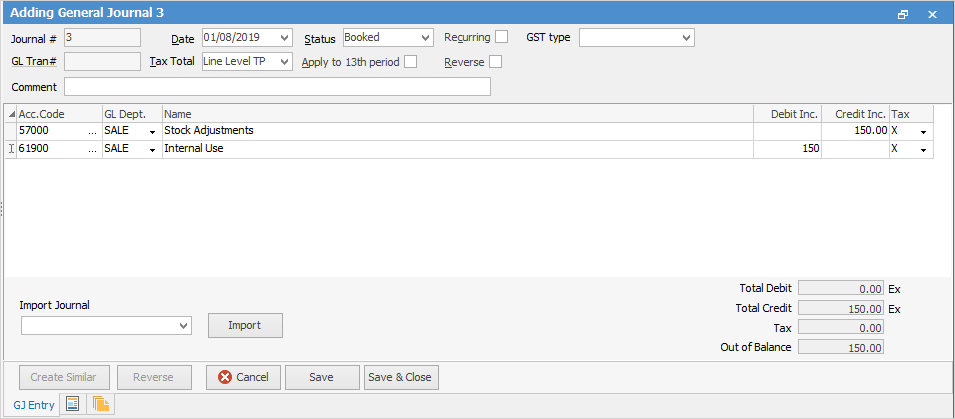
|

The above options will report differently in Jim2, and should be checked with the company's accountant for the preferred option.
Further information
Backfill Stock Sold in Advance
Buy and Sell in Different Measures
Change a Serial Number on a Stock Record
Export a Stock Report to Spreadsheet
Generate Backdated Stock on Hand Report
Move Stock from Depleting to Asset
Report Showing all Vendors on Stock
Stop Users From Giving Discounts
Update Existing Vendor Pricing