Once there are transactions against a stock code, the Stock GL Group cannot be changed. Following is the process to change the Stock GL Group:
1.Ensure the correct Stock GL Groups have been created first.
2.Edit the original stock code and place a Z. at the beginning of the stock code, then click Save.
3.Click Create Similar and copy all fields except the GL Group.
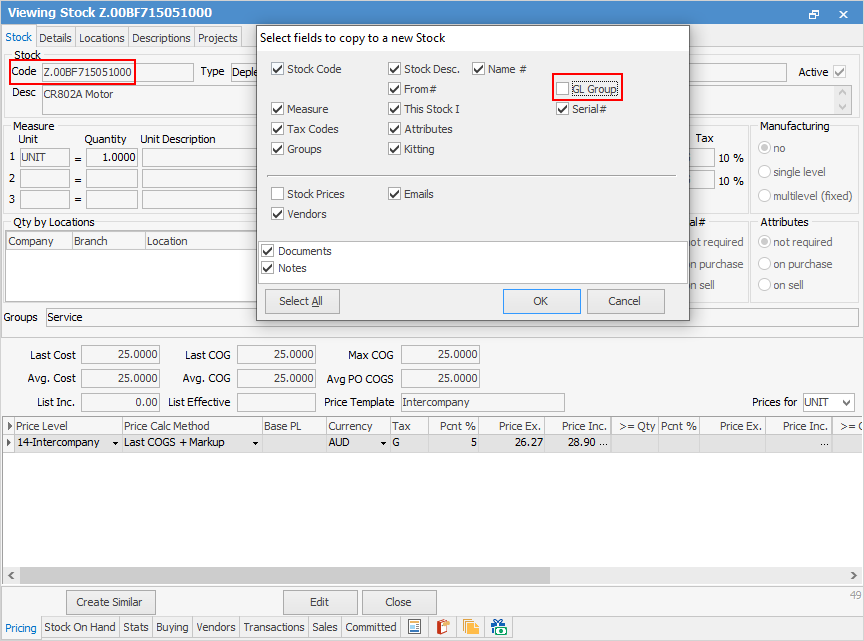
4.Choose the correct Stock GL Group.
5.Use the old stock code (minus the Z.) and click Save.
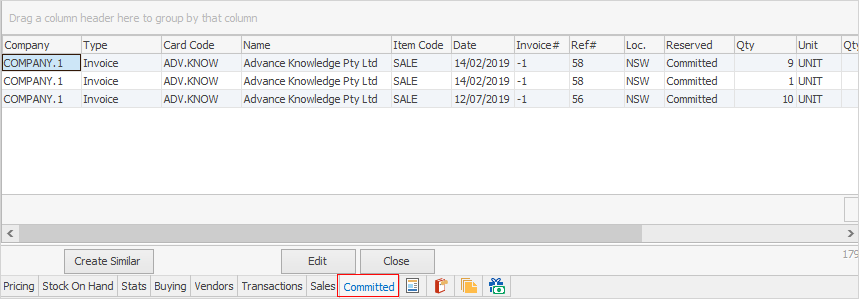
6.Check the Committed tab on the original stock record and update any jobs to the new code.
7.If there is stock on hand, add a stock adjustment to move the stock from the old to the new stock code, ie. Qty- against the old code and Qty+ against the new code.
8.Make the old code inactive, ensuring it won't appear in Stock Lists.

Further information
Backfill Stock Sold in Advance
Buy and Sell in Different Measures
Change a Serial Number on a Stock Record
Export a Stock Report to Spreadsheet
Generate Backdated Stock on Hand Report
Move Stock from Depleting to Asset
Report Showing all Vendors on Stock
Stop Users From Giving Discounts
Update Existing Vendor Pricing