On the ribbon, go to Stock > Create Stock List.
If the stock in the list does not have any transactions against it, you can right click in the list and select Delete all Stock In List:

Go to the Advanced tab in the footer to filter the list, then click Run.

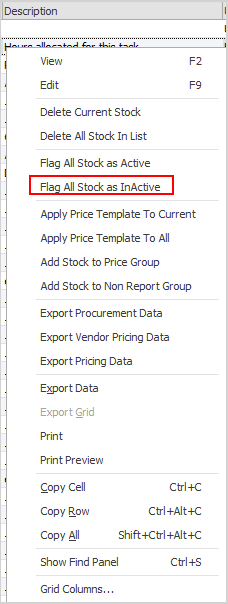
Right click in the grid to show the options to choose from. To bulk update stock to inactive, for instance, select Flag All Stock as Inactive.
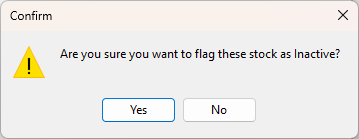
A pop up will appear asking whether to flag the stock as inactive.
Who can do this is controlled by Security.
|
Please use caution when making a list of stock inactive. This action will impact all stock in the list, regardless of any quantity currently on hand. |

This will apply the Inactive status to the entire list.
Further information
Backfill Stock Sold in Advance
Buy and Sell in Different Measures
Change a Serial Number on a Stock Record
Export a Stock Report to Spreadsheet
Generate Backdated Stock on Hand Report
Move Stock from Depleting to Asset
Report Showing all Vendors on Stock
Stop Users From Giving Discounts
Update Existing Vendor Pricing