Within Jim2, stock can be sold in advance on a job.
If you are going to sell in advance, it is good practice to tick the option Backfill Stock sold in advance.
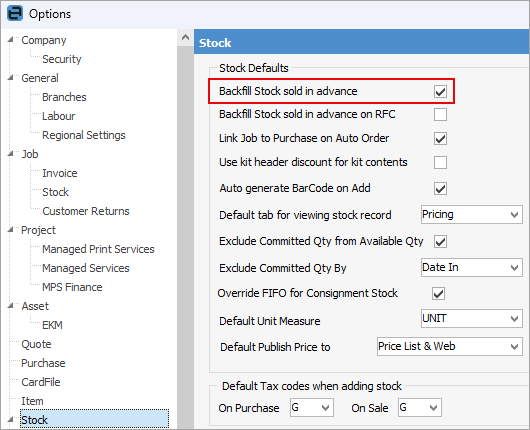
|
You can only backfill stock sold in advance if you have stock on hand to backfill with. |

|
If stock has been sold but never purchased within Jim2 (and it is not immediately after implementing Jim2, where an incorrect count on the opening balance purchase order may be the cause of the problem), add a stock adjustment qty+ equivalent to the stock sold in advance to then backfill and clear the stock sold in advance. |

If Options are not set to backfill automatically, the stock will need to be backfilled manually.
It is good practice to tick Backfill Stock Sold in Advance to alleviate the need to do so manually.
Backfill Stock sold in advance on RFC is better left unticked if, for instance, creating an RFC based on an incorrect price. Other reasons not to would be if it is to be returned to stock, or because it is faulty.
To manually backfill stock sold in advance:
1.On the ribbon, go to Stock > Backfill. The following screen will be displayed.
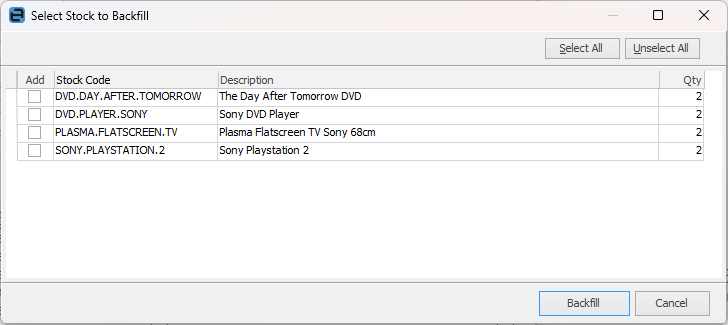
2.Select the stock to be backfilled by ticking Add.
3.Now, click Backfill and this stock will backfill any stock sold in advance for the selected stock.
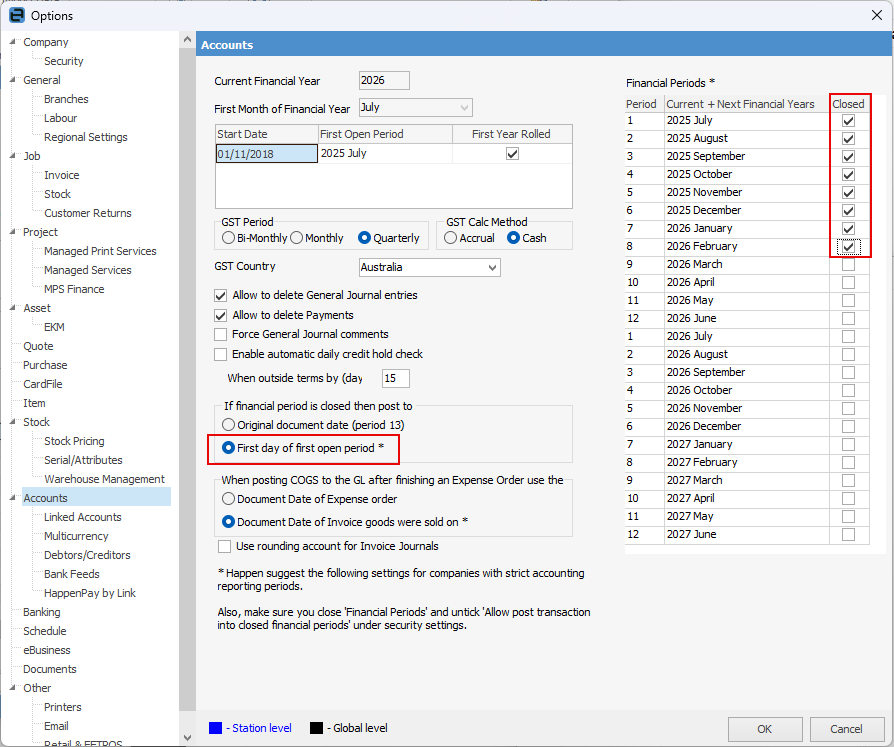
If months are still open in Tools > Options > Accounts, backfilling will hit COGS within those months. If you do not wish the COGS in those months, close the months and ensure your account settings are on First day of first open period *.
Further information
Buy and Sell in Different Measures
Change a Serial Number on a Stock Record
Export a Stock Report to Spreadsheet
Generate Backdated Stock on Hand Report
Move Stock from Depleting to Asset
Report Showing all Vendors on Stock
Stop Users From Giving Discounts
Update Existing Vendor Pricing