1.Select the method of unique serial tracking via Tools > Options > Stock > Serial/Attributes.
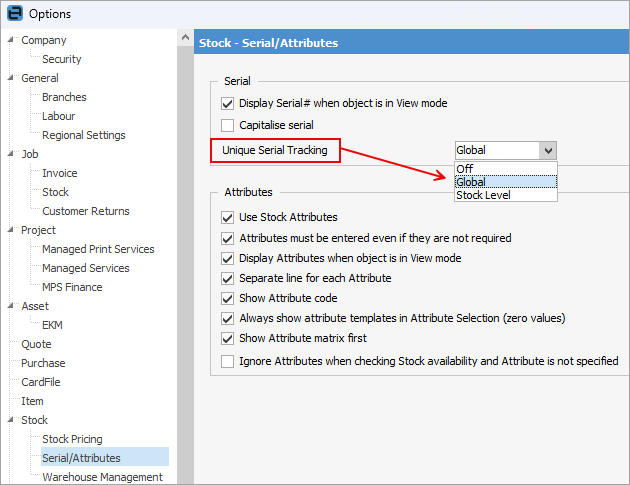
There are three choices:
Off – Users can duplicate serial numbers in various transactions.
Global – Users cannot duplicate serial numbers anywhere in Jim2.
Stock Level – Users cannot duplicate serial numbers within a particular stock record, however different stock codes can use the same serial number.
2.Add a stock record, then select the Serial# option.
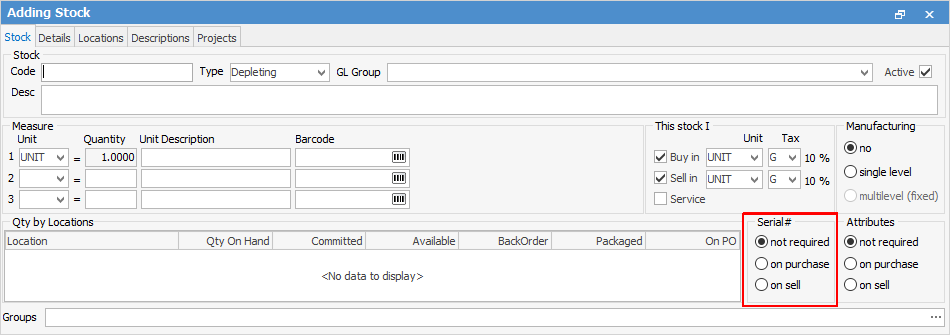
The three options are:
Not required – choose this if a serial number is not required to be used. This is the default setting.
On Purchase – choose this if a serial number is required to be entered for each stock on receipt of the purchase order, and a serial number to be selected for each stock on sale of the goods within the job.
On Sell – choose this if a serial number is required to be added for each stock on sale of the goods within a job.
|
Serial numbers can only be selected for depleting and special stock. Serial# on Purchase cannot be selected for stock where it has not been ticked I Buy or I Manufacture. Serial# on Sell cannot be selected for stock which is not ticked I Sell. |

In most cases, if tracking of serial numbers is required, select On purchase. The following information assumes this is the case.
3.Jim2 will allow the user to raise a purchase order without adding a serial number, however the user will be forced to enter a serial number before moving the status to Received or Finish.
If any stock being added requires a serial number on purchase, this can be added to the purchase order. Once the stock is received, enter the serial number details before finishing the purchase order.
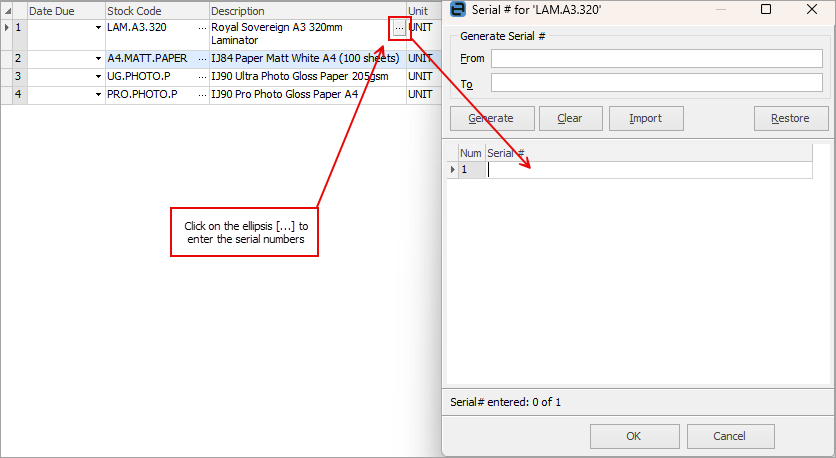
To enter serial numbers, click the ellipsis [...] within the Description field. This will open the Serial# entry form to select or create the serial numbers of the received stock.
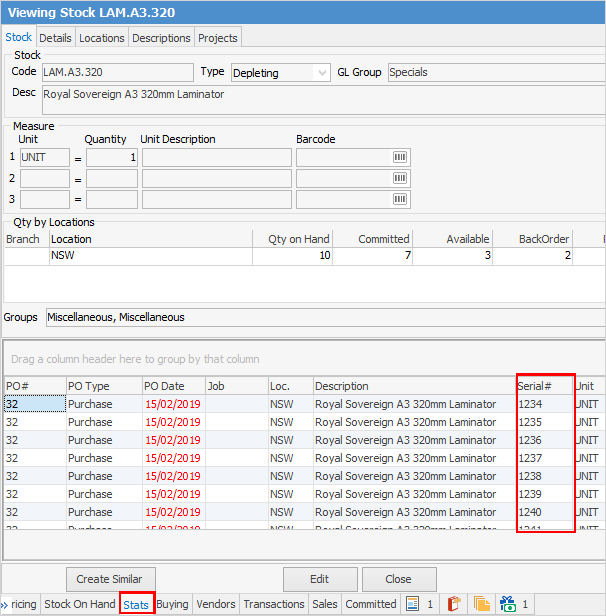
4.Use the Stats tab in the footer of the stock record to view the serial numbers of the stock on hand.
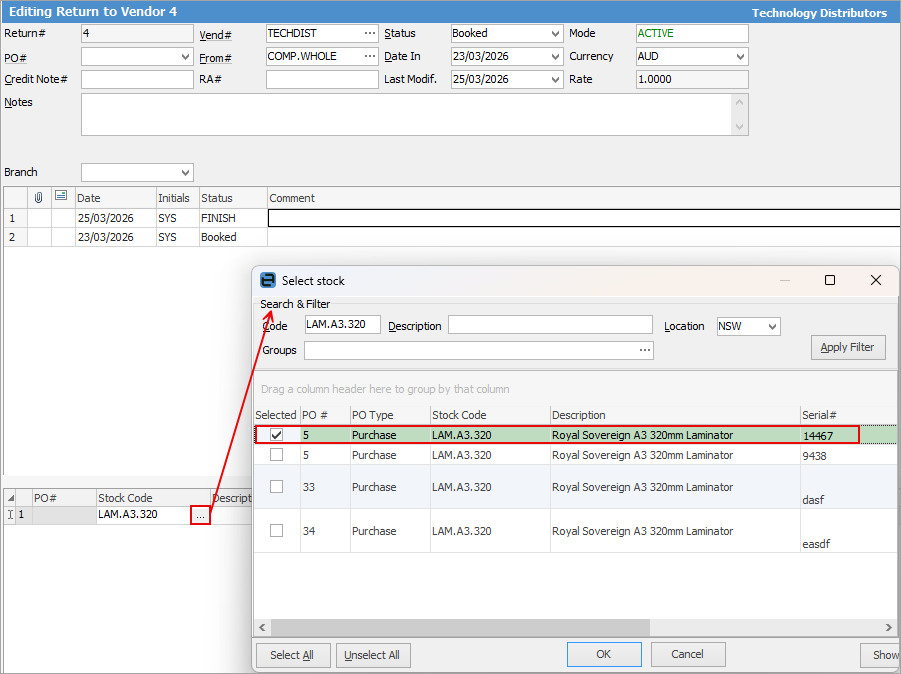
5.When adding a Return to Vendor, Jim2 will require a serial number.
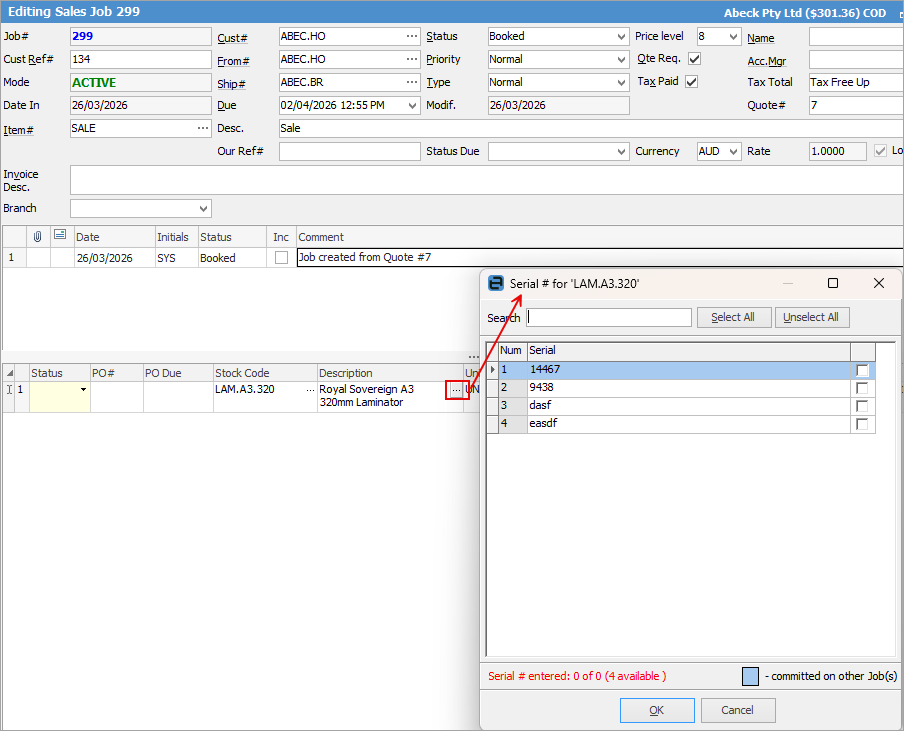
6.When adding stock to a job that requires a serial number on purchase, before finishing the job, the serial number details must be entered.
7.When adding a Return from Customer, Jim2 will require the user to select the serial number (similar to the Return to Vendor scenario above).
8.Stocktake, stock adjustment, stock transfer – all transactions will require the user to select the serial number.
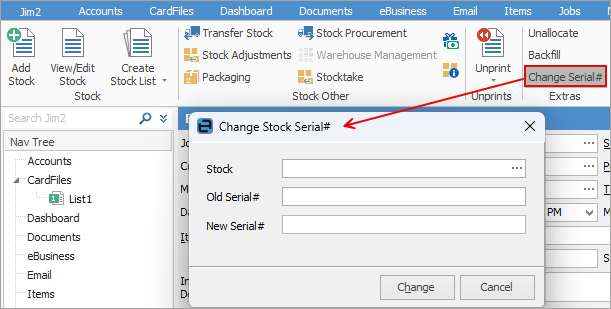
9.Users can change a serial number if entered incorrectly on a transaction.
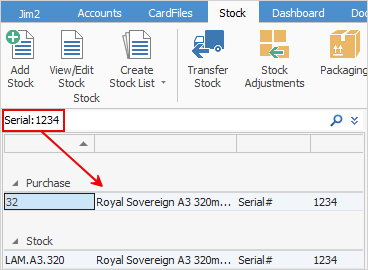
Finally, the best way to search for a serial number is via Jim2 Search.
As in this example, enter sn:1234, and Jim2 will return the search for that serial number.
Further information
Backfill Stock Sold in Advance
Buy and Sell in Different Measures
Change a Serial Number on a Stock Record
Export a Stock Report to Spreadsheet
Generate Backdated Stock on Hand Report
Move Stock from Depleting to Asset
Report Showing all Vendors on Stock
Stop Users From Giving Discounts
Update Existing Vendor Pricing