
Select the view/edit stock function in a couple of ways:
▪On the ribbon, go to Stock > View/Edit Stock, or
▪In the Nav Tree, right click on Stock and click View/Edit Stock.
|
If the stock code is unknown, use the search features of the Stock List in Jim2 to find the stock. Double click the stock to view/edit from the resulting list. This will bring the stock into View mode. |

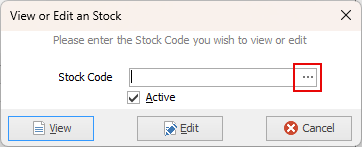
A screen will appear where enter the stock code. Click either View or Edit, depending on what function to be performed.
Clicking the ellipsis [...] will also open the Stock Select screen.
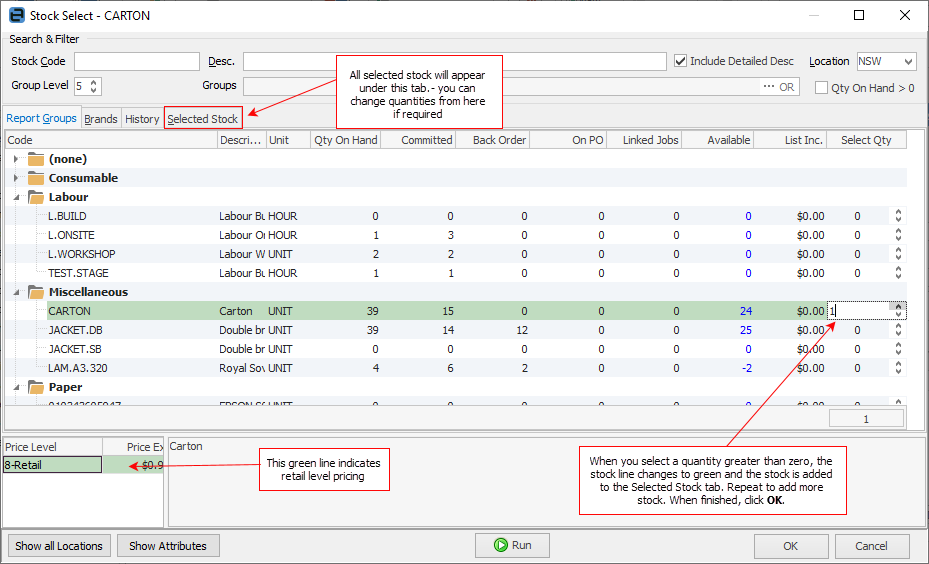
The stock lookup list is displayed in a tree fashion based on stock report level groups. Specify the default number of levels to display in Tools > Options >Stock, or change the default on the fly from the Stock Select screen.
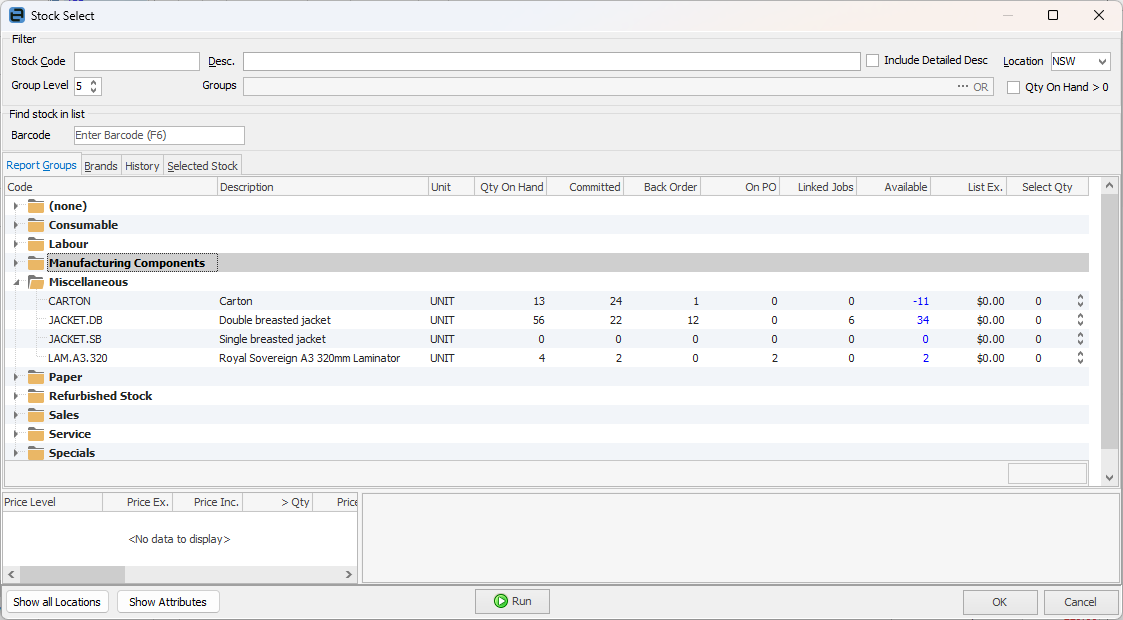
Pricing and the full stock description of the current stock are displayed in the lower part of the Stock Select screen. Either set the lookup to default to a particular level via Tools > Options > Stock, or just use the group level up/down arrow each time.
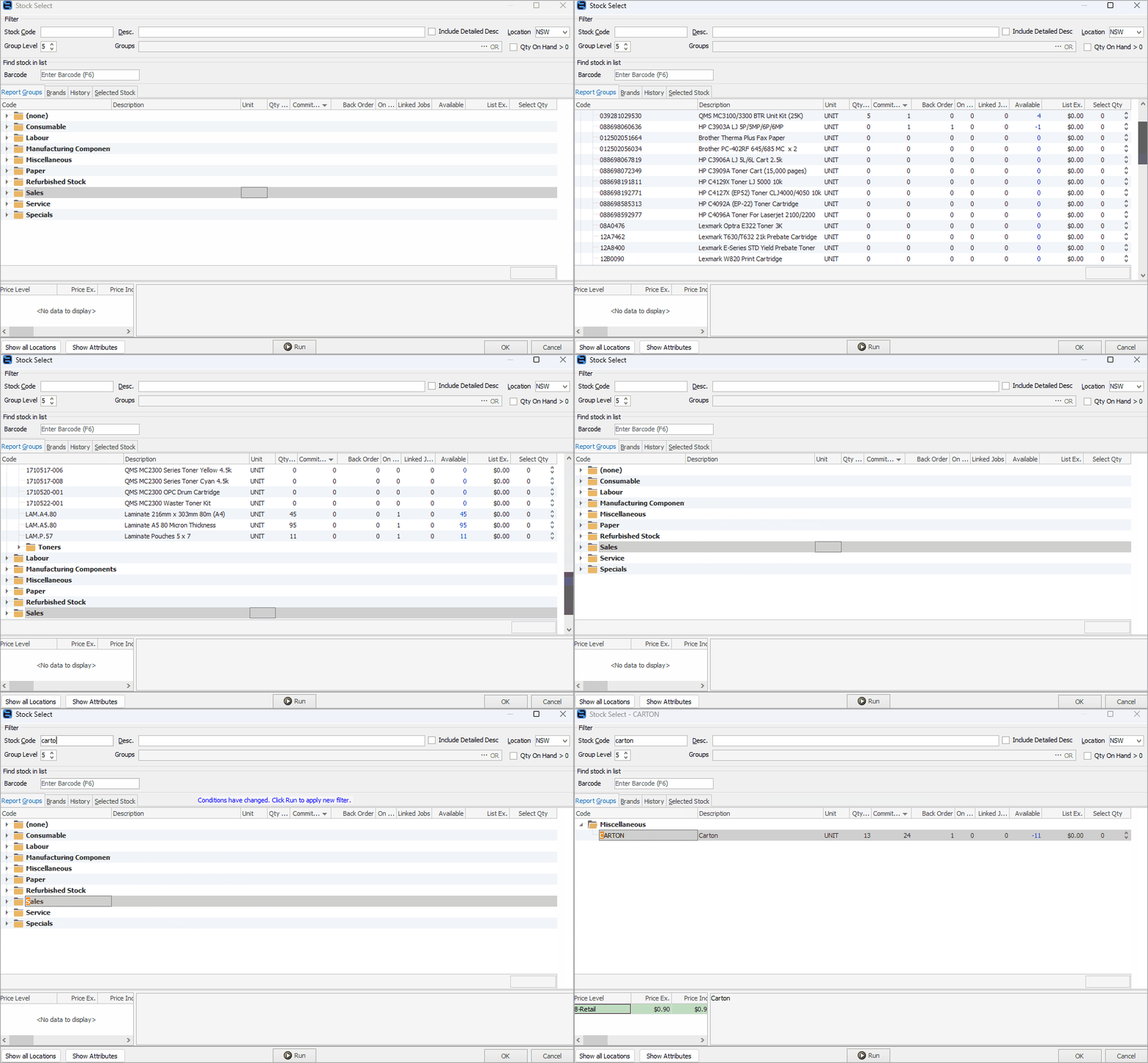
Once the Stock Select screen is activated, move up/down using the arrow keys. Use left/right arrow to collapse/expand a branch. Simply start typing to locate the required stock.
|
The Stock Select functionality works particularly well with the Kitting Configurator. To add stock on the fly to dynamic kits, browse to products in the Stock Groups. |

|
Once there are transactions against a stock record, it is not possible to change the following: ▪Stock GL Group ▪Serial number tracking. ▪Attribute tracking. ▪Stock Type.
To change any of the above, create a new stock record (using Create Similar) and make the original stock record inactive.
It is suggested to change the original stock code (ie. put a Z. at the beginning) and untick Active, then use the original stock code on the new stock record.
The history is held against the old record, so always find the information.
If there is any stock on hand against the old stock code, use a Stock Adjustment Down against that code, and a Stock Adjustment Up against the new code before making the old stock code inactive. |

Further information
Backfill Stock Sold in Advance
Buy and Sell in Different Measures
Change a Serial Number on a Stock Record
Export a Stock Report to Spreadsheet
Generate Backdated Stock on Hand Report
Move Stock from Depleting to Asset
Report Showing all Vendors on Stock
Stop Users From Giving Discounts
Update Existing Vendor Pricing