Stock Select is available by clicking the ellipsis [...] from within the stock grid on a job/purchase/quote, as well as from the View/Edit Stock icon in the Stock tab on the ribbon. It will help to search and narrow down choices for inclusion. It will show the available quantity of each stock at each location, which may affect the decision about exactly which stock to choose to supply.

1.Start entering information into the Stock Code or Desc. field.
2.By default, the Location will default to where the user is, eg. NSW. Select another location if required. 3.Click Run to display search results. 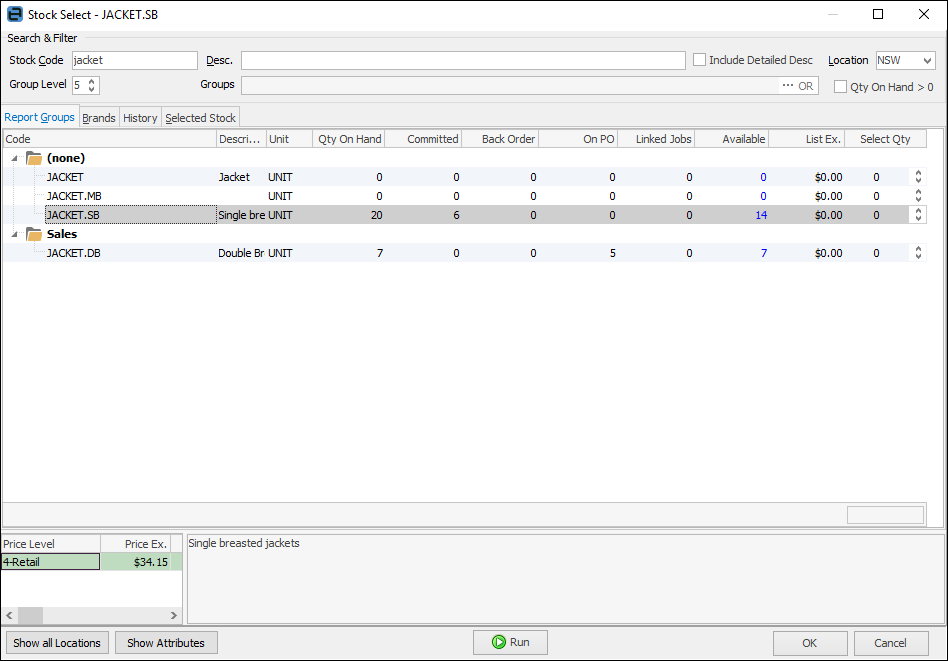
|

The default view is to show stock in one location only, but if clicking Show all Locations will open an extra section at the bottom of the screen. This pane will show stock quantities in each location, for the currently highlighted stock code. Note that while this pane is open, Show all Locations will be highlighted in blue. Click this button again to close the locations pane.
In the above example, it can be seen that as well as the 23 units in NSW, there is additional stock in QLD and BULK. So, for instance, 4 units are required for a job, this would provide the opportunity to transfer 1 unit from another location, rather than order in more stock from the supplier.
|
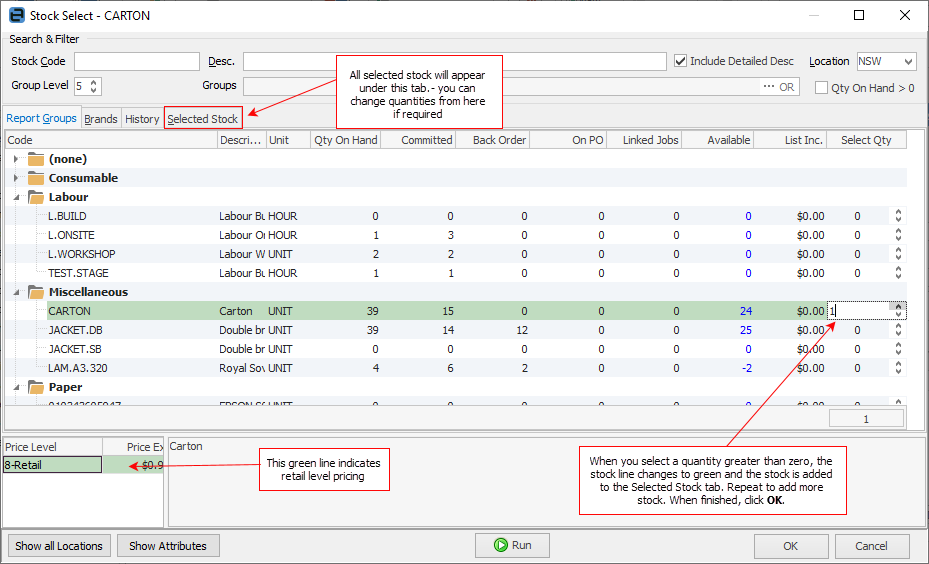
When in the Stock Select screen, select multiple stock codes by entering an amount in each stock code under Select Qty.
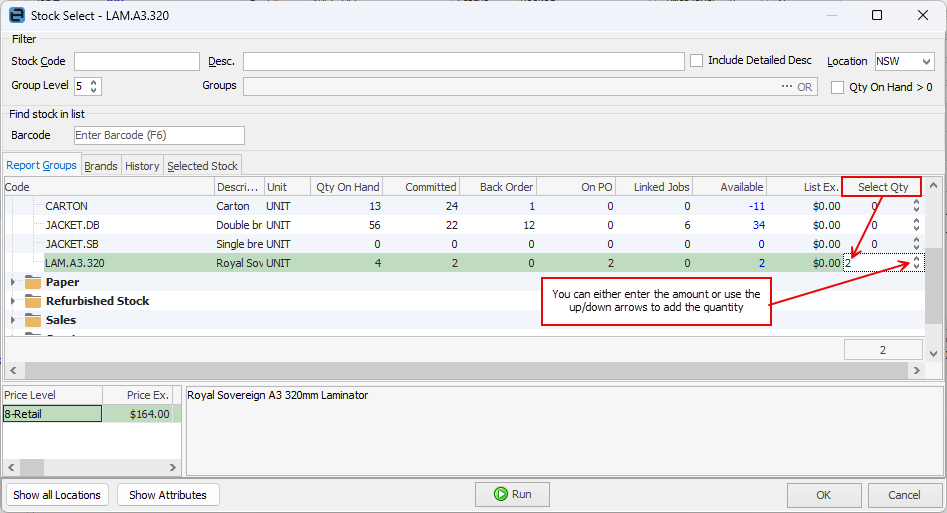 Either enter a number in the Select Qty column, or use the up and down arrows |
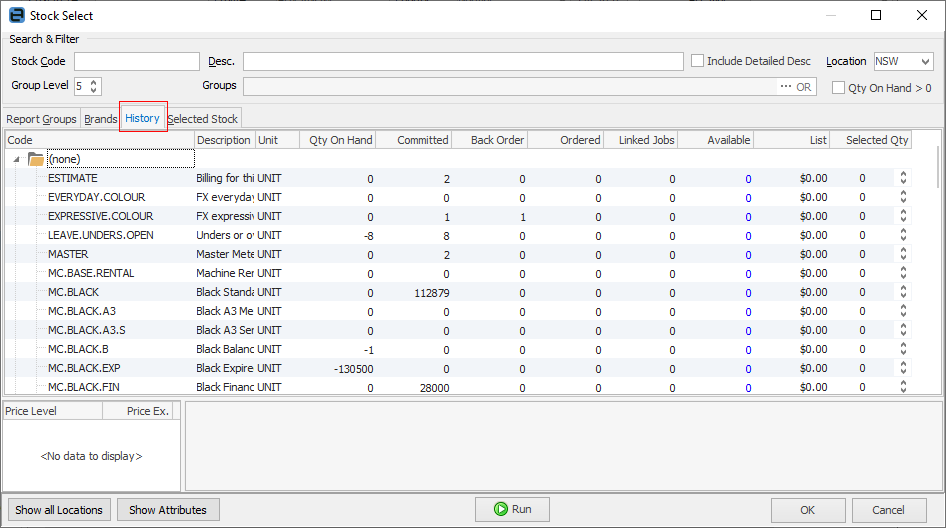
Within the Stock Select screen the history relating to stock is available, showing what stock has been sold to that customer in the last 365 days. However, it will only show stock that is part of a report level group.
 |
|
Stock Select also includes any quantity of stock being manufactured in the On PO column. |
Further information
Backfill Stock Sold in Advance
Buy and Sell in Different Measures
Change a Serial Number on a Stock Record
Export a Stock Report to Spreadsheet
Generate Backdated Stock on Hand Report
Move Stock from Depleting to Asset
Report Showing all Vendors on Stock
Stop Users From Giving Discounts
Update Existing Vendor Pricing