|
Jim2Cloud customers should contact support@happen.biz for assistance in restoring a database as per below. |

|
A backdated detailed stock on hand report cannot be produced. This is because Jim2 is a perpetual stock accounting system.
A Stock Value by GL Group can be run at any time. This will show the stock value and the general ledger stock value, and any variance that needs to be corrected.
To access this report on the Ribbon go to Management > Reports > Stock Reports > Stock Value by GL Group > Summary only. Users can run a Stock Value by GL Group at any time. |

To access this report go to Management > Reports > Stock Reports > Stock Value by GL Group > Summary only.
A restore of a back up will provide a detailed stock on hand report as at the time of the backup. To do this, the following date will be used as an example:

▪Log on to the Jim2 Server Console (Jim2serverconsole.exe). It is usually found in the Jim2 or Jim2 Server Directory on the Jim2 Server. 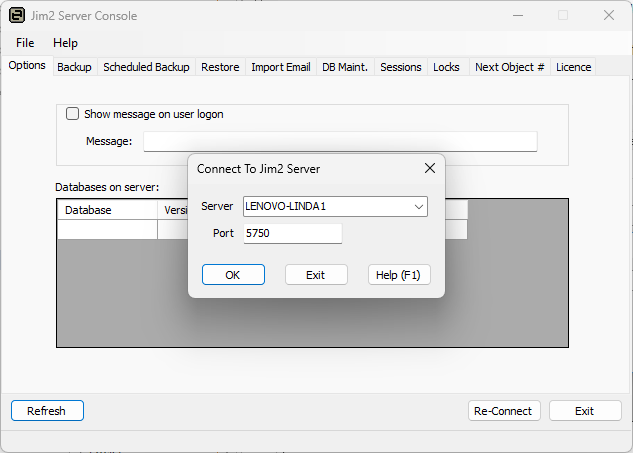 ▪If authentication is required when logging on, use the user sa and the sa password, as set up when SQL Server was installed . ▪Open the Scheduled Backup tab. ▪The backup files will be saved to a specific path under the Server Backup Location field. Note the backup path, then exit. 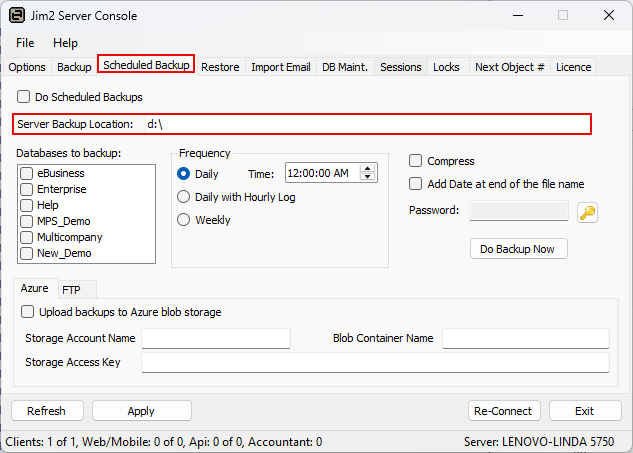 ▪Locate the backup path on the Network and look for a database called Jim_yourdatabasename_20130630 (or similar). Copy and paste to the Desktop. |
▪Go to the Restore tab. ▪In the Database field, name the training database name – in this case Jim_Training. 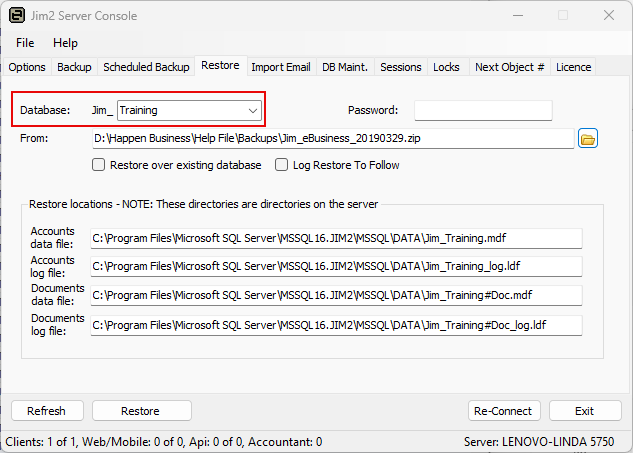 ▪In the From field find the Backup via the Desktop and choosing the file just backed up: 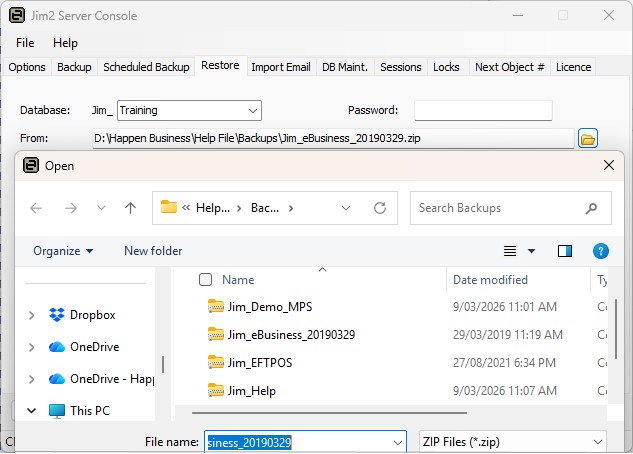 ▪Tick Restore over existing database. Most likely there will already be a training database and this will restore the new database in its place. ▪When ready, click Restore. A confirm message will appear. Make sure everything is correct and click Yes: 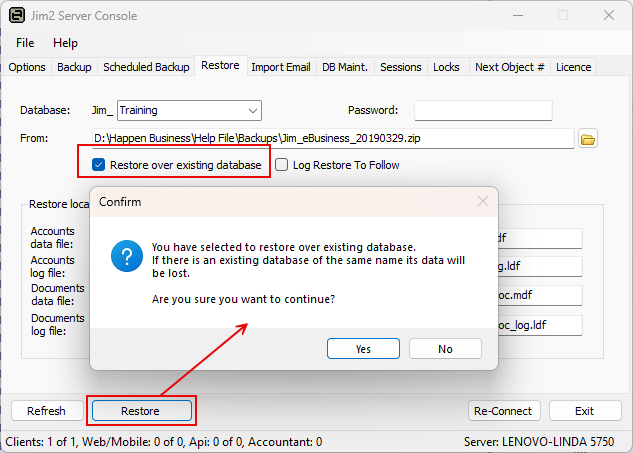 ▪When the restore is complete, Restore Complete will appear in the Console in the lower left hand corner: 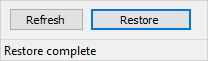 ▪ Close the Jim2 Server Console by clicking Exit. |
Log on to Jim2 and pick the Training database. The username and password is the same as the live database:
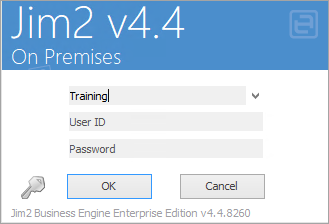
Run a Stock list and select Stock Report: Stock On Hand which will provide a snapshot of the correct stock quantity on that specific date.

Further information
Backfill Stock Sold in Advance
Buy and Sell in Different Measures
Change a Serial Number on a Stock Record
Export a Stock Report to Spreadsheet
Move Stock from Depleting to Asset
Report Showing all Vendors on Stock
Stop Users From Giving Discounts
Update Existing Vendor Pricing