This report will show all vendors on each stock code. In the spreadsheet, you will see duplicate stock codes with a Rank column next to the vendor showing 1, 2, 3 etc. which is the order of the vendors that appear on that stock record.
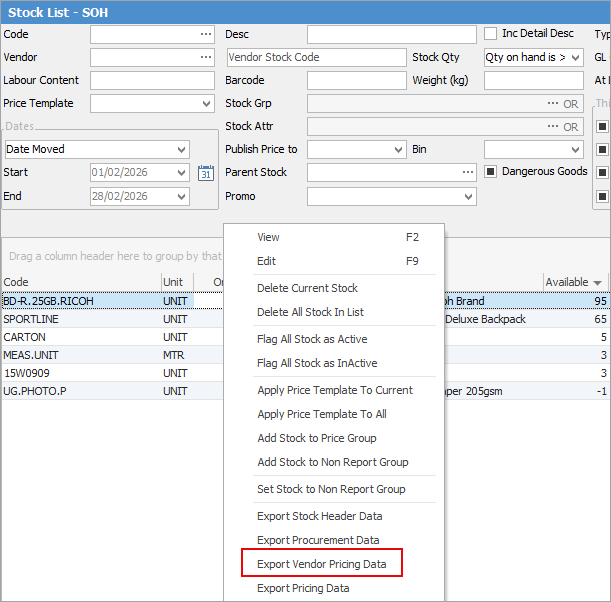
To begin, go to Stock > Create Stock List on the ribbon and run a filtered list of stock. Right click in the grid and select Export Vendor Pricing Data.
You will see the Rank, Stock Code, Vendor, and Vendor columns. Note the Rank numbers and that the Vendor in Rank 2 is different below:

Further information
Backfill Stock Sold in Advance
Buy and Sell in Different Measures
Change a Serial Number on a Stock Record
Export a Stock Report to Spreadsheet
Generate Backdated Stock on Hand Report
Move Stock from Depleting to Asset
Stop Users From Giving Discounts
Update Existing Vendor Pricing
Update Lead Time on Vendor Tab