 |
Note: Updating pricing will only affect new jobs, quotes etc. Any objects prior to the update will not have their prices updated. |
In this example, we will update Price ex GST.
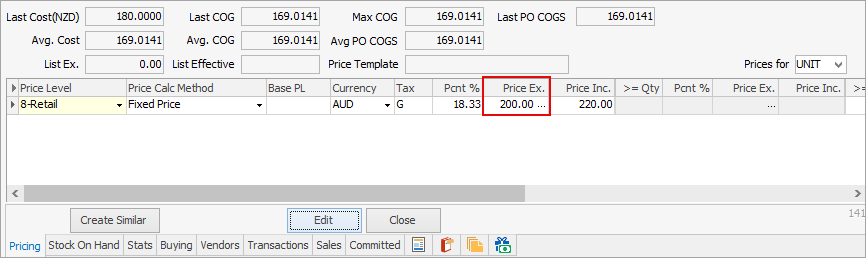
|
Note: You cannot update kitting or packaging stock prices using this method, nor can you update List Ex. |
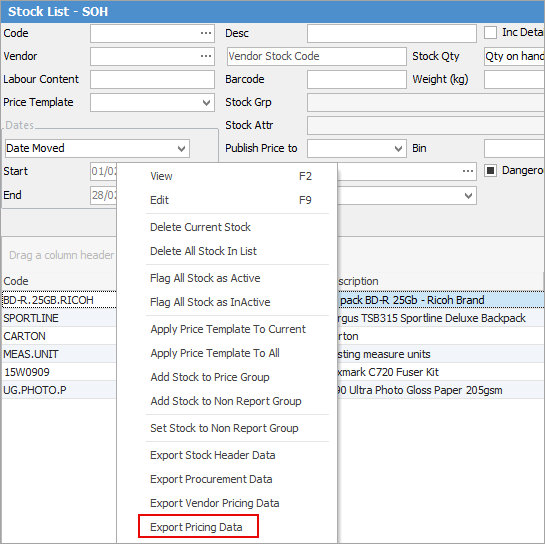
To begin, go to Stock > Create Stock List on the ribbon and run a filtered list of the stock requiring updating. Right click in the grid and select Export Pricing Data.
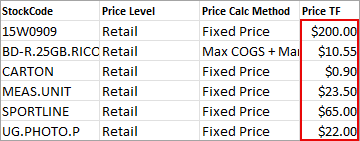
In all cases, keep the Stock Code column and remove all other columns except the Price Level, Price Calc Method and Price TF column (this may be named differently depending on your setup). Make your changes to the pricing, then save the file.
|
If updating stock percentage column, please ensure to remove Price TF and Price TP, as Jim2 will calculate the new prices upon importing. |
|
The stock pricing export does not contain pricing information that is in a price template. These are controlled by updating the price template and cannot be imported back into JIm2.
If you wish to add further price levels, these must be set up first via Tools Setups > CardFiles > Price Levels, then these new price levels can be added, along with any other relevant information before importing. |
On the ribbon go to Tools > Import Data and select Import destination: Stock Pricing.
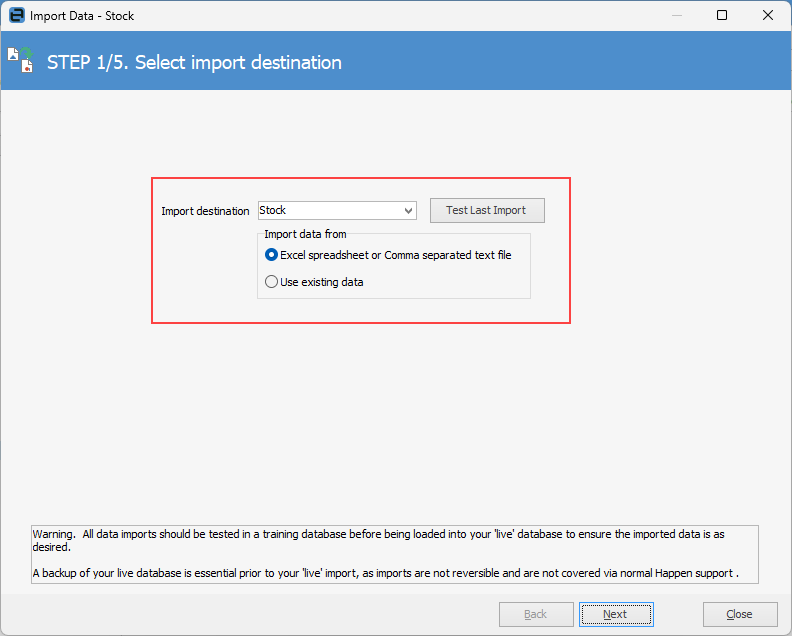
Click Next. Select the Source File name and open the saved spreadsheet. Map the Source Field Name to the Destination Field Name if not already done.
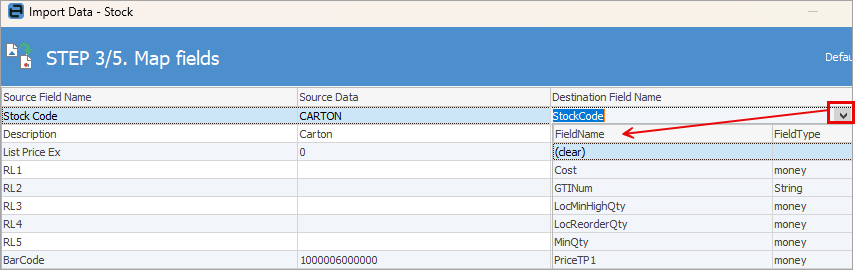
To change Destination Field Name, from the drop down list in that column select the corresponding field in Jim2:
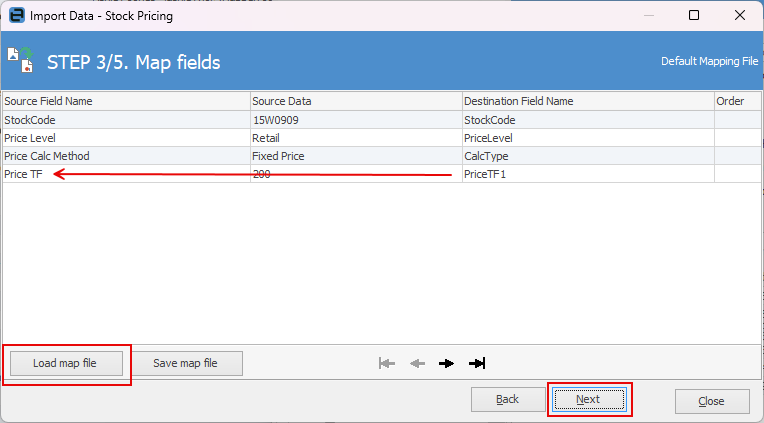
Click Next, then Load data to grid from source.
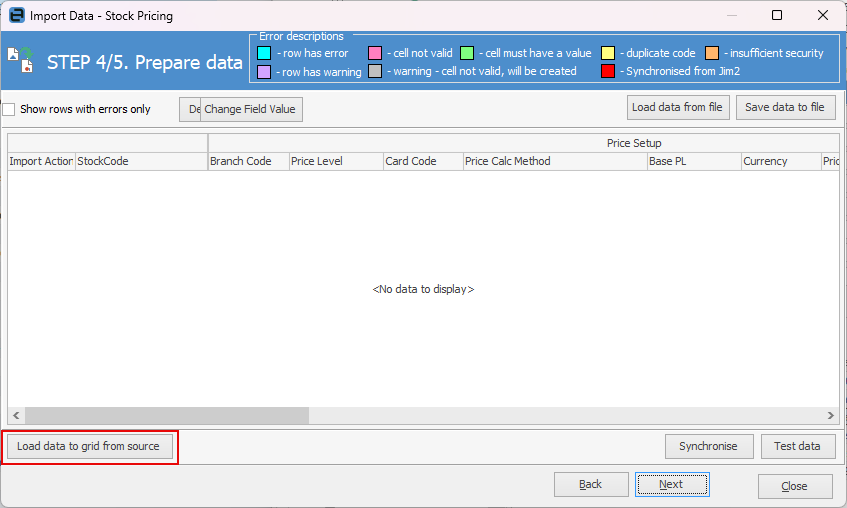
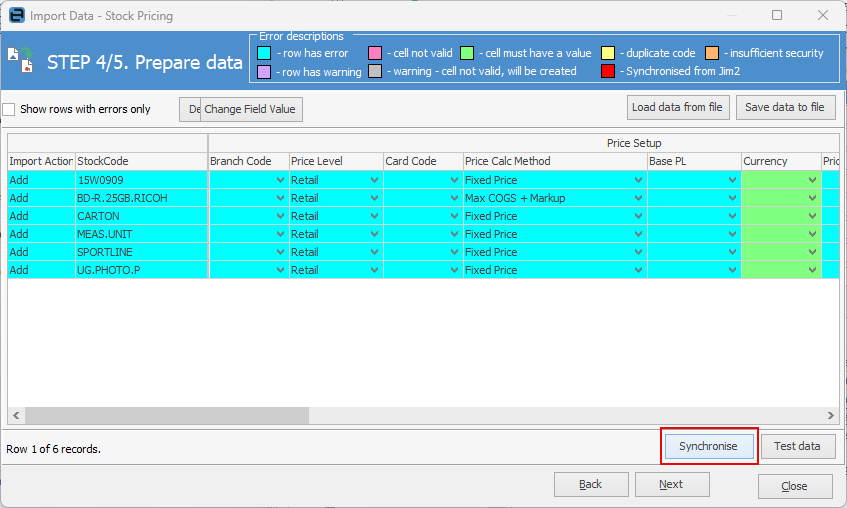
When you load the data you will receive a warning that there are errors. Please ignore this warning.
Click Synchronise, (this step is important as it ensures everything is ok to bring in to Jim2.)
Click OK at the following screen.
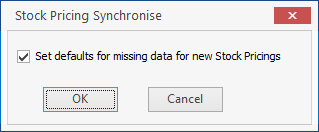
You will receive a pop up advising that the data test was successful.
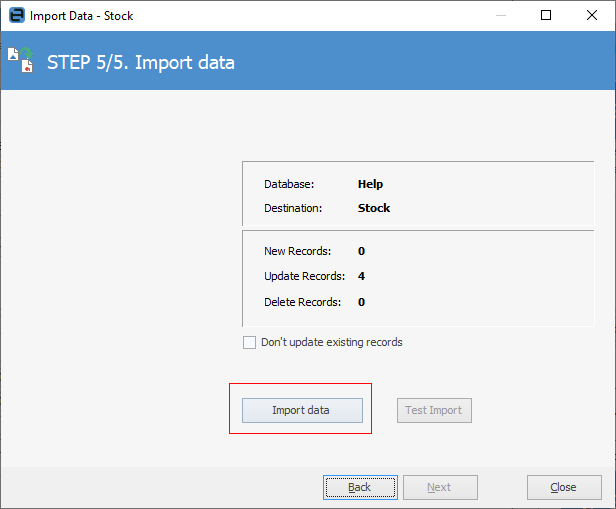
Select Import data and you're done.
Further information
Backfill Stock Sold in Advance
Buy and Sell in Different Measures
Change a Serial Number on a Stock Record
Export a Stock Report to Spreadsheet
Generate Backdated Stock on Hand Report
Move Stock from Depleting to Asset
Report Showing all Vendors on Stock
Stop Users From Giving Discounts
Update Existing Vendor Pricing
Update Lead Time on Vendor Tab