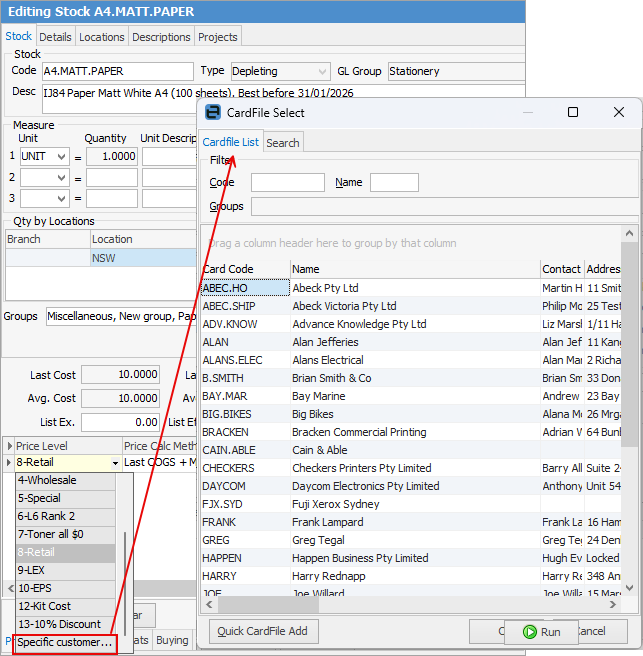
Add each price level to the grid on the stock record. If Specific Customer is selected, the CardFile Select screen will appear to choose which customer.
The available Price Calculation Methods are shown here.
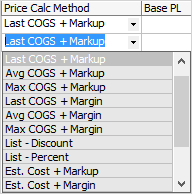
When adding pricing to stock records, the price calculation method that is first used (the default), will be the one that is already set up in Tools > Options > Stock > Stock Pricing. The default method can be changed for any or all of the stock price levels chosen within this field in the stock record. Regardless of the method selected, enter either a percentage or a dollar value into the relevant price grid field, and the other field will be automatically updated. For example, if the list price (ex) is $200.00, and List – Percent (list price minus a percentage) is chosen as the price calculation method, a value would normally be entered in the Pcnt % column (say 10%), which will then set the dollar amount in the Price Ex. column – in this example $180.00. A whole dollar amount can be entered in the Price Ex. field (say, $175.00) instead, which will automatically set the Pcnt % value.
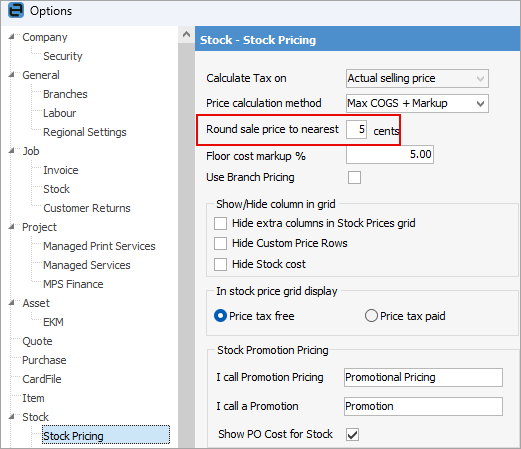
Any calculated Price Ex. amount will round itself to the nearest rounding amount set in Tools > Options > Stock > Stock Pricing.
|
In the Price Level field, you can select Specific customer..., which will open the CardFile lookup screen to select that customer, where you can then select how to calculate their pricing:
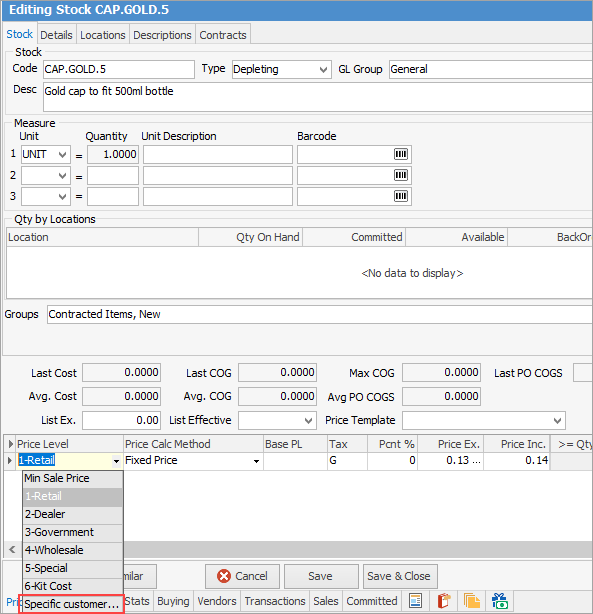
If a specific customer is nominated in the Price Level grid, each job for that customer which uses that stock will attract the special price and price breaks automatically. To indicate that special prices apply, the job stock grid line on that customer's job will be shown with a green background.
 |

Within the Price Level grid, select either a minimised or expanded view, by clicking the arrow  in the top left corner of that grid. Expanded is the default view each time Jim2 is first opened.

The pricing entered is based upon the base unit measure. By default, when viewing the Transaction tab in the footer of a stock record, the grid will default to show the pricing based on the base selling unit (typically UNIT). In View mode, use the drop down list located above the pricing grid to switch between the different unit measures to view the selling price of those units instead. This is for viewing purposes only. The selection on a stock record will have no bearing on how it is sold, purchased or reported on.

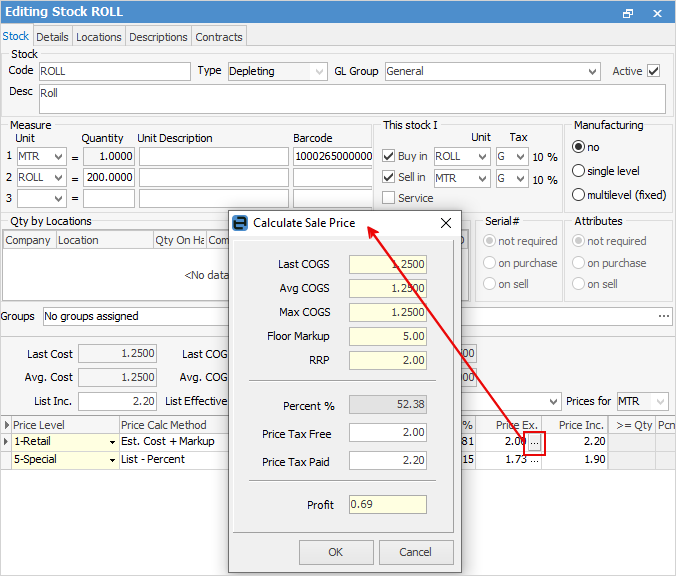
Shown below is the stock grid view. To enter Tax Free prices, click the ellipsis [...] within the Price Ex. field to access the Calculate Sale Price screen. This must be performed in Edit mode.
Field |
Purpose |
|---|---|
Price Level |
Choose a price level from the drop down list, ie. Wholesale, Retail, Min Sale Price or Specific customer price, etc.
Note: Security can be set to allow/disallow to sell stock for less than minimum price. |
Tax |
The tax code for this stock. |
Price Ex.* |
Add the tax free selling price of each unit measure. |
>= Qty |
Add the quantity of the first price break (eg. 10 or greater). |
Price Ex.* |
Add the tax free selling price of each unit in the first price break. |
>= Qty |
Add the quantity of the second price break (eg. 20 or greater). |
Price Ex.* |
Add the tax free selling price of each unit in the second price break. |
>= Qty |
Add the quantity of the third price break (eg. 30 or greater). |
Price Ex.* |
Add the tax free selling price of each unit in the third price break. |
>= Qty |
Add the quantity of the fourth price break (eg. 40 or greater). |
Price Ex.* |
Add the tax free selling price of each unit in the fourth price break. |
|
The Price Ex. field referred to above assumes that Show Tax Free Pricing in Price Grid Display has been selected in Tools > Options > Stock > Stock Pricing. If Show Tax Paid Pricing instead has been selected, the Price Inc. fields will be displayed. Note that both the Price Ex. and Price Inc. fields are displayed in the expanded view (see table below). |
The expanded stock grid shows the fields below (note: expanded is the default view).
Field |
Purpose |
|---|---|
Price Level |
Add the Price Level code: Retail, Wholesale, etc. Select the required code, or enter the Price Level number. |
Price Calc Method |
The used method for price calculation. Make a choice from the drop down list.
For special stock, the price calculation methods are:
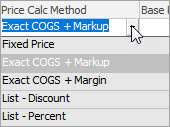
Special Stock covers stock where costs from the supplier will fluctuate. Special stock is also uniquely purchased for a specific job. The cost of goods will be taken across to the job when the stock is added, hence it uses the Exact COGS rather than the Last COGS. |
Tax |
The tax type, eg. G for GST. |
Pcnt % |
Percentage of markup. |
Price Ex. |
Add the tax free selling price of each unit measure. |
Price Inc. |
Calculated tax paid selling price of each unit measure. |
>= Qty |
Add the quantity of the first price break (eg. 10 or greater). |
Pcnt % |
Percentage of markup. |
Price Ex. |
Add the tax free selling price of each unit in the first price break. |
Price inc. |
Calculated tax paid selling price of each unit in the first price break. |
>= Qty |
Add the quantity of the second price break (eg. 20 or greater). |
Pcnt % |
Percentage of markup. |
Price Ex. |
Add the tax free selling price of each unit in the second price break. |
Price Inc. |
Calculated tax paid selling price of each unit in the second price break. |
>= Qty |
Add the quantity of the third price break (eg. 30 or greater). |
Pcnt % |
Percentage of markup. |
Price Ex. |
Add the tax free selling price of each unit in the third price break. |
Price inc. |
Calculated tax paid selling price of each unit in the third price break.. |
>= Qty |
Add the quantity of the fourth price break (eg. 40 or greater) |
Pcnt % |
Percentage of markup. |
Price Ex. |
Add the tax free selling price of each unit in the fourth price break. |
Price inc. |
Calculated tax paid selling price of each unit in the fourth price break. |
|
Jim2 pre-calculates and stores all pricing in real time as pricing changes. This allows immediate and easy updating of websites, price lists, and bulk price updates, to name just a few. |
If there is no quantity in stock, but have set up a vendor stock code and cost in the Vendors tab, that will be used for pricing calculations.

Min Sale Price level allows use of any of the Jim2 pricing calculation methods to set the minimum sale price, instead of just a nominated price. For example, set it to Average PO cost + 5%, thereby ensuring that nobody sells for less than cost plus 5%.
 |
White |
Price level pricing. |
Pink |
Contract price level pricing. |
Green |
Customer specific pricing. |
Yellow |
Manually entered pricing. |
Further information
Backfill Stock Sold in Advance
Buy and Sell in Different Measures
Change a Serial Number on a Stock Record
Export a Stock Report to Spreadsheet
Generate Backdated Stock on Hand Report
Move Stock from Depleting to Asset
Report Showing all Vendors on Stock
Stop Users From Giving Discounts
Update Existing Vendor Pricing