To assign Groups to a particular stock record, start by editing the stock and clicking the ellipsis [...] at the end of the Groups field.

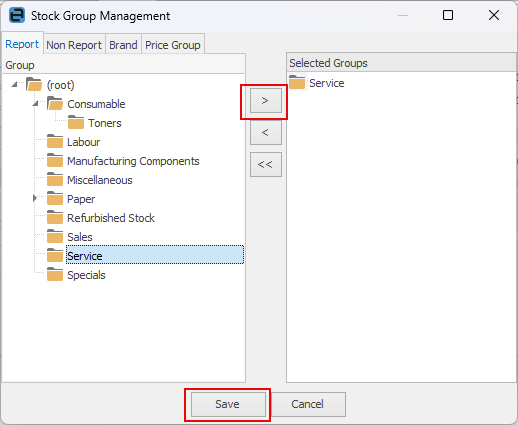
The Stock Group Management screen will appear, showing a list of all groups that are currently available. Select the desired group/sub-group and use the right facing arrow to add the group. When finished, click Save.
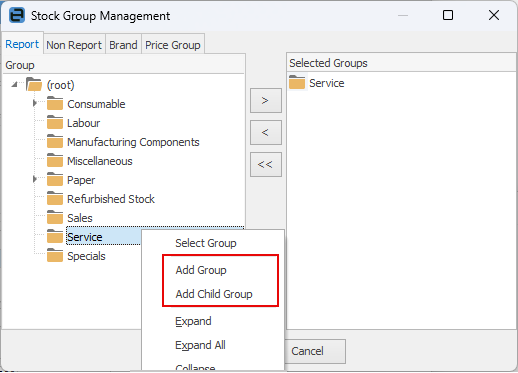
If a suitable group is not available, a group can be added while still in this screen. To do so, right click and select Add Group, or Add Child Group, from the drop down list. Select the codes from the (root) area to add to the group by dragging onto the new group name. Use the Ctrl and Shift keys to multi-select.
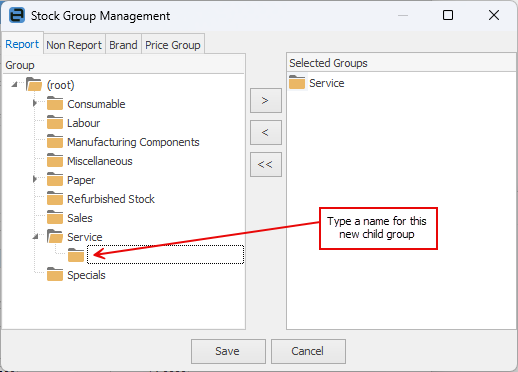
A new, empty text line will appear. Enter the new group or child group name, then use Enter. From the (root) all stock codes will show in the Code screen. The new group will now be available and applied immediately by clicking the  symbol to move the new group to the Selected Groups side of the screen.
When all the appropriate groups (report, non report, brands etc.) have been applied to the stock, click Select.
|
When adding report level groups to stock, only have one group at each level assigned to that stock. The groups must be consecutively ascending, ie. to assign a level 2 group, a level 1 group must have been assigned first. Above, Service is level 1, and On Site is level 2. The simplest way to do this is to select the final group the stock is in. |

Further information
Backfill Stock Sold in Advance
Buy and Sell in Different Measures
Change a Serial Number on a Stock Record
Export a Stock Report to Spreadsheet
Generate Backdated Stock on Hand Report
Move Stock from Depleting to Asset
Report Showing all Vendors on Stock
Stop Users From Giving Discounts
Update Existing Vendor Pricing