Whilst it is not advisable to sell stock in advance if the desire is to maintain strict and correct stock control, the following are the steps required to sell stock in advance.
When you sell stock in advance, the invoice reflects a 100% income transaction. At that point, no cost is associated with the sale since the system doesn't yet know which purchase order to reference. A cost will be allocated to the sale once the stock is backfilled. This can be done automatically or manually, depending on your selected settings.
If the stock has attributes on either purchase or sell, you will be able to finish a job, however you will not be able to invoice it until it has come into stock.
|
Serialised or special stock cannot be sold in advance. |

This is set up via Tools > Security > Jobs > Stock on Jobs > Sell Stock in Advance.
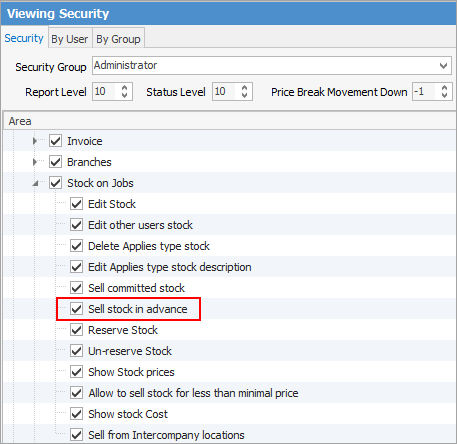
This is a global setting, not workstation.
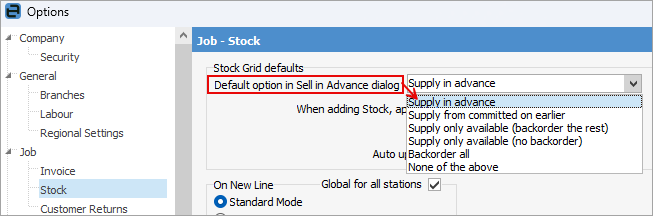
There are also further choices via Tools > Options > Job > Stock:
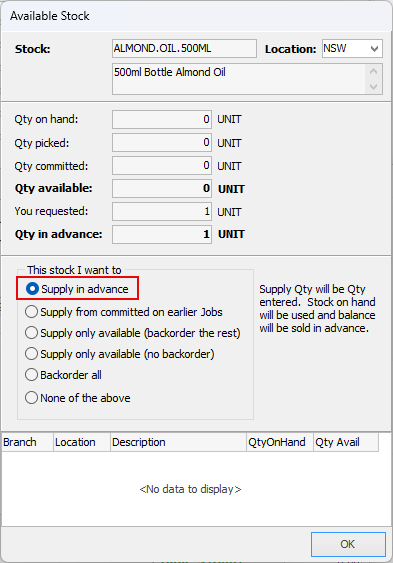
When users add stock to a job and there is no stock on hand, Jim2 pops up the following, based on what has been set up above.
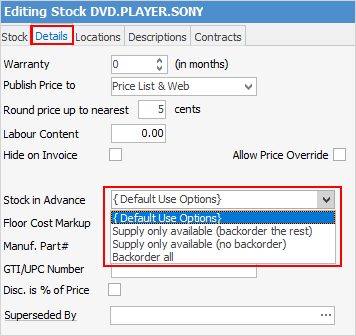
Users can also set this default at a stock record level, overriding the global default above.
|
Even though both are global settings, the user can choose from any of the following, at any time.
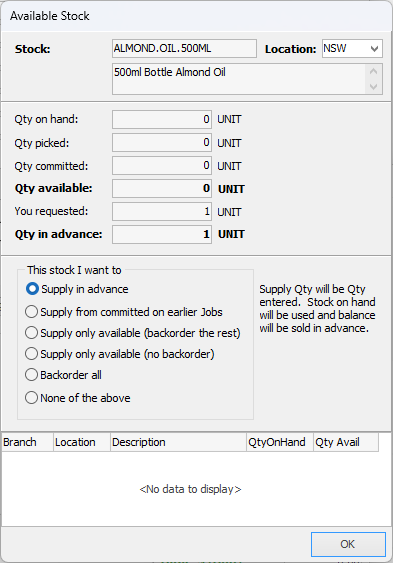 |

A warning will pop to screen when you try to sell stock in advance that is linked to a purchase order but not received.
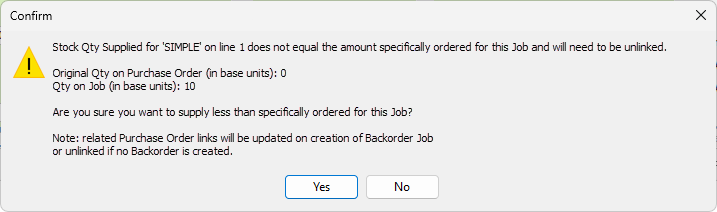
|
On the Transactions tab of a stock code, you can locate stock that has been sold in advance with no purchase order for it yet. Under the PO# column, you will see a -1 – this indicates that no purchase order has yet been raised.
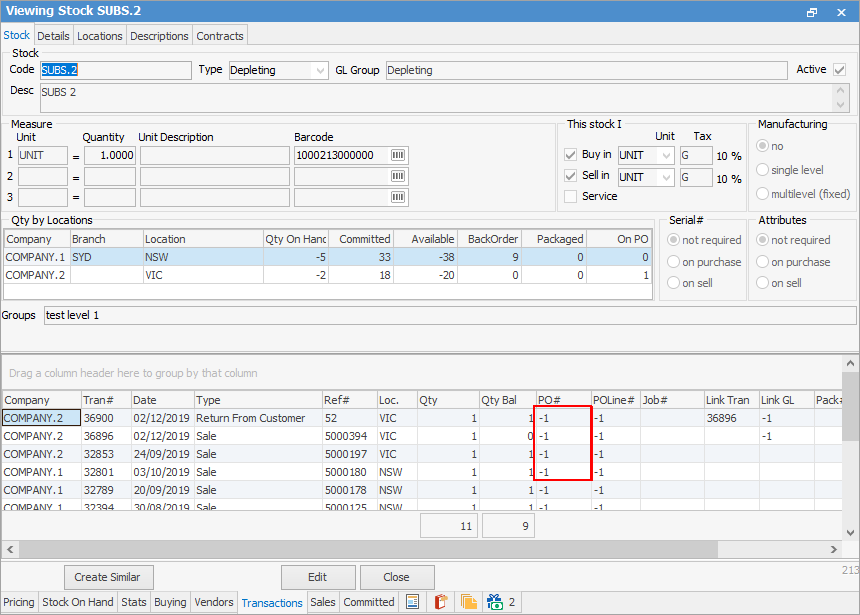 |
Further information
Backfill Stock Sold in Advance
Buy and Sell in Different Measures
Change a Serial Number on a Stock Record
Export a Stock Report to Spreadsheet
Generate Backdated Stock on Hand Report
Move Stock from Depleting to Asset
Report Showing all Vendors on Stock
Stop Users From Giving Discounts
Update Existing Vendor Pricing