The Stock Select screen is available from within the job stock grid. It will help to search and narrow down choices for inclusion in the stock grid. It will show the available quantity of each stock, at each stock location.
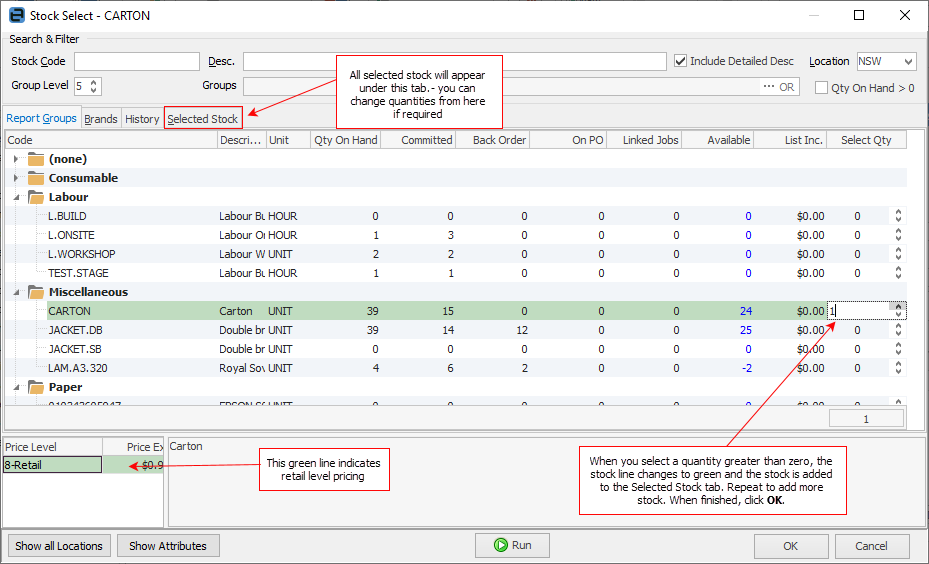
1.Enter all or part of the stock code in the Stock Code field and/or the Description field.
2.Select the Location and/or Stock Group, and/or tick Qty on Hand > 0 (if applicable).
3.Click Run to search the Stock List. Stock codes matching the search criteria will be displayed.
4.Enter the quantity or use the  (up/down arrows) to select.
|
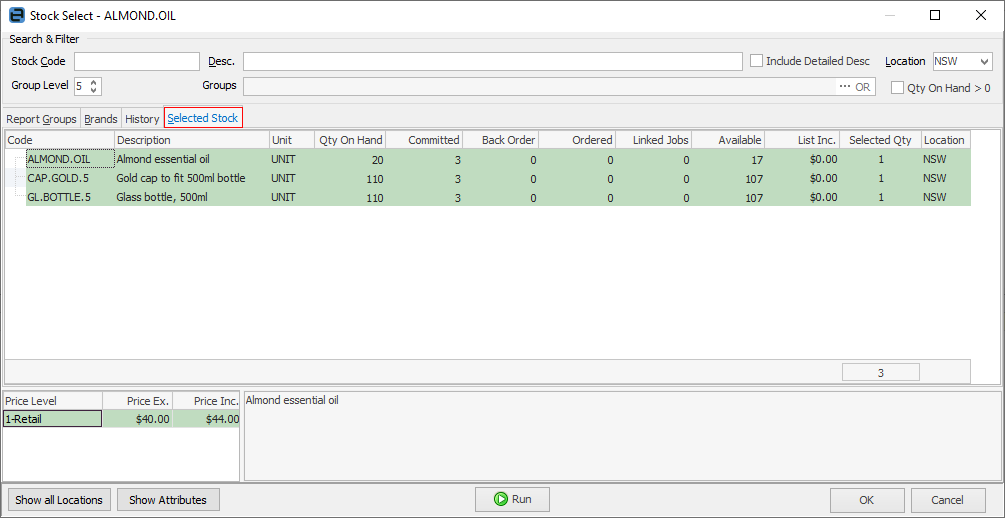
When setting the quantity to greater than zero, that stock line will be displayed in green and the stock code will be added to the Selected Stock tab, where it and any other selected stock can be viewed and changed.
 |

| 5. | Repeat steps 1 through 4, to select more stock codes. |
| 6. | When all the stock has been chosen, select OK to proceed. All selected stock will be added to the job. |
|
Within a manufacturing job, Stock Select includes the quantity of stock being manufactured in the On PO column. |
Further information
Add Stock to Job When Insufficient Stock
Auto Create Purchase Orders from Jobs
Charge Customer a Re-stocking Fee
Create a Job from a Similar or Previous Job
Create a Template for Recurring Jobs
Credit an Overcharged Customer
Export a Job Report to Spreadsheet
Export Labour Hours from a Job
Make Progress Payments and Claims
Select Serial Numbers on a Job
Stock Availability Allocation Process by List
Stock Availability by Location on the Fly