Search for the job to be duplicated by either:
▪Clicking the View/Edit Job icon on the ribbon and entering the Job# of the job to duplicate, or
▪Clicking the Create List icon on the ribbon and using the search criteria to narrow the choices. Select the job to duplicate from the search results by double clicking the Job#.
The job to duplicate will now be in view. Click Create Similar in the Job footer.
A selection screen will appear.
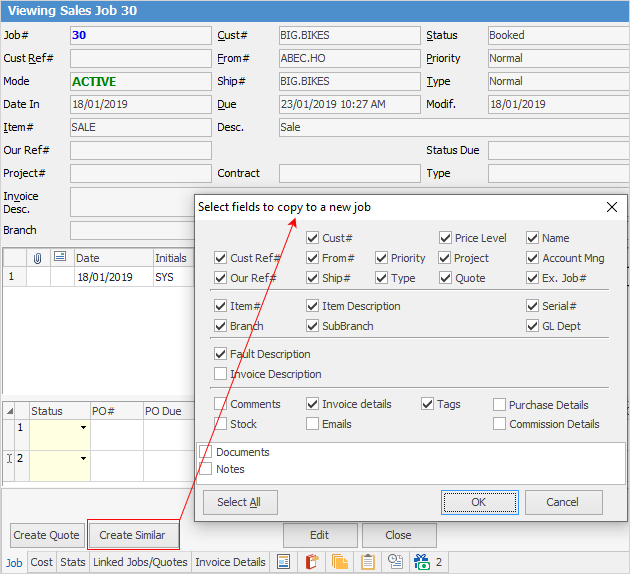
Choose which fields of that job are to be duplicated on the next job, and select OK.
|
Select All will exactly duplicate the fields from the chosen job – with the exception of the Job# (a unique number for every job is automatically generated by Jim2, regardless of how a job is being added), Status and Time/Date/Initial fields. |

Now, new job has been created that will be similar to the first. Edit the job fields as normal.
|
Create Similar with the job in View mode will automatically close the original job when producing duplicate jobs.
Create Similar with the job in Edit mode will keep the original job open and produce a duplicate job, ready to be edited. Cancel Similar will abort the adding of the new job (without affecting the original).
Inactive stock will not be added when using the Create Similar function. |
|
In a multi user environment, where others could be adding jobs at the same time, it is a function of Jim2 to monitor the sequence of unique job numbers issued at all times. If Cancel Similar is nominated by one user, and another user has the next sequential job number already, the obsolete job number automatically has a system status of Cancel to ensure the integrity of the database. |

Further information
Add Stock to Job When Insufficient Stock
Auto Create Purchase Orders from Jobs
Charge Customer a Re-stocking Fee
Create a Template for Recurring Jobs
Credit an Overcharged Customer
Export a Job Report to Spreadsheet
Export Labour Hours from a Job
Make Progress Payments and Claims
Select Serial Numbers on a Job
Stock Availability Allocation Process by List
Stock Availability by Location on the Fly