There are two ways you can export a job report to a spreadsheet.
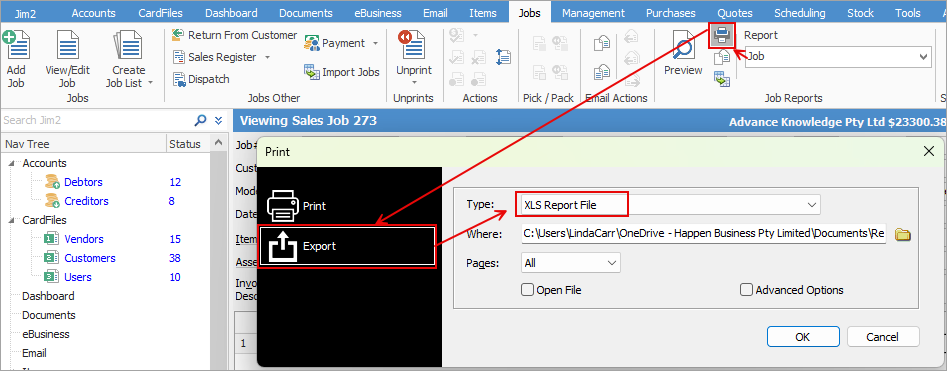
1.With the job open, select the Job report in the ribbon, then select Print. In the Print dialog box, change to Export and select the Xlsx Report File in the Type field. This can then be saved locally.
2.With the job open, select the Job report in the ribbon, then select the Excel icon beside it. This will show each report pipeline in a separate sheet, ie. Job, Job Comments, Job Stock, etc.
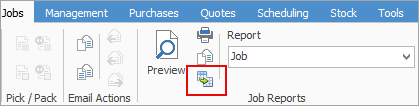
You can use the Excel icon to produce reports directly to Excel. Permission for use of this is based on security since it accesses the report for the information.
Further information
Add Stock to Job When Insufficient Stock
Auto Create Purchase Orders from Jobs
Charge Customer a Re-stocking Fee
Create a Job from a Similar or Previous Job
Create a Template for Recurring Jobs
Credit an Overcharged Customer
Export Labour Hours from a Job
Make Progress Payments and Claims
Select Serial Numbers on a Job
Stock Availability Allocation Process by List
Stock Availability by Location on the Fly