There may be a job set up for a customer who needs to pay a deposit towards that job.
It is best to handle invoicing the deposit separately, ie. on a separate job/invoice.
1.Set up a new general ledger account for customer deposits. This may be something to discuss with the company accountant first.
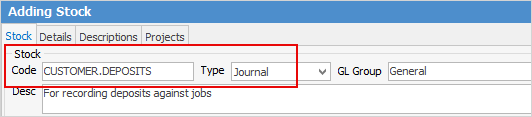
2.Add a new stock record, Type = Journal, that points to the customer deposits general ledger account.
 |
Note: Tax code should be N or X as you will add the tax on the final invoice. |
3.Add a job and enter the new customer deposit journal stock code, then bill the customer. Add any required information in the Invoice Desc. field.
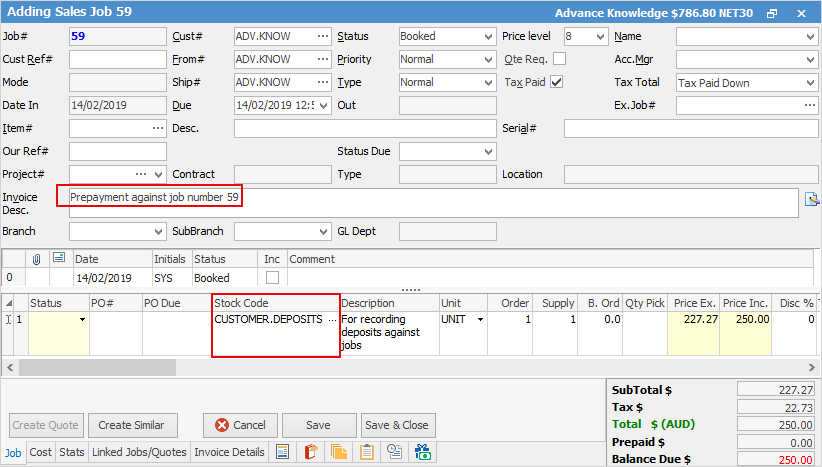
4.Invoice the job.
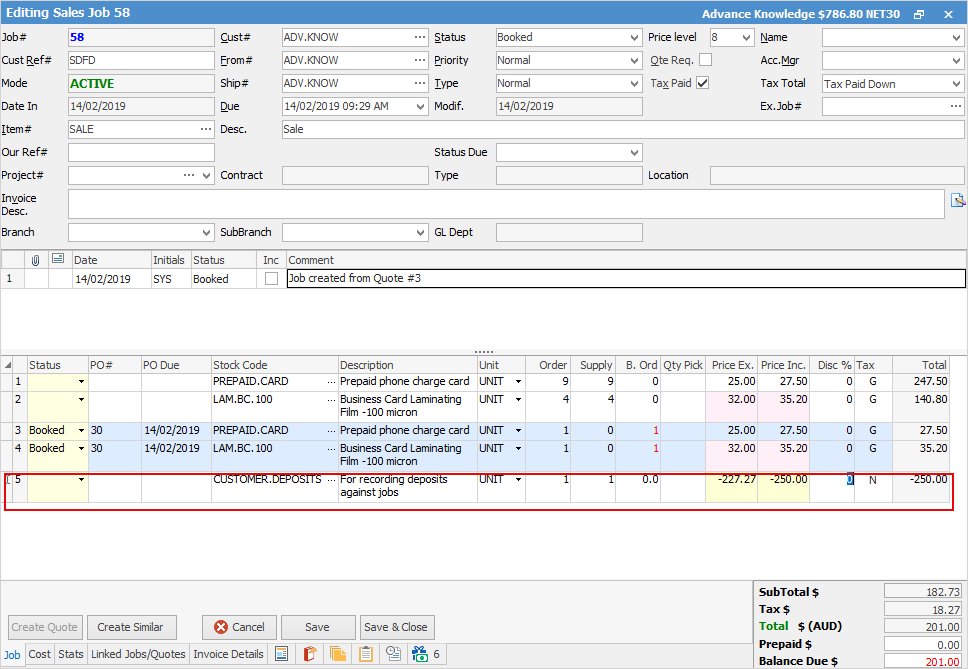
5.This same stock code should then be added to the job where the actual work is being performed (and parts are being used) as a negative value to pull the deposit value back to $0 in the general ledger. The actual job/invoice for the special stock is what ultimately ends up reporting in the general ledger.
Further information
Add Stock to Job When Insufficient Stock
Auto Create Purchase Orders from Jobs
Charge Customer a Re-stocking Fee
Create a Job from a Similar or Previous Job
Create a Template for Recurring Jobs
Credit an Overcharged Customer
Export a Job Report to Spreadsheet
Export Labour Hours from a Job
Make Progress Payments and Claims
Select Serial Numbers on a Job
Stock Availability Allocation Process by List
Stock Availability by Location on the Fly