A fuel levy can be applied to a job in Jim2 in a few different ways, depending on how you want them calculated and reported.
▪Stock code (journal or non‑depleting) linked to a specific GL account –Can be a fixed amount, or –Can calculate a percentage of the job total or freight total ▪Freight field on the job (included as part of freight costs) |
 | Set up Stock GL Group |
Create a Stock GL Group (if reporting to separate GL accounts is required, otherwise use existing accounts). 1.Go to Tools > Setups > Accounting > Stock GL Groups. 2.Click Add. 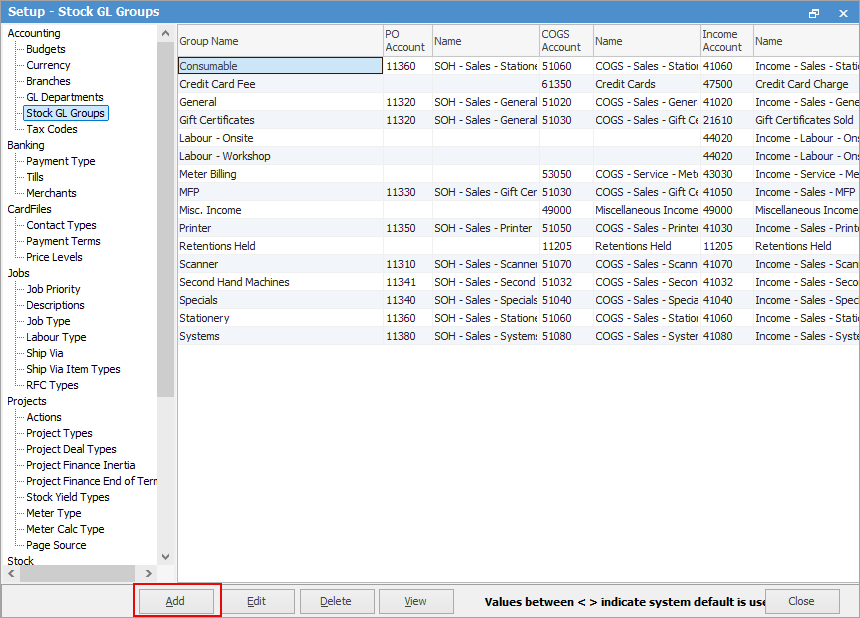 3.Choose Stock Type Non Depleting,Journal. 4.Enter a name, eg. Fuel Levy. 5.Either select existing Income and COGS accounts, or create new ones (consult your accountant if necessary). 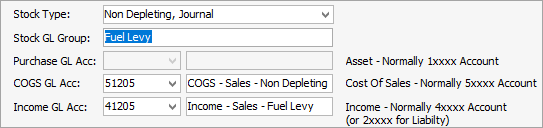 6.Save. |
1.Create a new stock code, eg. FUEL.LEVY. 2.Set Type to Journal or Non‑Depleting. 3.Assign the appropriate Stock GL Group (either newly created as above or existing) 4.Enter a description and complete any required fields. 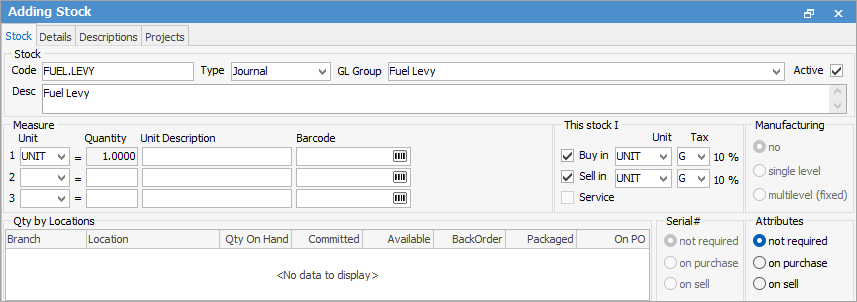 5.Save. |
This method allows the fuel levy to calculate as a percentage of the job total or freight, by entering the above stock code. 1.Edit the stock code, eg fuel levy, as created above. 2.On the Details tab set decimal places to 2. 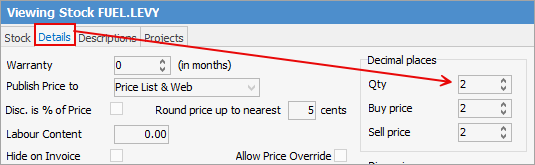 3.Go to the Pricing tab: a.Select the required Price Level. b.Set Price Calculation Method to Fixed Price. c.In Price Inc, enter the percentage as a decimal. 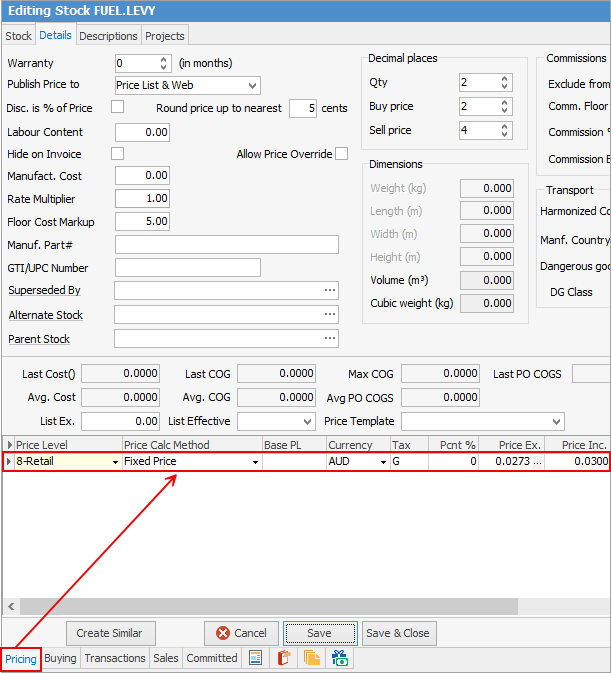 In the above example 0.0300 = 3%. To enter this as 4 decimal places, you will need to go to the Details tab of the stock code and change the decimal places on sell to 4. 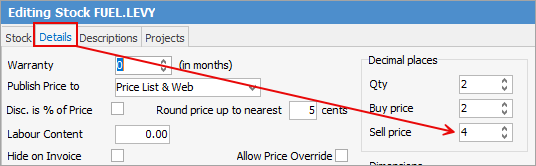 Save the stock code. |
1.Add all job stock as normal. 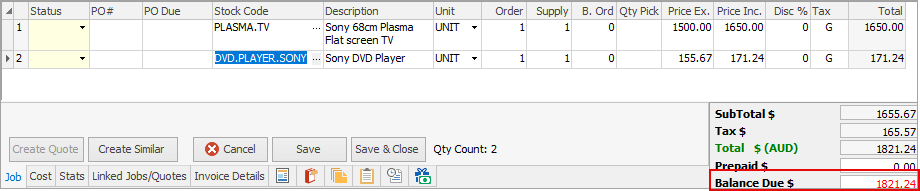 2.Add the fuel levy stock code created above. 3.Enter the amount you want to apply the percentage to in the Qty field, ie. the job total value: 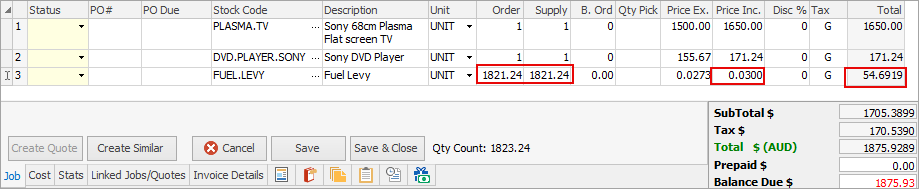 4.Jim2 will calculate the levy: ▪Job total: $1821.24 ▪Stock code, Fuel levy, is set up to calc 3% of order qty. ▪Calculation: 0.03 × 1821.24 = $54.6919. |
If the options outlined above don’t quite meet your business needs, please email support@happen.biz to discuss further.
Further information
Add Stock to Job When Insufficient Stock
Auto Create Purchase Orders from Jobs
Charge Customer a Re-stocking Fee
Create a Job from a Similar or Previous Job
Create a Template for Recurring Jobs
Credit an Overcharged Customer
Export a Job Report to Spreadsheet
Export Labour Hours from a Job
Make Progress Payments and Claims
Select Serial Numbers on a Job
Stock Availability Allocation Process by List
Stock Availability by Location on the Fly