Stock can be purchased specifically for a job by entering the job number on that stock line in a purchase order. If, for any reason after purchasing this stock, the customer doesn't want it, unallocate it before selling it on another job number.
There are two ways to unallocate stock from a job.
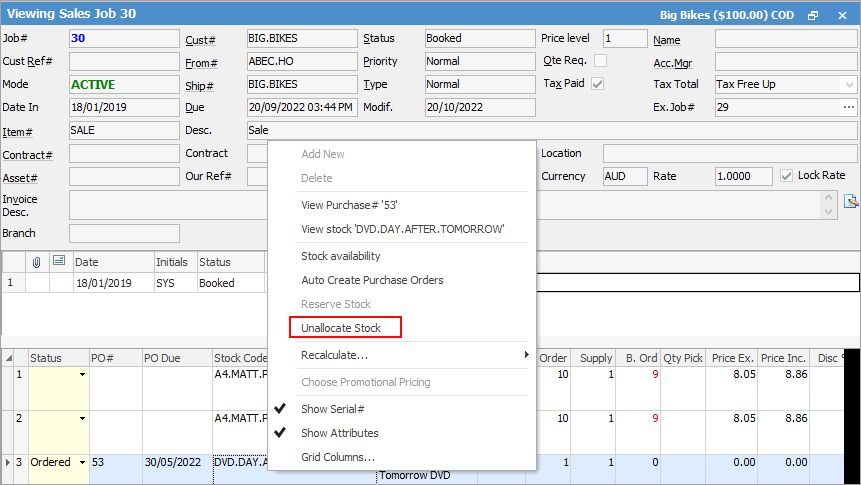
When viewing a job, right click on the stock line within the grid and select Unallocate Stock.
Unallocate using the Unallocate icon on the Stock tab in the ribbon.
1.Go to the Stock tab in the Jim2 ribbon, then click Unallocate.

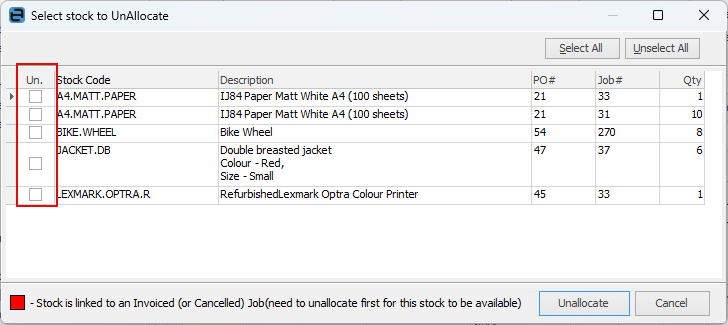
The following screen will be displayed.
 |
Note: At the bottom of this screen there is a warning that the stock is linked to an invoiced or cancelled job. Sometimes a cancelled job will not automatically unallocate the stock. It is good practice to check this area regularly, and backfill stock every so often. |
2.Put a tick in the Un. column next to the stock to be unallocated.
3.Now click Unallocate and a prompt to continue will appear.
4.Click Yes and the stock will be unallocated and become available for other jobs.
Further information
Add Stock to Job When Insufficient Stock
Auto Create Purchase Orders from Jobs
Charge Customer a Re-stocking Fee
Create a Job from a Similar or Previous Job
Create a Template for Recurring Jobs
Credit an Overcharged Customer
Export a Job Report to Spreadsheet
Export Labour Hours from a Job
Make Progress Payments and Claims
Select Serial Numbers on a Job
Stock Availability Allocation Process by List
Stock Availability by Location on the Fly