The bulk email function applies to job lists. This makes it very easy to generate templated outbound emails.
When sending from a job list, the emails will be automatically attached to the quotes in the list. This is a great feature that allows sending emails to a group based on products purchased, specific project types, and more.
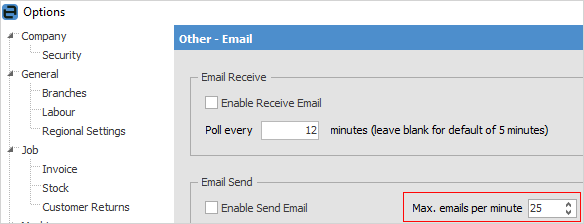
It is advisable to set the Max. emails per minute to no more than 25 to ensure they are not seen as spam. On the ribbon, go to Tools > Options > Email to set this parameter.
 |
Note: Ensure there is an email address entered on the user cardfile:
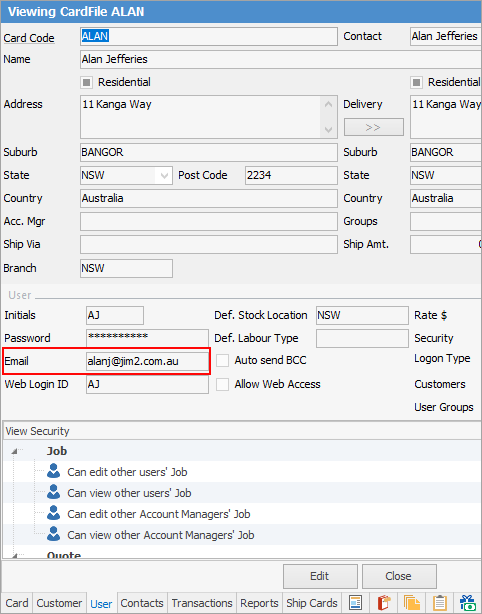
This is required for sending emails from that user. |
First, you will need to create an email template to use when emailing from the list.
Create the required filtered list. In the Report section of the ribbon select Email from list, then select Preview.
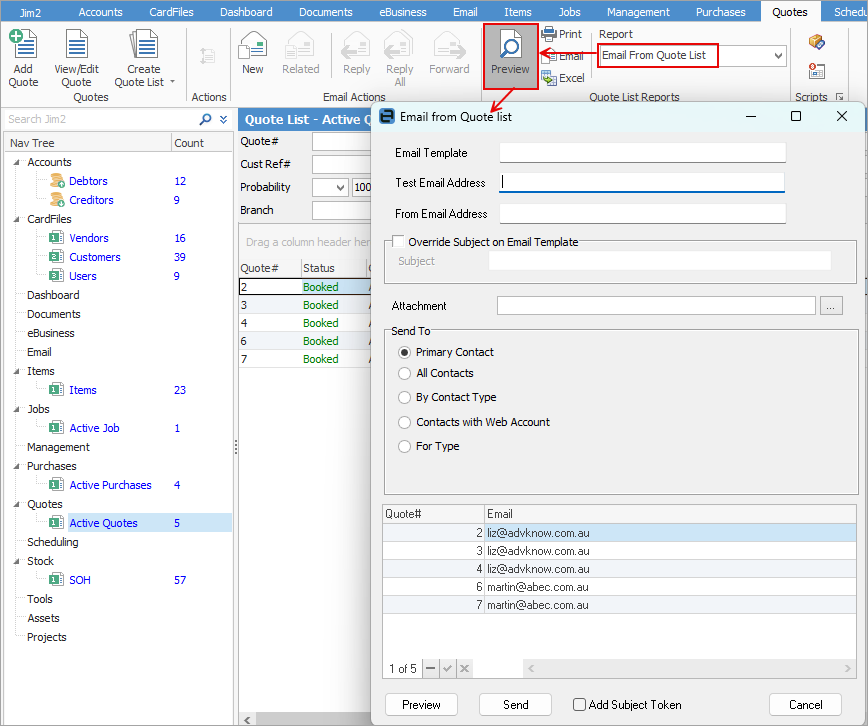
1.Choose the template to be used.
2.Select the test email address to send a test first, if desired.
|
Choosing Send in Preview mode means the email will be sent to the test email only. It will not go to recipients selected until the Preview screen has been closed and the screen above is shown. |
3.Select the From address to be used.
4.The email template subject can be changed.
5.Send To options provide great control as to which contacts within the list and which email address to use when sending:
▪Primary Contact – Sends to all primary contacts where the contact type Email exists, and has an entry.
▪All Contacts – Sends to all contacts within a company where the contact type Email exists, and has an entry.
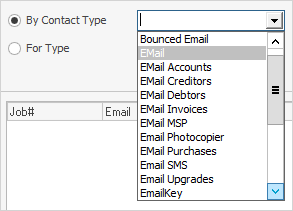
▪By Contact Type – All contact types with Email entries are displayed. Once selected, only contacts with the specific Contact Type value will be selected for sending. The Email value for the Contact Type is used as the To: address.
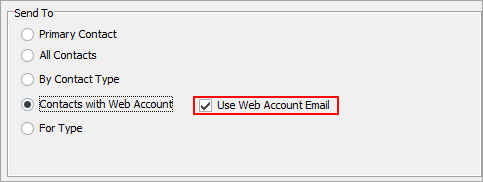
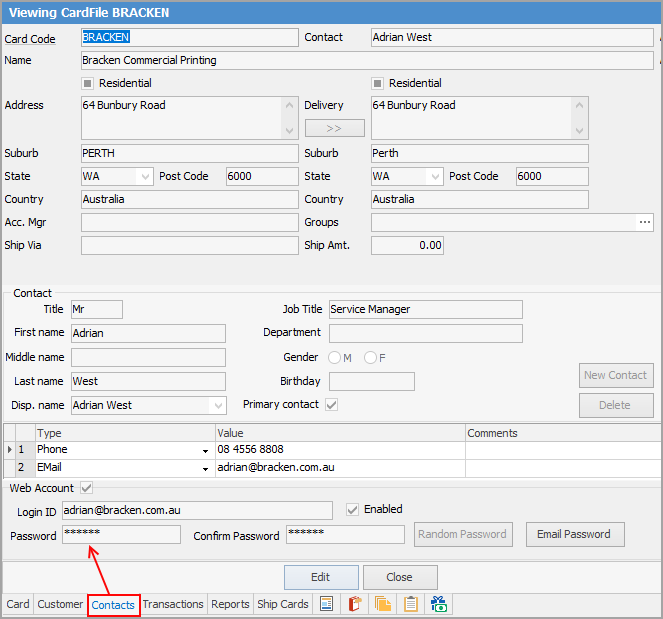
▪Contacts with Web Account allows using only the Web Account Email.
This is found on the Contacts tab of a cardfile:
▪For Type – Select contacts based on the existence of any configured contact type, and with the ability to choose which entry for Email.
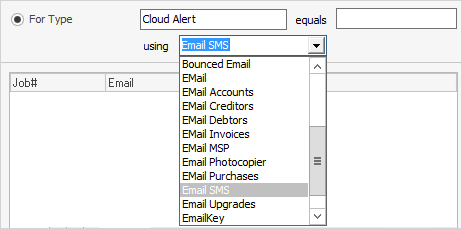
In this example, all contacts with a contact type of Email SMS will be selected, and the To: address will be derived from the value found in Email SMS. Contacts that are not configured with Email SMS will not be selected. The option equals field allows for entering text for additional requirements of the selection criteria based on the value within the contact type.
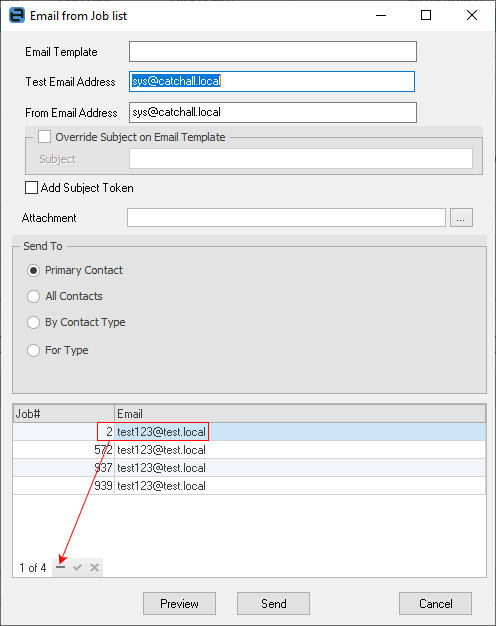
4.Selection Grid – Once selections have been entered, the grid is populated with matching contacts. As per the image below, refine even further by manually removing contacts prior to sending.
|
When emailing from a Job List, there may be duplicate email addresses, as there will possibly be more than one job for some customers. Remove the duplicates as per the above instructions first. |
|
Jim2 staggers the sends to, say, 20 at a time, so there may be a time delay before all emails have been sent. Jim2 will prioritise interactive (non batch emails) emails over batch emails. Whilst it can potentially take a long time to send all the batch emails (eg. statements), emails sent by other users won't have to wait for these to finish. |
Further information
Add Stock to Job When Insufficient Stock
Auto Create Purchase Orders from Jobs
Charge Customer a Re-stocking Fee
Create a Job from a Similar or Previous Job
Create a Template for Recurring Jobs
Credit an Overcharged Customer
Export a Job Report to Spreadsheet
Export Labour Hours from a Job
Make Progress Payments and Claims
Select Serial Numbers on a Job
Stock Availability Allocation Process by List
Stock Availability by Location on the Fly