There are instances where multiple jobs need to be added. For example, when Jim2 is first installed, or if a large work order is received.
To speed up job entry and accuracy, Jim2 includes two specific features for adding multiple jobs:
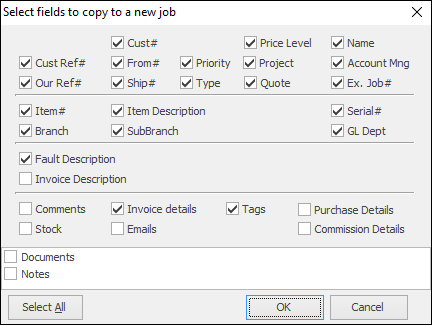
Create Similar |
When adding multiple jobs that are very similar, use this option rather than recreating each individual job.

 |
Continuously Adding |
To add a large volume of jobs at once that are not very similar, by enabling Continuously adding in Job, after each save and close on a job, a fresh job form will appear automatically, ready to edit.
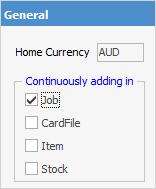
On the ribbon, go to Tools > Options > General
Tick Jobs in the Continuously Adding box and select OK. The new default will be saved, and will return to the previous active screen used. Now, when a job has been entered and Save or Save & Close has been selected, a new Add Job screen will appear.
When finished, untick the above setting in Options to revert to adding jobs individually. |
Further information
Add Stock to Job When Insufficient Stock
Auto Create Purchase Orders from Jobs
Charge Customer a Re-stocking Fee
Create a Job from a Similar or Previous Job
Create a Template for Recurring Jobs
Credit an Overcharged Customer
Export a Job Report to Spreadsheet
Export Labour Hours from a Job
Make Progress Payments and Claims
Select Serial Numbers on a Job
Stock Availability Allocation Process by List
Stock Availability by Location on the Fly