When users elect that there is no further work to be performed on a job and it is ready to leave the workflow, the job status must be changed to suit the situation (either Finish, RAI.NR or RAI.US). Jim2 then allows for two variations on what should happen next: linked to stock control or stock picking/packing requirements.
 |
Note: You cannot invoice a job for a negative amount. It must be greater than $0. |
Choose which suits the company's work practices:
▪The job is finished and can be invoiced. An invoice can now be produced for this job. The job may involve some stock that could be back ordered if it is unavailable at the time of invoicing.
▪The finished job is ready to be invoiced. Jim2 needs to hold the stock involved in this job to ensure it is available at the time of invoicing and there will be no further input to this job.
|
Marking a job as Ready not only affects the stock, but the entire job. If stock only needs to be held on a job, use the Reserve Stock option.
Jim2 regards stock as on hand until the job is invoiced. |
To select a job as ready to invoice, use the Ready Icon :
1.Edit the job and change the status to Finish, RAI.NR or RAI.US. If the job is a service job, enter a description into the Fault Description and/or Invoice field in the Job header (these will appear on the invoice).
|
In a multi user environment, where others could be adding or editing stock at the same time, it is a function of Jim2 to monitor the stock transactions at all times. If any stock record on the job is being edited by another user, the job cannot be set to Ready. A wait message will appear as Jim2 tries to lock the stock. Click Cancel in the footer and try again later. Otherwise, wait until Jim2 has performed the recalculation. |

2.Click Set Job as Ready on the ribbon or use the F8 function key.

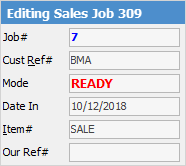
The Mode field in the Job header changes to Ready.
|
Once a job is set to Ready, it cannot be edited unless the job is Unmarked as Ready. |
Further information
Add Stock to Job When Insufficient Stock
Auto Create Purchase Orders from Jobs
Charge Customer a Re-stocking Fee
Create a Job from a Similar or Previous Job
Create a Template for Recurring Jobs
Credit an Overcharged Customer
Export a Job Report to Spreadsheet
Export Labour Hours from a Job
Make Progress Payments and Claims
Select Serial Numbers on a Job
Stock Availability Allocation Process by List
Stock Availability by Location on the Fly