The goods and services supplied to customers involves stock, and Jim2 allows stock to be defined as depleting, non depleting, applies, special and labour types.
The measures used, and selling prices set, for each labour stock defined bear a direct relationship to what is being performed, and by whom. For example:
▪an hourly labour charge for all services provided onsite within 24 hours
▪an express hourly charge to provide that service onsite within four hours
▪an emergency hourly labour charge to provide that service onsite at any time of day or night.
 |
It is important to understand the difference between actual and billable labour. |
By defining labour to match the services provided, use Jim2 to produce reports on which services are more popular or profitable, and define the trading options to customers. Remember, you can define specific price levels for stock – and offer special customers their own rate on labour as well. You can also manually enter costs and these will not be overridden from the stock code.
When adding labour stock to the stock grid, evaluate how much of the actual time can be charged to the customer. For example, if all users have recorded a total of 1.75 hours to complete a job, it would be reasonable to charge at least that amount to the customer. However, if all users have recorded a total of 5.25 hours to complete a similar job, look at the Labour grid to work out why there is such a significant difference, and set the customer's charge accordingly.
Labour charges can also be defined in relation to a specific Item – that is every time product X is processed, the labour charge will be this. A labour code that includes the Item code (L.ProductX) in the stock code can even be used. Again, this will help define reports on productivity and profitability.

1.Calculate how much of the labour total can be billed to the customer (based on the total shown in the Total Hours field on the Labour tab).
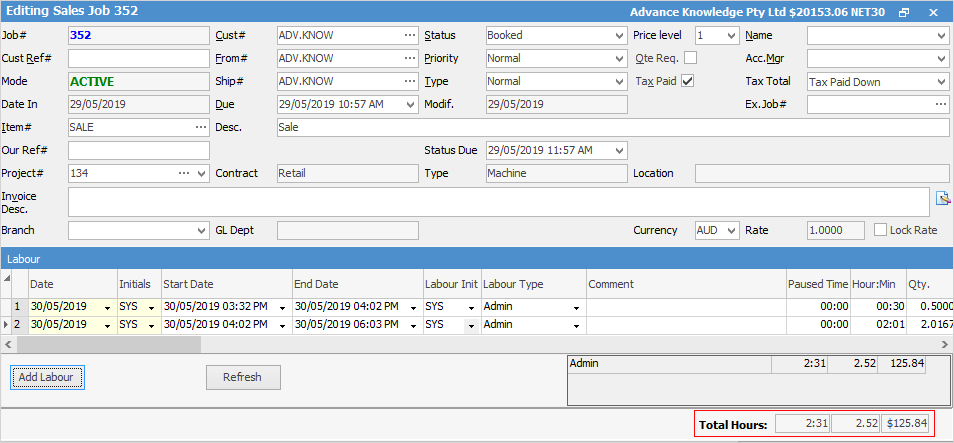
2.Then select the stock grid by either:
▪pressing the F4 function key, or
▪on the Job tab, position the cursor in the Stock Code field.
 |
Jim2 Stock Select screen allows for searching and selecting stock to be added to the job. Open the Stock Select screen by clicking on the ellipsis [...] in the Stock Code field, or using F5 whilst in the field. |
2.To add stock to a job, enter the stock code for that labour in one of the following ways:
▪select the stock code ellipsis [...] or press F5 whilst in the field, either of which brings up the Stock Select screen
▪start entering the stock code. Jim2 intuitive type will begin to pre-empt the choice as each letter is entered.
Once the labour has been selected, the stock description automatically populates from the stock record. This information can be added to or changed.
3.Enter the unit count for that labour (for example: 1.5 = 1½ hours) required for the job. The price calculations will be defaulted from the stock records and customer information – edit the prices at this point if necessary.
Further information
Add Stock to Job When Insufficient Stock
Auto Create Purchase Orders from Jobs
Charge Customer a Re-stocking Fee
Create a Job from a Similar or Previous Job
Create a Template for Recurring Jobs
Credit an Overcharged Customer
Export a Job Report to Spreadsheet
Export Labour Hours from a Job
Make Progress Payments and Claims
Select Serial Numbers on a Job
Stock Availability Allocation Process by List
Stock Availability by Location on the Fly