There are a number of ways to charge a customer a re-stocking fee charged by a vendor, ie. an invoice has been received for the fee that hasn't been entered into Jim2. Here are two ways to do so.
1.Add a new stock code, type Special and ensure the GL group selected for that stock code points the income to the desired general ledger account.

Create a job for the customer and add that stock code. Ignore the instruction to Please select stock and enter the stock description of the actual stock the fee is for in the Description field.
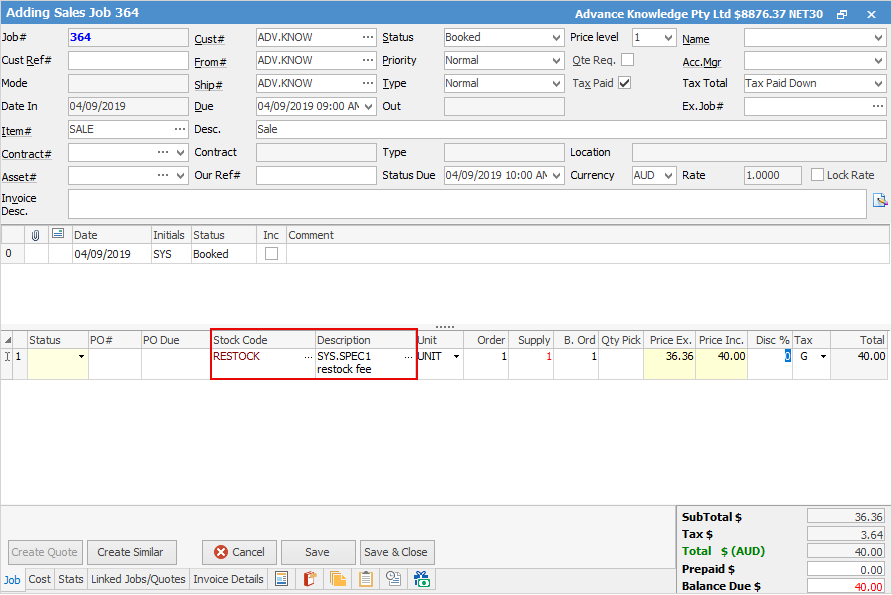
Enter quantity and pricing, finish and save.
Auto create a purchase order to buy the restocking fee from the vendor.
Finish the purchase order and the job.
2.Using a non strict return, there is no link to the original invoice, however it allows you to add journal stock with a negative value for the restocking fee.
With a non strict return, a debtors purchase order is automatically created to handle the stock side of the transaction, so the COGS must be checked and the debtors PO set to Finish for the process to be complete.
As there are a number of other ways to manage restocking fees, so please contact support@happen.biz for more information.
Further information
Add Stock to Job When Insufficient Stock
Auto Create Purchase Orders from Jobs
Create a Job from a Similar or Previous Job
Create a Template for Recurring Jobs
Credit an Overcharged Customer
Export a Job Report to Spreadsheet
Export Labour Hours from a Job
Make Progress Payments and Claims
Select Serial Numbers on a Job
Stock Availability Allocation Process by List
Stock Availability by Location on the Fly