When choosing a job as Ready to Invoice in Jim2, and the quantity supplied is lower than the quantity ordered, a message will appear asking whether to create a back order.
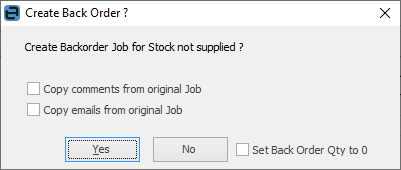
Click Yes to create a back order. Comments and emails can also be copied from the original job, as well as set the back order quantity to 0 – just tick the necessary boxes if required.
|
Tick Set Back Order Qty to 0 if a back order is not required. This will update the quantity of the back order to zero. Click No to proceed with invoicing. |

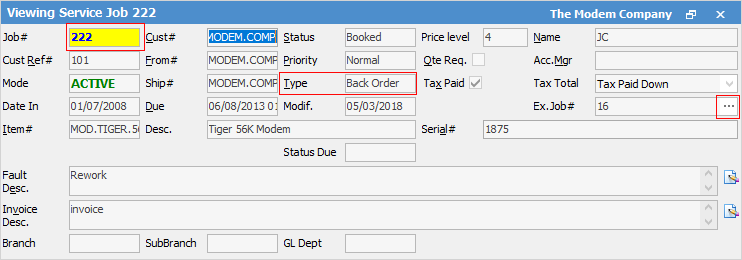
Jim2 will create the back order, showing the customer, Item, comments and the stock that is on back order. Also the Ex.Job# field will show the original job number, and that original job can be viewed by selecting the ellipsis [...] at the end of this field.
|
Date in and Date Due on back order jobs will show the original order dates. |
The job that is created will default to Back Order in the Type field of the job header. This indicates that it is a back ordered job, and is extremely useful when creating lists of back ordered jobs. The background in the Job# will also be highlighted Yellow on back order jobs, so they stand out in lists.
The Available Stock screen will indicate the customer's nominated back order setting at the top of the screen:
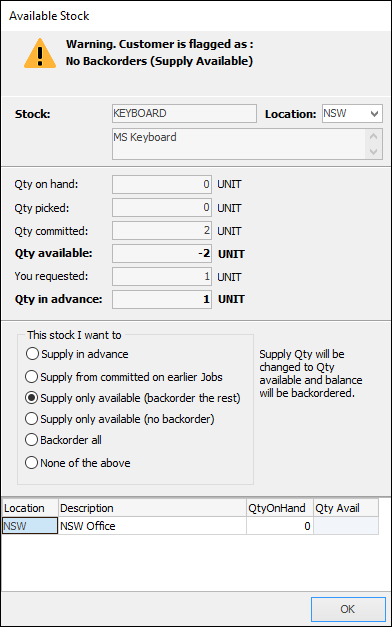
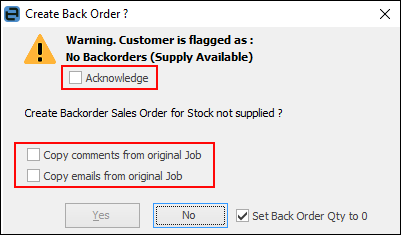
This can be overridden at point of generating the back order by ticking Acknowledge:
Further information
Add Stock to Job When Insufficient Stock
Auto Create Purchase Orders from Jobs
Charge Customer a Re-stocking Fee
Create a Job from a Similar or Previous Job
Create a Template for Recurring Jobs
Credit an Overcharged Customer
Export a Job Report to Spreadsheet
Export Labour Hours from a Job
Make Progress Payments and Claims
Select Serial Numbers on a Job
Stock Availability Allocation Process by List
Stock Availability by Location on the Fly