If Just In Time Stock Control is important, this feature will be of great use.
Auto create purchase order is used primarily for stock to be ordered specifically for a job or a list of jobs, and for linking jobs to a purchase order.
It takes into account:
▪what is on order
▪what is on hand
▪what is on an active stock transfer
However, it ignores:
▪Stock ordered for other jobs (eg. linked).
▪Stock on reserve/ready jobs.
▪Stock committed on other jobs.
The Jim2 functionality that takes all factors into account for purchasing quantity required is Stock Procurement. Stock Procurement looks at what is on jobs, transfers, purchase orders, and can use min/max, etc. to determine what is required to be purchased.
This feature will not link purchase orders to jobs.
 |
Note: Until a stock transfer is finished, the stock is considered as on order and will show on the stock code as on order. Jim2 assumes the stock is still in transit, so cannot be counted as on hand and will show as on order when calculating requirements for an auto-created purchase order. |
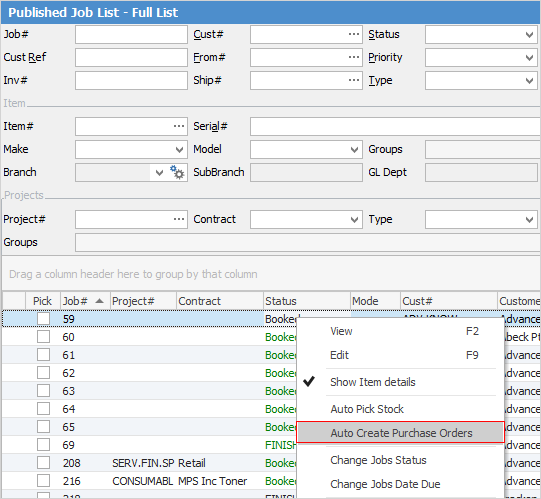
Easily auto create purchase orders directly from a job or list of jobs by right clicking and choosing Auto Create Purchase Orders.
|
Note: The correct way to auto create purchase orders is via a Job List. Creating purchase orders from the job should only be performed if there is definitely no manufactured stock already in stock. If there is stock on hand, the Auto Create Purchase Orders screen will not show the Manufacture checkbox. |
▪Add the stock codes to jobs up front (the job information will update the purchase order).
▪Open a job or create a list of jobs using any of the list criteria, and select Run.
▪Right click in the stock grid of a job, or anywhere within the Job List result to open the Auto Create Purchase Order form.
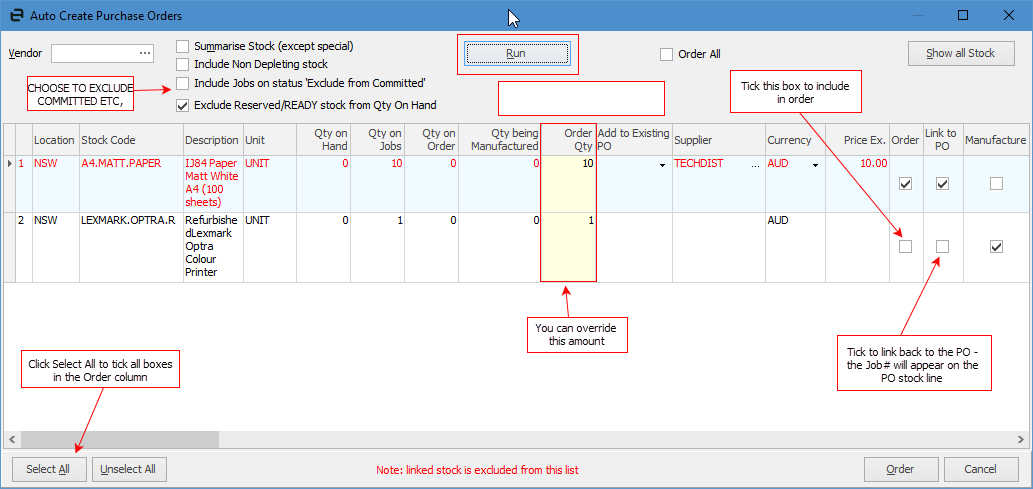
▪In this area, you can choose to exclude from committed stock on jobs or exclude reserved/ready stock from quantity on hand.
▪Click Run to load the stock required from the job or Job List.
|
Note: The Supplier and Price Ex. fields may have an orange background colour. This represents a manual cost and vendor override, either manually at job level or via a promotion. |
▪Make any alterations to the selected stock. The Order Qty column can be overridden to bring in more stock, and/or change vendor, etc. Choose which products to order using the Order column (tick/untick the box at a line level or use Select All/Deselect All).
▪Tick Link to PO, which will link the PO to the job. The PO# will appear in the stock grid, and the Job# will appear in the purchase order stock grid.
▪Click Order and purchase orders will be created for exactly what is required. These purchase orders can be edited further prior to sending them off to vendors if required.
|
At the bottom of the above image the wording Note: linked stock is excluded from this list means that no stock will be brought into this list if the job is already linked to a purchase order. |
Refer to Purchases and Expenses – How to Auto Create Purchase Order for full details.
|
Note: When auto creating PO from jobs, the due date for the PO will be based on what has been set up in Tools > Options > Jobs
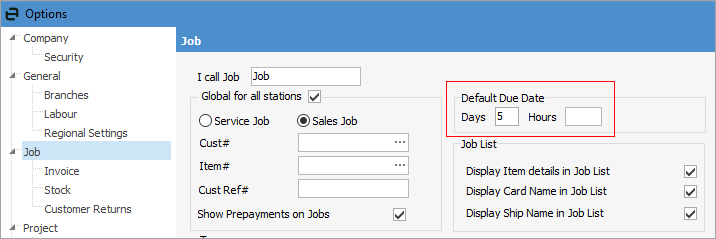
Using the above information, the due date on an auto created PO will be 5 days from the date the PO was created. |
Further information
Add Stock to Job When Insufficient Stock
Charge Customer a Re-stocking Fee
Create a Job from a Similar or Previous Job
Create a Template for Recurring Jobs
Credit an Overcharged Customer
Export a Job Report to Spreadsheet
Export Labour Hours from a Job
Make Progress Payments and Claims
Select Serial Numbers on a Job
Stock Availability Allocation Process by List
Stock Availability by Location on the Fly