Auto create purchase order is used primarily for stock to be ordered specifically for a job or a list of jobs, and for linking jobs to a purchase order.
It takes into account:
▪what is on order
▪what is on hand
▪what is on an active stock transfer
However, it ignores:
▪Stock ordered for other jobs (eg. linked).
▪Stock on reserve/ready jobs.
▪Stock committed on other jobs.
The Jim2 functionality that takes all factors into account for purchasing quantity required is Stock Procurement. Stock Procurement looks at what is on jobs, transfers, purchase orders, and can use min/max, etc. to determine what is required to be purchased.
This feature will not link purchase orders to jobs.
 |
Note: Until a stock transfer is finished, the stock is considered as on order and will show on the stock code as on order. Jim2 assumes the stock is still in transit, so cannot be counted as on hand and will show as on order when calculating requirements for an auto-created purchase order. |

Easily auto create purchase orders directly from a job (or list of jobs) by right clicking and choosing Auto Create Purchase Orders.
When auto creating a purchase order, Jim2 will check all depleting and special stock codes to see if it needs to order stock. Within the same process, it creates a link between the purchase order(s) it creates and the job that requires the stock. 1.View the required job. 2.Right click on the stock grid area of the job. 3.Click Auto Create Purchase Orders. 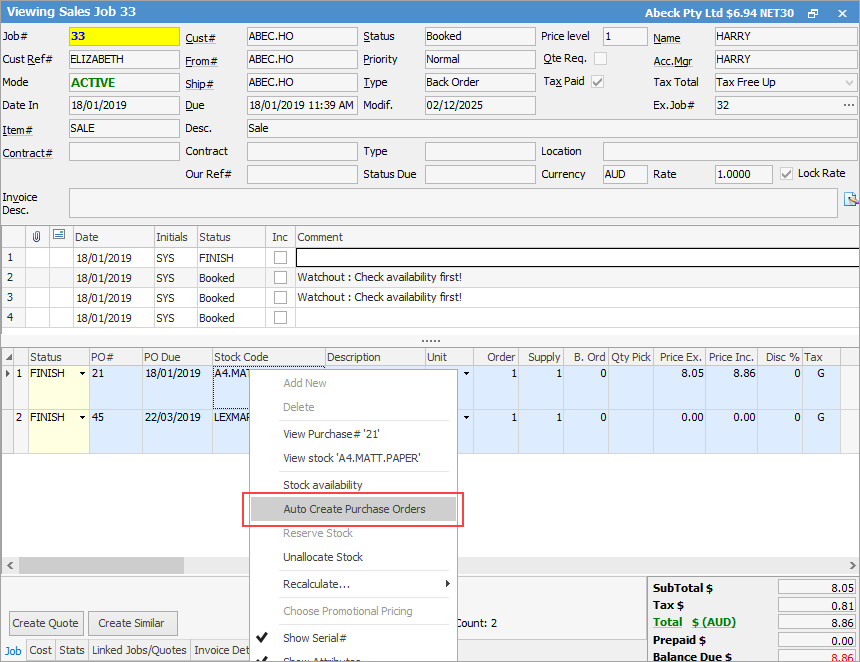 4.On the new screen, make selections in the header, ie. exclude reserved/ready stock, etc. and select Run. Stock requiring ordering will be displayed, along with the options of Order and Link to PO. The Link to PO checkbox refers to the link between the specific job and the purchase order that is about to be created, and the PO# will show in the stock grid of the job. 5.Make any alterations required to the selected stock. 6.The Order Qty column can be edited to bring in more stock and/or change the vendor, etc. Choose which products to order using the Order column (tick/untick the box at a line level, or use Select All/Deselect All). 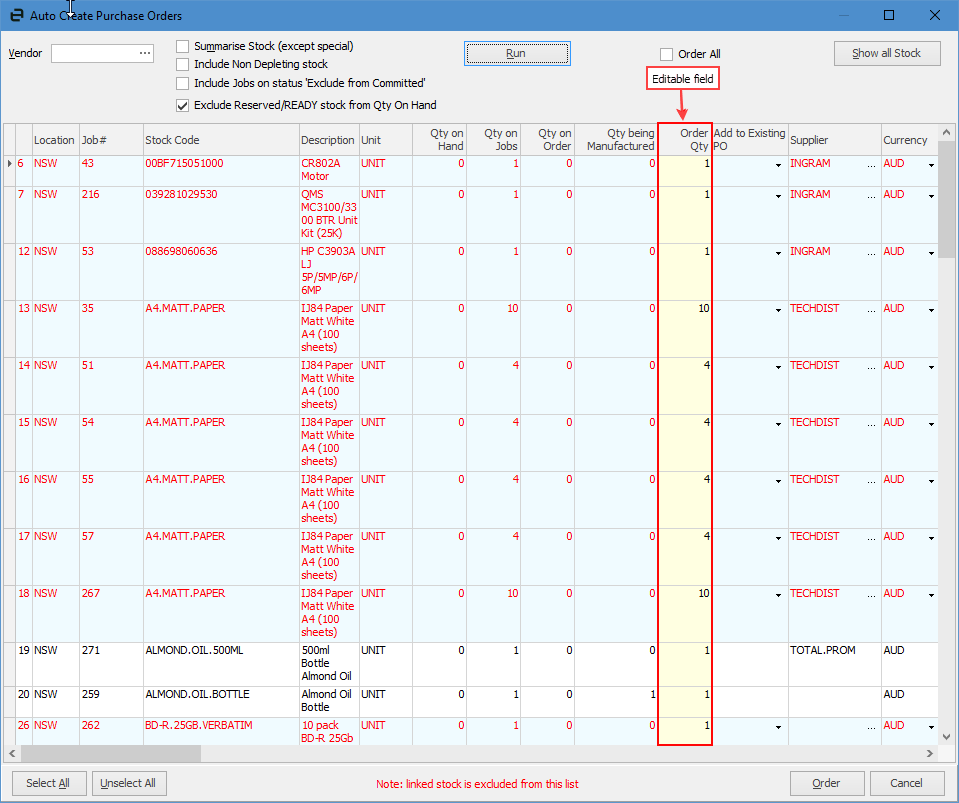
7.Click Order at the bottom of the screen to create the applicable purchase order(s). 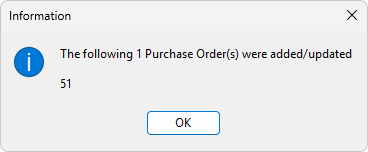 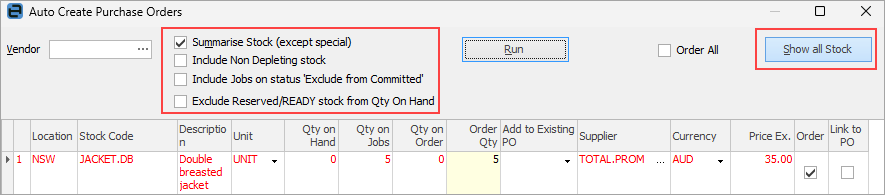 The Auto Create Purchase Order form allows the following criteria to be selected in any combination: ▪Enter a vendor code in the form only if a purchase order is to be created to one specific vendor (just for the stock they typically supply). If a vendor code is not entered, Jim2 will create multiple purchase orders to multiple vendors to fulfil the whole stock requirement. This function is based on the vendor ranking for each stock code. A different vendor can be chosen against stock. ▪Tick Summarise Stock (default from Job List) if purchase orders are not to be linked directly to the related job. If not ticked, Jim2 will automatically link (allocate) stock, line by line, on the purchase orders to their respective jobs. ▪Tick Include Non Depleting Stock for the form to pick up non depleting stock codes. As non depleting stock quantities are not tracked in Jim2, it cannot calculate how many are needed (on hand vs supplied). The order quantity will always equal the total count for that stock as per quantity ordered on each job. ▪All stock (depleting and non depleting) can be displayed from the Job List (requiring ordering or not) by selecting Show all Stock. This may help decide whether to top up certain stock lines before they run out.
Click Order and let Jim2 generate purchase orders to match the choices. Once the purchase orders are created, a message will appear showing the list of purchase orders that were just created. Once OK is selected, the first purchase order will open. Now edit/send these to the vendors. |
|
Stock displayed in red needs to be ordered (there is not enough stock on hand or on order to fill current job requirements). |
Where certain vendors are ordered from every day (or very regularly), create a running purchase order to that vendor, then use the Add to existing purchase order column to continuously update the open purchase order until ready to close and place the order. The status of the running purchase order would remain on Booked (active) until it was ordered then Received.
|
As with all lists, once run this will provide a specific snapshot of information to work with, the Auto Create Purchase Order form only works from this information (is not live). |
There is a matching manual report that uses the same calculation methodology as the Auto Create Purchase Order form. To review the results of the report, or raise purchase orders manually, run the Job List and choose the Job List – Required Stock For Jobs report.
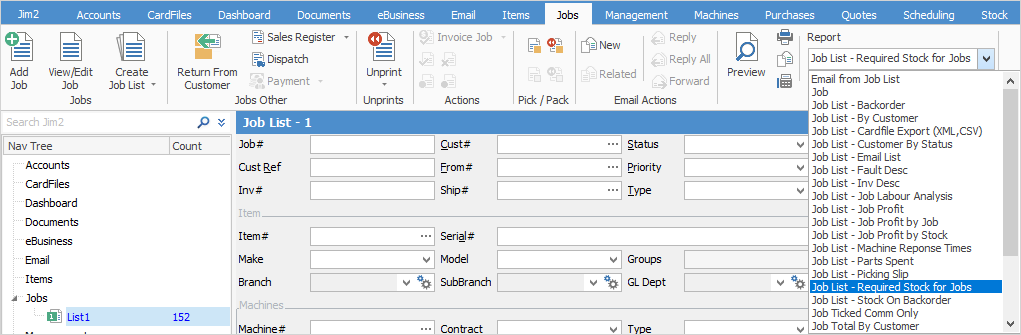
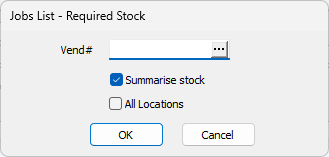
A screen will open allowing selection of:
▪A specific vendor or leave the selection blank to include all vendors.
▪To summarise stock or display in detail by job.
▪A specific stock location or all stock locations.

|
The Auto Create Purchase Order form works with specific job information, as does the Required Stock Qty for selected Jobs report. The Stock Reorder report uses stock record information such as minimum stock on hand counts, manufacturing requirements and so on. A combination of reporting methods may be required to cover all stock control needs. |

|
Refer to the section on Stock Procurement, as using this functionality can automate all stock ordering requirements. |
If the job is linked to a purchase order, open the purchase order and, in View mode, right click in the job number field and select Unallocate Stock.
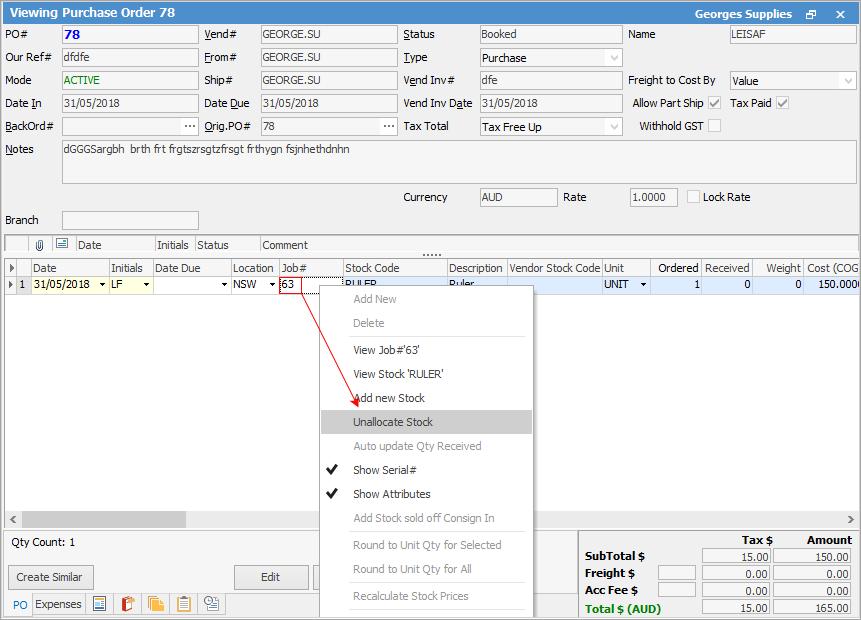
If you unlink a job from a purchase order via right clicking on the stock line of the PO, the job number will be removed from the purchase order.
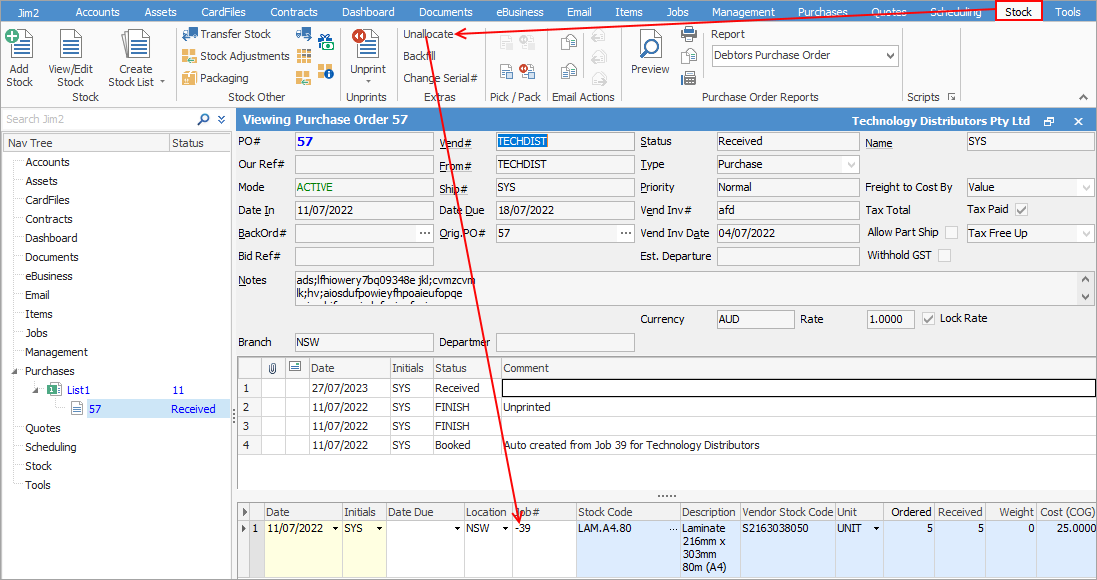
If you unlink the job from the purchase order using the Unallocate feature, instead of removing the job number on the purchase order, Jim2 will enter a - prior to the job number.
Further information
Add an Amount to a PO when Finished at $0
Add Comments to a Purchase/Expense Order
Add Freight to a Purchase Order
Enter Progress Payments on Purchase Orders
Export a Purchase Report to Spreadsheet
Fix Incorrect Pricing after PO Finished
Fix Incorrect Vendor on Purchase Order
Handle Employee Reimbursements
Handle a Credit for Freight Charged
Link a Job to a Purchase Order
Link Expenses to a Purchase Order
Print a Purchase/Expense Order
Record One Invoice Number on Multiple POs
Record Overseas Purchases, GST, Import Costs