The approval process can be achieved using statuses.
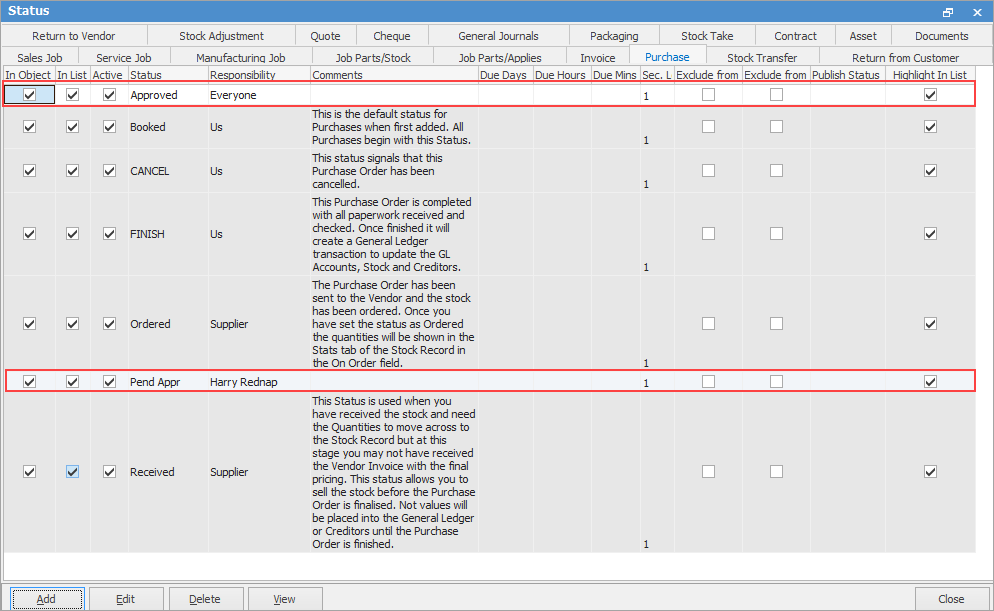
On the ribbon, go to Tools > Status and add a new status called Pend Appr, and another status called Approved. If only one person is responsible for approving, you can enter that name in Responsibility.
Jim2 user creates a new purchase order on default status Booked. Once the PO has been edited and is ready to submit, change PO status to Pend Appr and change the Name (if required).

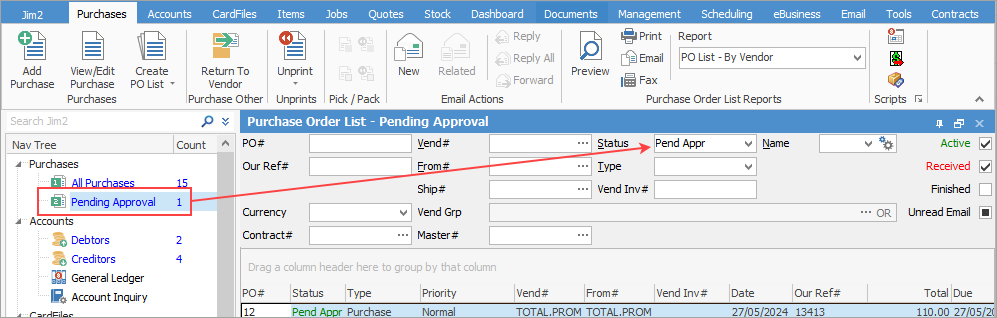
With a pinned live list for purchase orders on the status Pend Appr, your approver can see a new request has come in, and use the list to open the purchase order for review
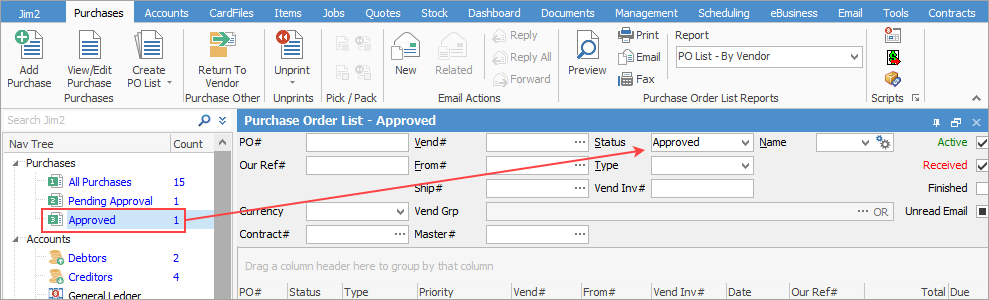
Once the purchase order is approved, it can be moved to the status Approved, ready for the team responsible for sending purchase orders to take action from their own pinned live list
You can assign a Security Level to a status, so the 'Approved' status can be locked to a higher security level for managers or similar.
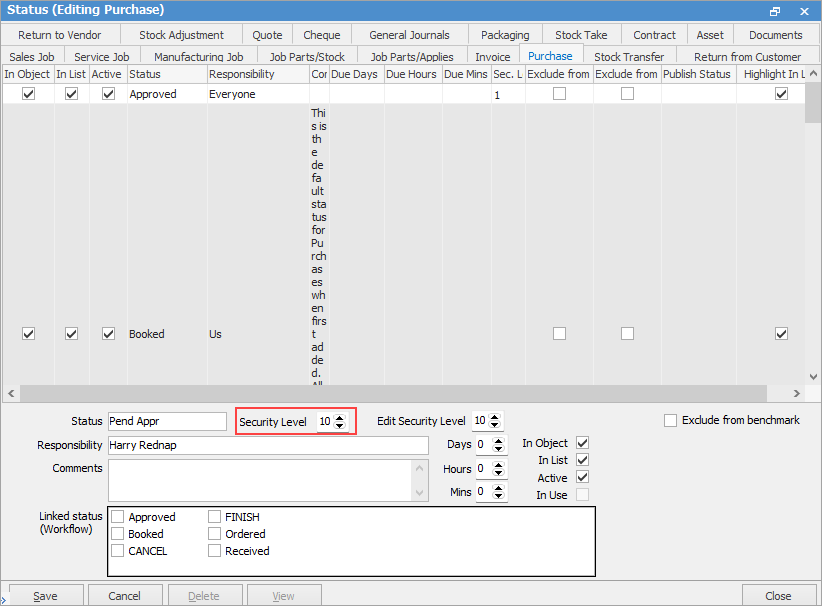
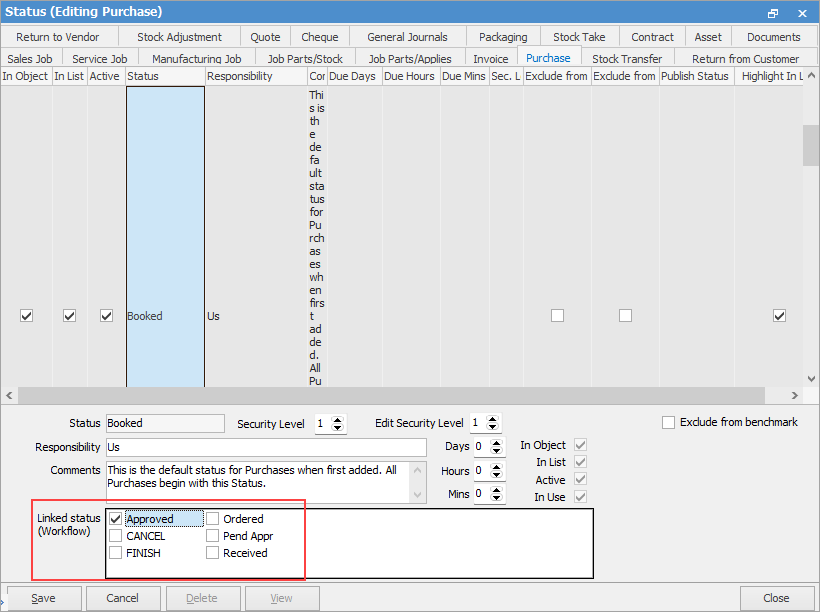
You can also control the linked statuses to prevent orders being taken directly from Booked to Ordered, as a way of limiting the options available for the user processing it..
Further information
Opening Balance Purchase Order