This section of the Purchase/Expense Order form contains a grid for recording relevant user comments to the purchase record, along with storing all related emails. Because these comments form part of the quality record for each purchase, any additions by a user are automatically time/date/initial stamped for accuracy and provide an excellent quality record of events.
 |
Note: Maximum character limit of 8.000 within the comments. |
Comments within the Comment grid are normally for internal use, and will not form part of the purchase/expense order print report that is sent to the vendor.
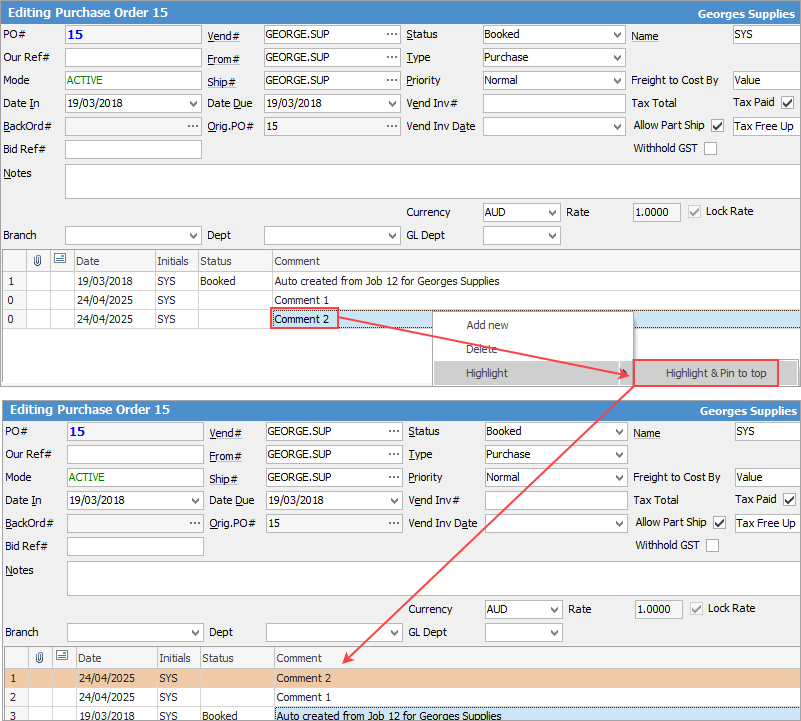
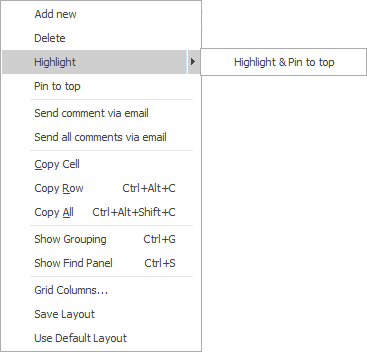
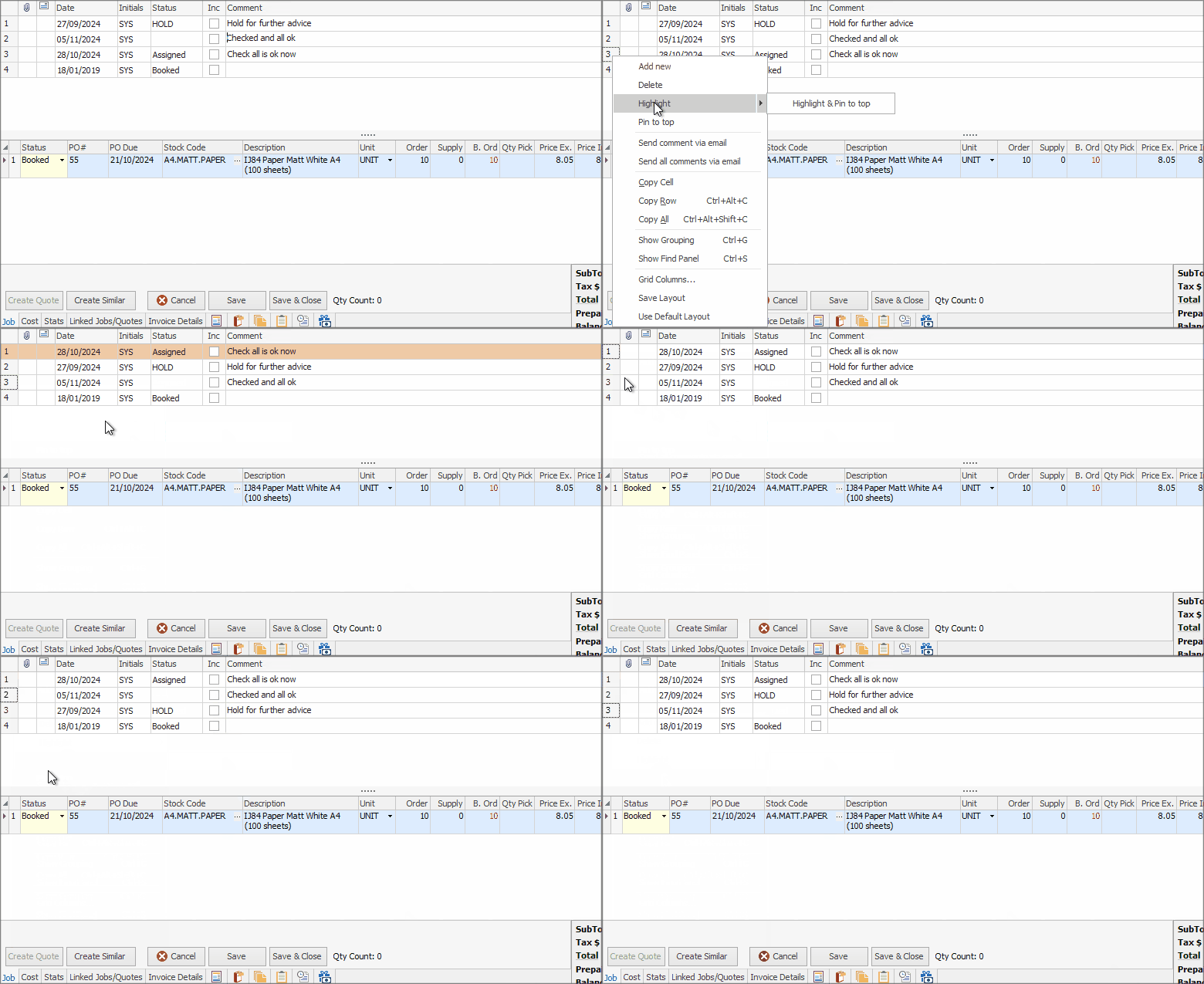
In Edit mode, you can click on any comment line and select Highlight & Pin to top. This will bring that line to the top of the grid and colour the background orange.

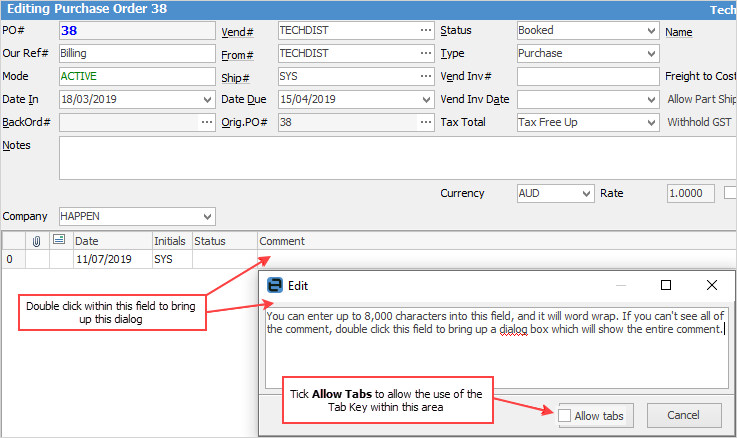
In Edit mode, double click in the Comment to bring up this dialog:
|
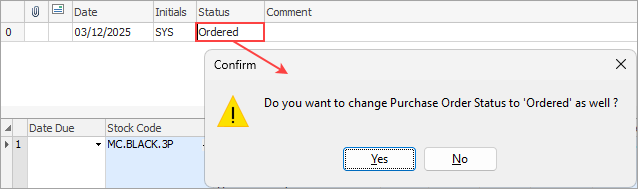
A time/date/initial comment line will be added to the Comment grid whenever the status of the purchase order is changed. Conversely, if a comment with a status is added to the Comment grid, Jim2 will ask the user if they would like to change the status of the purchase order.
 |

The fields within the Comment grid are described below:
Field |
Explanation |
|---|---|
|
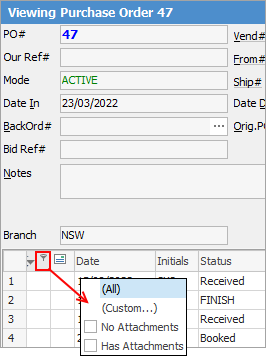
This icon will appear if there are attachments to an email. Select the paperclip and select Has Attachments allows you to view only linked emails that include an attached file.
 |
|
This icon will indicates that this line is an email, ie. received, replied, forward, read, not read. |
Date |
The date and time that the comment was added (hold the mouse pointer over the Date field and the time will appear). |
Initials |
Shows the initials of the user who added the comment. |
Status |
This field will show the current status of the purchase order. |
Comment |
This is a multi-line text field with word wrap (limited to 8,000 characters) where enter relevant information. Right click and add a comment in either View or Edit mode, even if the purchase is Finished. |


|
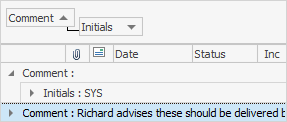
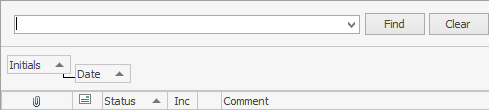
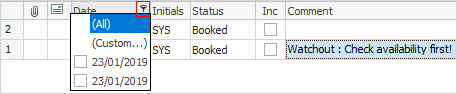
Within the Comment grid, hover over a heading and a the Filter
The custom filter choice allows to define the search further:
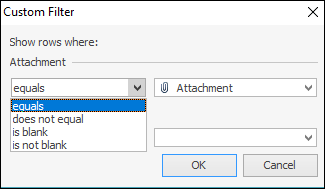 |
 image will appear. Click the filter icon to see a list of available filters to help refine the search. This is particularly useful when there are a lot of comments within the grid. These filters will only show comments within the grid specific to the filter chosen.
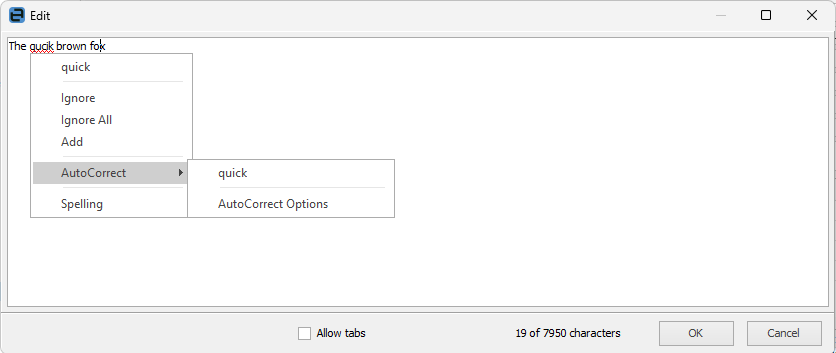
Spell checker is usable within key text entry areas such as the Comment grid and Labour Entry screens. All spelling options are at a user level.
Autocorrect options can quickly be adjusted whilst within the spell checker by right clicking within the Edit screen:
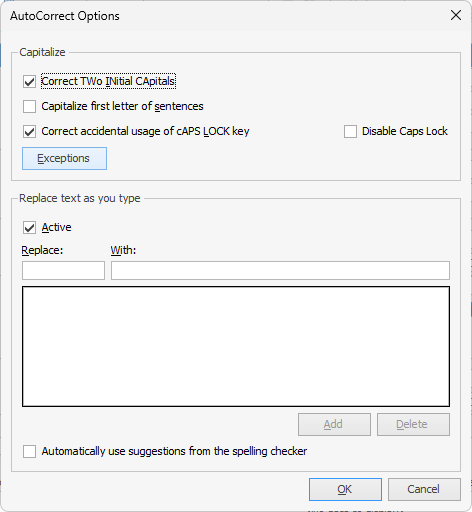
Among the autocorrect options is the ability to turn on or off the autocomplete function.
Note that autocorrect is off by default in a new Jim2 setup.
|
Further information
Opening Balance Purchase Order
Purchase/Expense Order Footer Tabs