This section of the Purchase Order form contains a grid used to record any stock that will be purchased from the vendor. The stock grid contains a number of different fields, which can vary slightly depending on the type of stock being purchased.
The stock grid area can be expanded by clicking and dragging the horizontal dots up and down. Double clicking the dots will hide the stock grid completely. Double click again to show.
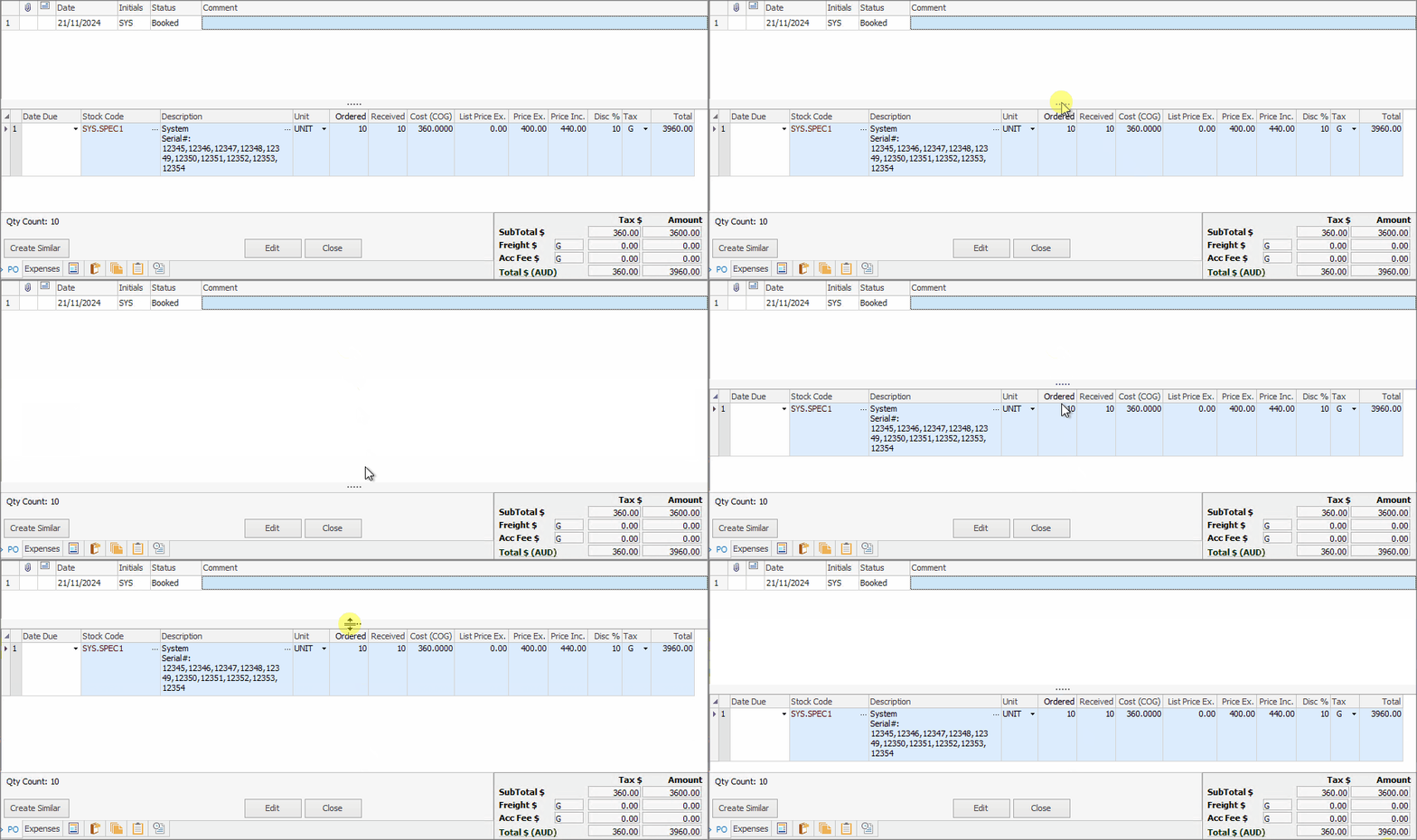
You can also expand/contract the stock grid by clicking on the solid arrow at left of the header row.
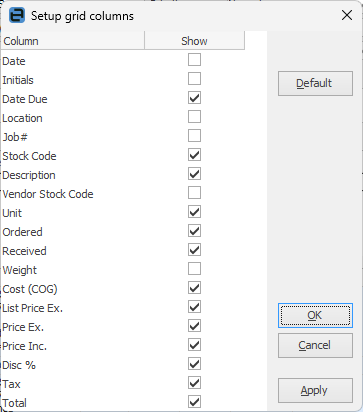
Within this grid is displayed information about the cost of the goods, the tax free and tax paid price of the goods, discount, the tax code and total of the stock.

The column showing Job# has two meanings:
1.This is automatically populated by a job when it creates a back order.
2.Entering a current job number into the stock grid will automatically add a stock line within the job for that particular stock.
|
Some fields are only active in Edit mode. You can click the right facing arrow at left of the headings and this will show/hide extra columns:
 |

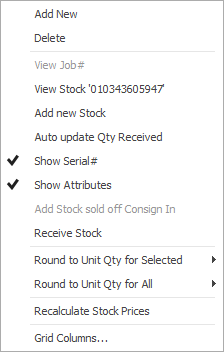
If stock is entered which has serial numbers on purchase in that stock record, these need to be entered before finishing the purchase order. The serial numbers entered here will be recorded within the stock record in Jim2 for use when selling that stock in a job. Once the stock is received, the serial number details must be entered before finishing the purchase order.
To enter serial numbers, select the ellipsis [...] within the Description field.

This will open the Serial# entry form where record the serial numbers of the received stock, or create other numbers. Serial numbers are limited to 50 characters.
The stock lines can be rearranged within the grid, however if the purchase order is on Received or Finished, you cannot rearrange them:

|
If the job is finished with missing serial numbers, a prompt will appear asking to back order those without serial numbers. For example, order 5 but only 3 serial numbers are entered. Jim2 will offer to back order the rest. ▪Click No and finish the job and Jim2 will only supply and invoice 3. ▪Click Yes and Jim2 will offer to create a new job for the two on back order and will only supply and invoice 3.
Either way, Jim will only dispatch/invoice the stock that has a serial number selected. |

Field |
Explanation |
||
|---|---|---|---|
Date |
The date that the stock line was added to the purchase order. |
||
Initials |
The initials of the user who added the stock. |
||
By default, this value will be empty, in which case the purchase order due date is as per the due date on the Purchase Order header. To set the due date for a specific line of stock, edit the purchase order and set the expected delivery date in the Due Date column.
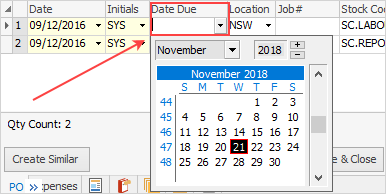
PO due dates can be updated automatically via custom scripts, in the case where the vendor provides this information on a regular basis. Please contact support@happen.biz for more information on custom scripting to provide this automation. |
|||
Location |
The location of the stock when purchased. |
||
Job# |
When entering a job number in this field, the background of the stock line within the purchase order will show in a pale blue colour and the stock line will be automatically added to the job upon saving. This number will autopopulate when a back order PO is auto created from a job.
A job with a minus symbol (-) in front indicates that that the PO has since been unlinked. |
||
Stock code |
The stock code will identify the product or service being ordered. Choices can be made from the Stock Select form via the drop down list beside this field. |
||
Description |
The description of the stock from the stock record is automatically placed in this field. If there are multiple measures for this stock, it will use the description appropriate for that measure.
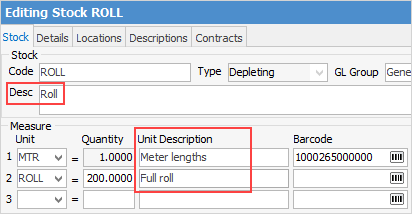
This field has a limit of 1,000 characters. |
||
Vendor Stock Code |
This field will be populated from the Vendors tab of the stock code, if entered. |
||
Unit |
Use the drop down list to choose the unit measure required to purchase that stock in, eg. Unit, Pack, Box, etc. |
||
Ordered |
The quantity ordered. |
||
Received |
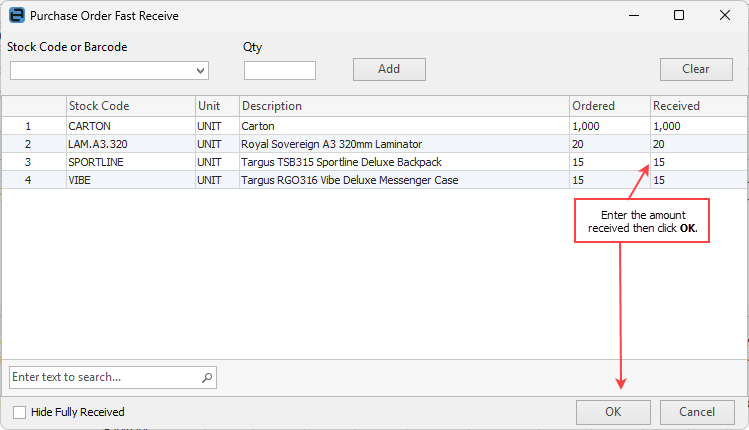
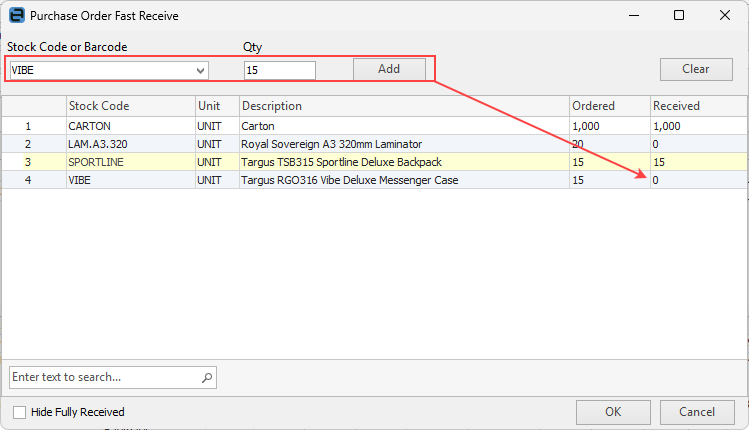
The quantity received from the vendor.
|
||
Weight |
The weight of each unit, if entered on the stock code. |
||
Cost (COG) |
This is the cost of the goods and will include any freight and/or expenses added. |
||
List Price Ex |
This is the list price of the goods excluding tax. |
||
Price Ex |
This is the price of the goods excluding tax. |
||
Price Inc |
This is the price of the goods including tax (the tax code as set up within the stock record). |
||
Disc % |
If global variable is set to True, the Disc % column will allow you to add a discount here. |
||
Tax |
The tax code to be used for this purchase. |
||
Total |
The total amount of that stock line (Qty Ordered X Price Inc). |

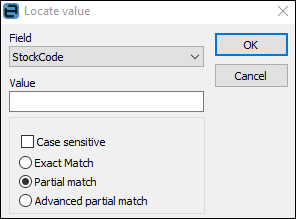
Within the stock grid, you can search all columns and rows by selecting Ctrl+S. This will bring up the Locate value screen, where select which field to search and enter text to search for in the Value field
Price columns
|
Total $ Amount in Footer of Purchase
The total in the footer will show the actual total based on quantity supplied. Click Total and it will change to green, which will change the total amount to match the quantity ordered.
|

Further information
Opening Balance Purchase Order
Purchase/Expense Order Footer Tabs