Once stock has been added to a job, it is possible to reserve that stock, effectively stopping other users from selling any of the stock (and the quantity nominated) already in the stock grid of that job.
|
Stock can also be reserved at a line level (see below for more information). |

There are two ways to reserve stock against a job:
1.Make the job Ready to invoice, effectively preparing for immediate sale, or
2.Mark the stock as Reserve (see below), and allowing the job to be processed further
 |
Jim2 regards stock as on hand until the job is invoiced. |
There are three distinct ways reserve stock.

Committed can be thought of as a soft level reserve. Committed stock is stock that is allocated to jobs prior to the current job. Under Tools > Options > Stock choose to exclude committed from the amount of stock available.
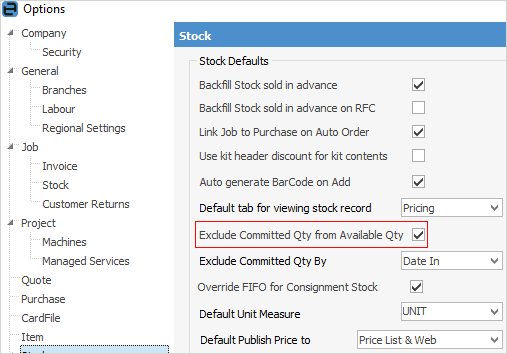
For example, there are 10 in stock, with 6 on prior jobs, so the total stock available to sell is 4. The committed quantity can be excluded by either the job's due date or the date in, meaning either by when a job is required to ship, or by the order that jobs are entered. Users can sell stock that is committed on prior jobs if they have the appropriate security: Tools > Security > Jobs > Stock on Jobs > Sell committed stock. |
Line level reserve can be though of as a medium level reserve. Line level reserve allows reserving stock for a job, and will not allow anyone else to sell that stock on any other job, regardless of whether it has been committed. In the above example, there would only be 4 available to sell. Line level reserve does not remove the stock from the purchase order, but does exclusively reserve the stock for that job, and that job alone.
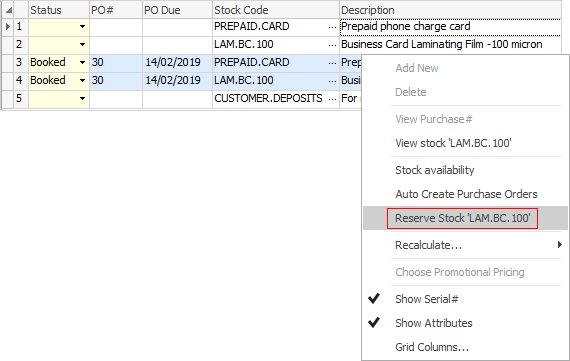
When reserving stock in this manner, the background of the stock line will turn light grey.
 |
Job reserve can be though of as a hard level reserve. This reserves the entire stock on a job, and allocates the stock from the purchase order. When reserving stock in this way, the entire stock grid background will turn light grey.

If the stock is serialised, the serial numbers must be selected prior to reserving the job. This is similar to marking a job as Ready, however, unlike Ready the job can still be edited except for the stock grid.
 |
|
Jim2 is not a passive environment when it comes to stock control. Jim2 can calculate stock quantity available on the fly using information on stock measures, stock locations, stock transfers, returns from customers, returns to vendors and purchase order status. Jim2 will prompt users to create back orders for part supply/receipt of stock on jobs and purchases. |

|
If stock has been purchased specifically for a job, it is automatically unavailable to invoice to any other job. If the sale does not go through, or the stock is needed for another job, unallocate (from that job) the stock in question – freeing it up for sale, but of course reorder. |
▪If the job involves the immediate sale of stock, and no further processing or input is required, select the job as Ready to invoice. This will lock the whole job (including its stock) from further edit, and Jim2 will reduce the available stock quantity count.
▪If the job requires more processing or input prior to invoicing, use the Reserve Stock function to effectively hold the stock in question until the job is ready to invoice. This allows further edits on the job, but Jim2 will reduce the available stock quantity availableunt.
Further information
Add Stock to Job When Insufficient Stock
Auto Create Purchase Orders from Jobs
Charge Customer a Re-stocking Fee
Create a Job from a Similar or Previous Job
Create a Template for Recurring Jobs
Credit an Overcharged Customer
Export a Job Report to Spreadsheet
Export Labour Hours from a Job
Make Progress Payments and Claims
Select Serial Numbers on a Job
Stock Availability Allocation Process by List
Stock Availability by Location on the Fly