To quickly add labour to a job, locate the job and select Edit. Click the Labour icon in the job footer.
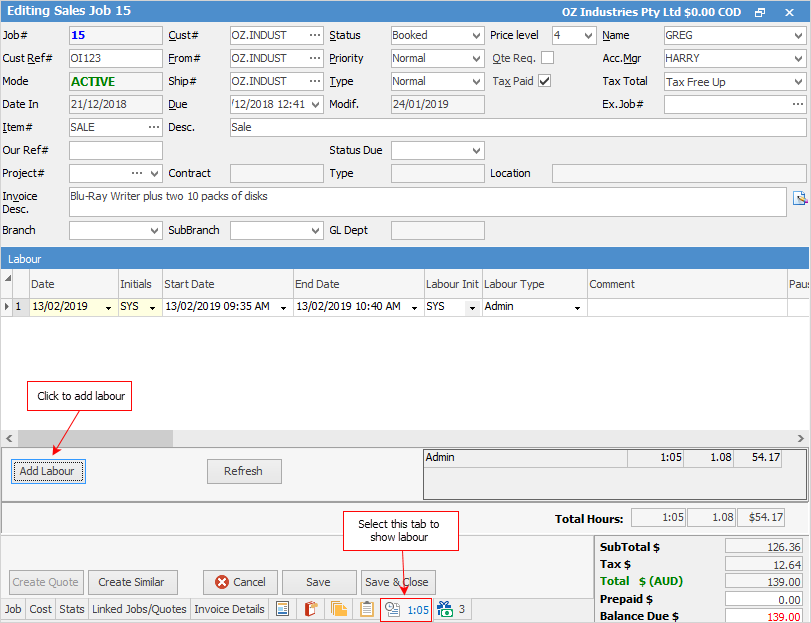
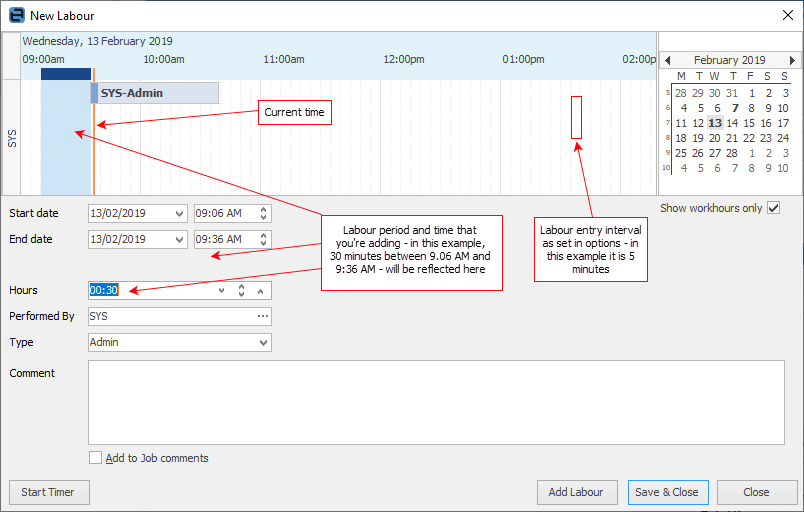
A screen similar to the one shown above will open. Click Add Labour. If necessary, adjust the start and end times (including the date), the Performed By name, and the type of labour. An optional comment can also be added.
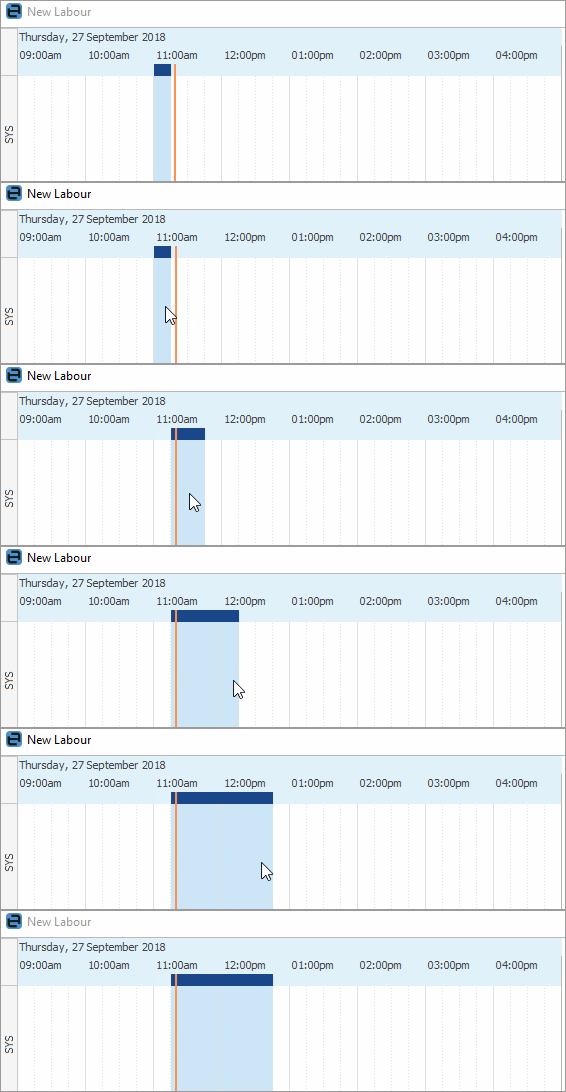
Labour time can also be quickly added by selecting the blue bar in the Labour grid and dragging it to the time required:
Actual labour will show in Job Profit reports, however it does not affect the Profit field within the Cost tab of a job.
 |
When first opened, the New Labour screen shows the default labour entry (hours) that have been pre-defined in Options. |

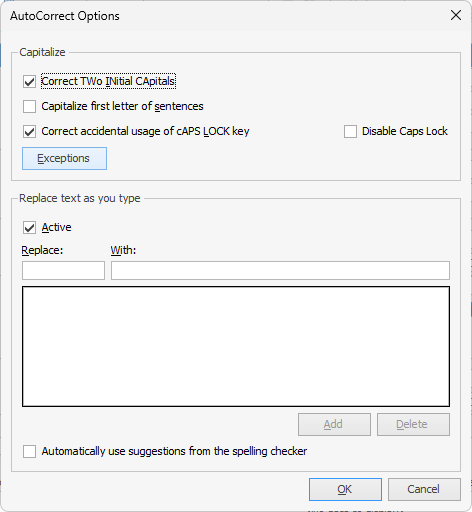
Spell checker is usable within key text entry areas such as the Comment grid and New Labour screens.
Among the auto-correct options is the ability to turn on or off the auto-complete function.
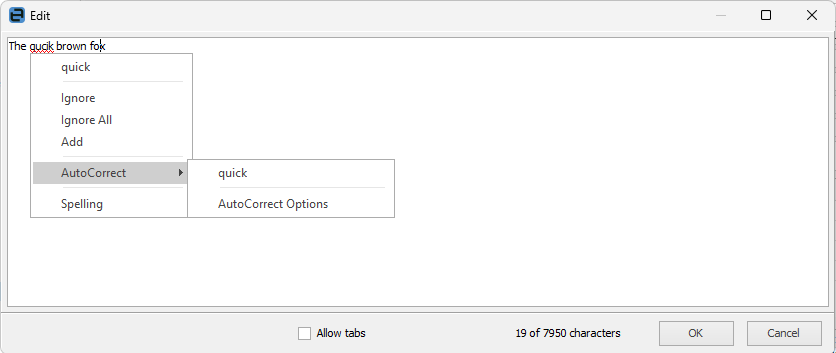 Right click options in Comment grid
|

Further information
Add Stock to Job When Insufficient Stock
Auto Create Purchase Orders from Jobs
Charge Customer a Re-stocking Fee
Create a Job from a Similar or Previous Job
Create a Template for Recurring Jobs
Credit an Overcharged Customer
Export a Job Report to Spreadsheet
Export Labour Hours from a Job
Make Progress Payments and Claims
Select Serial Numbers on a Job
Stock Availability Allocation Process by List
Stock Availability by Location on the Fly